Chapter 11 Cable Loss Operation
Changing the frequency settings
9102 Handheld Spectrum Analyzer Software version 5.31
177
Changing the main
menu for different
frequency parameters
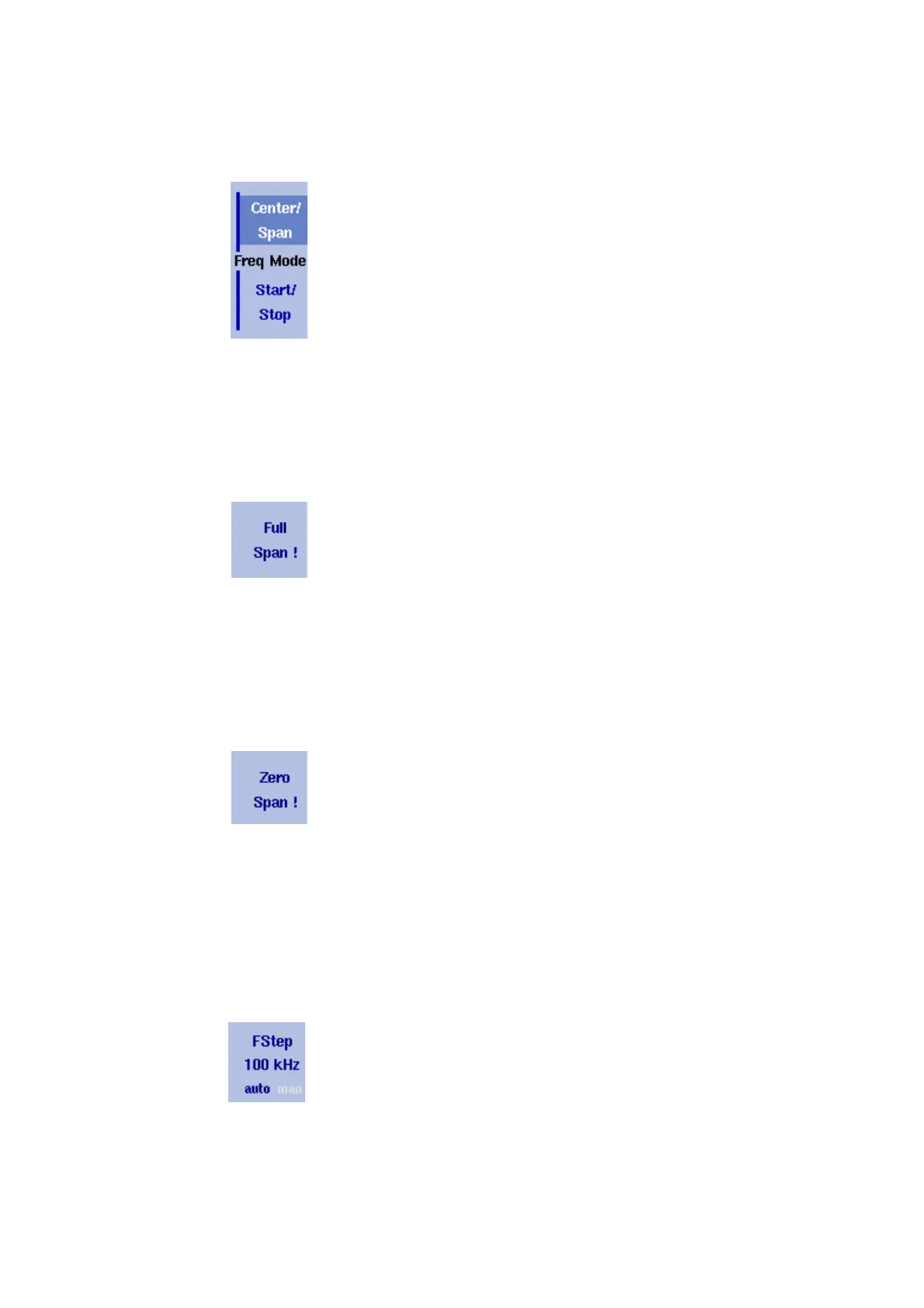
The Reflection main menu shows two softkeys for the definition of the
frequency range on the display. Different methods exist to define the
range as depicted above; you can configure these softkeys to one of
the two allowable combinations as follows:
1 From the Reflection main menu, select
Freq > Freq Mode.
2 Select the combination of softkeys that you want to see in the main
menu (
Start/Stop or Center/Span).
3 Return to the main menu by pushing the
Main ... softkey.
The main menu appears and displays the selected combination of
keys.
Note that the description of the horizontal frequency axis changes with
the selected parameter set.
Viewing the complete
frequency band
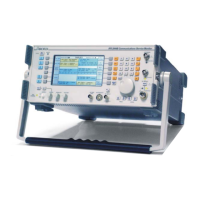
To change the frequency range to the full bandwidth supported by the
9102 for cable loss measurements, proceed as follows:
1 From the Reflection main menu, push the
Freq softkey.
The Frequency menu is displayed.
2 Push the
Full Span softkey.
The leftmost frequency changes to 0 Hz and the rightmost
frequency to 4 GHz.
Performing
measurements in the
time domain
Measurements on a selected center frequency can also be displayed
in the time domain.
1 From the Reflection main menu, push the
Freq softkey.
The Frequency menu is displayed.
2 Push the
Center softkey and enter the desired center frequency;
close the input field by selecting the appropriate unit with one of
the enter keys.
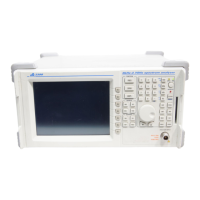
3 Push the
Zero Span softkey.
The horizontal axis becomes the time axis. The scale width is iden-
tical to the sweep time.
Selecting the step size
for the frequency input
The center, start and stop frequencies can be set either by entering a
new value with the numeric keys, or by using the arrow keys (U
P,
D
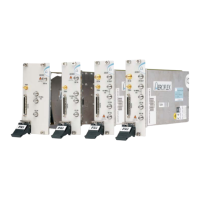
OWN) to increase or decrease the current setting. The step size for an
arrow keypress can either be selected automatically by the 9102, or
manually adjusted.
Manually setting the frequency step size
1 From the Reflection main menu, select
Freq.
2 Push the
FStep softkey.
The Freq Step entry field opens.



 To Next Page