Chapter 7 Transmission Operation
Setting the tracking output power
118 9102 Handheld Spectrum Analyzer Software version 5.31
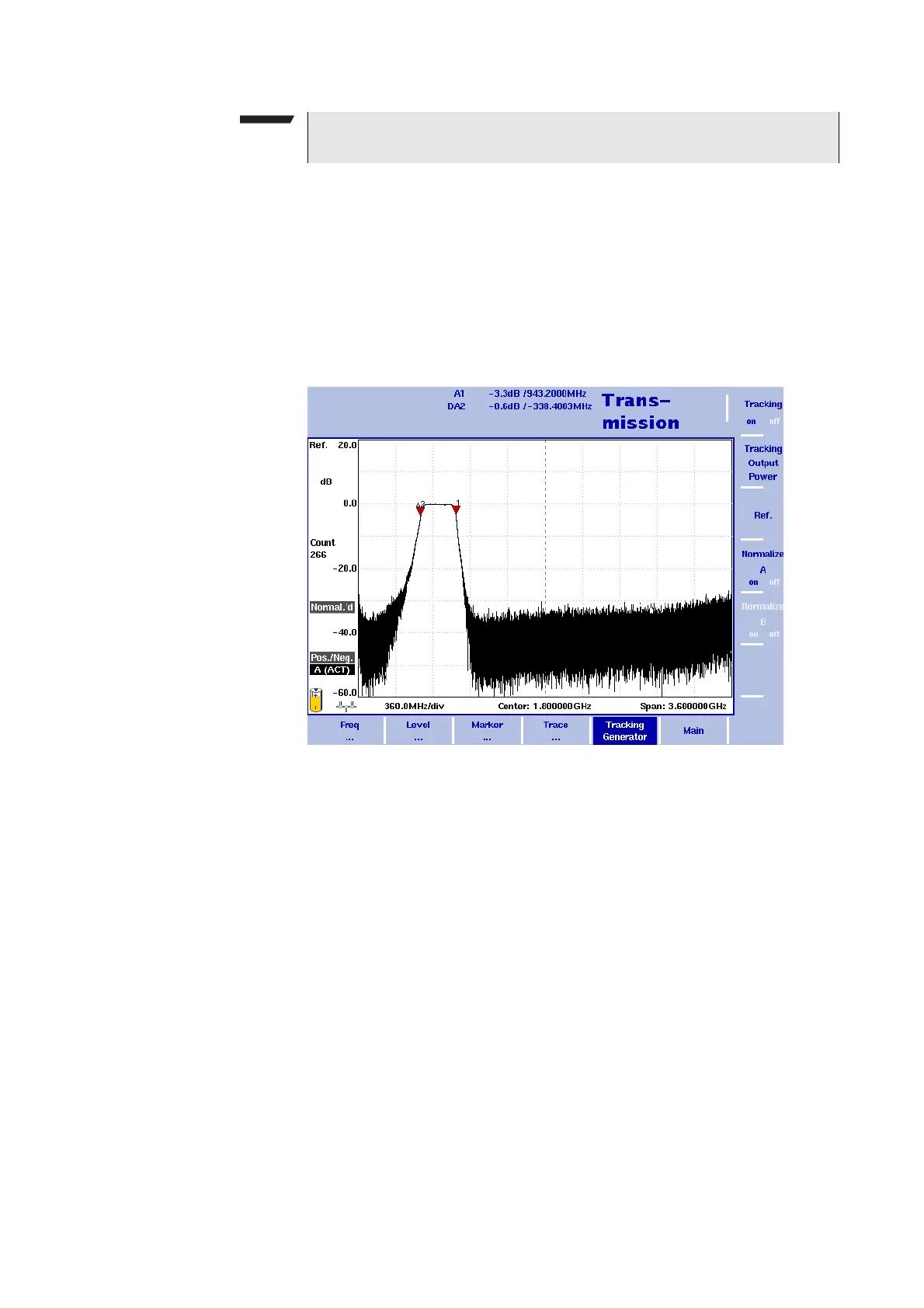
The message “Normal.’d“ on the left-hand side of the results area indi-
cates that the display is normalized. If you change measurement
parameters, e.g. tracking output, frequency settings or attenuation, it
may be necessary to repeat the normalizing procedure. If this is the
case, the message “Normalize“ will be displayed against a red back-
ground on the left-hand side of the results area.
The following figure shows trace A after normalization has been acti-
vated.
Setting the tracking output power
The tracking generator’s output power can be set in a range from –10
to
–30 dBm. In order to change the output power proceed as follows:
1 In the Transmission main menu, press the
Tracking Generator
softkey.
2 Press the
Tracking Output Power softkey. The Tracking Output
Power input field appears.
3 Use the
UP/DOWN cursor keys to enter a new output power value in
1 dBm steps or enter the new value using the numeric keypad.
4Press E
NTER.
NOTE
If trace B is not active, the Normalize B softkey will be greyed out.
Figure 33 Normalize A on


 To Next Page