Chapter 2 General Operation
Checking general settings
9102 Handheld Spectrum Analyzer Software version 5.31
51
The colors of the traces, the grid and the limit lines can be modified as
follows:
1 Push the M
ODE function key.
2 Select
System > Color Scheme.
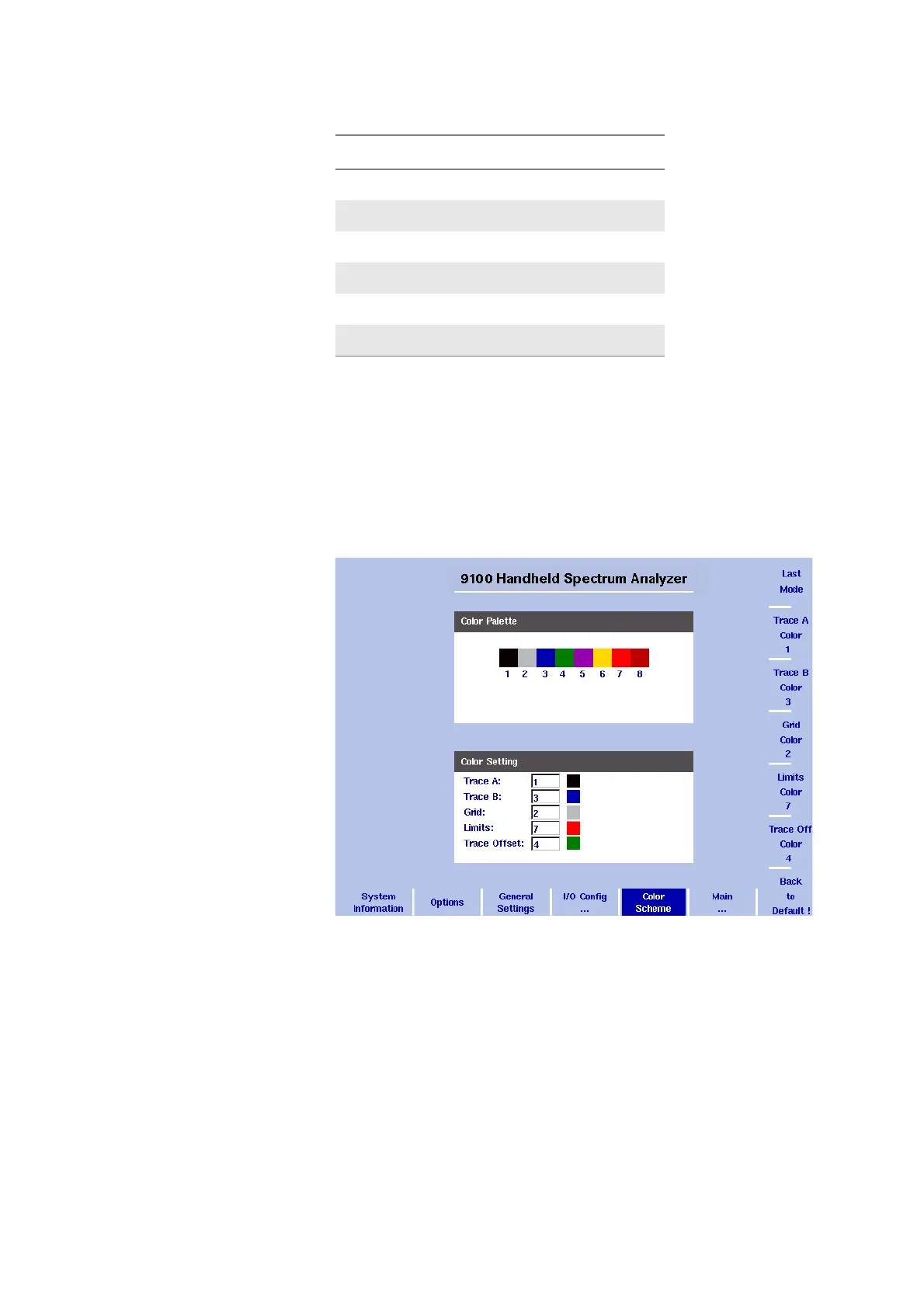
The color scheme display appears (see Figure 15), showing the
current color settings.
3 To change the color of a user interface element, push the appro-
priate softkey (Trace A, Trace B, Grid, Limits or Trace Offset Color).
The input field on the left is activated.
4 To select a new color, enter a number corresponding to the colors
in the color palette and press E
NTER, or use the UP/DOWN cursor
keys to change the color.
The color field to the left of the input field changes according to the
selection made.
5 Press the
Last Mode softkey to return to the measurement screen.
The new color scheme takes effect immediately.
3blue
4 green
5 violet
6 yellow
7red
8 brown
Figure 15 Color scheme menu
Table 12 Color palette in the 9102 user interface
Color number Color



 To Next Page