382
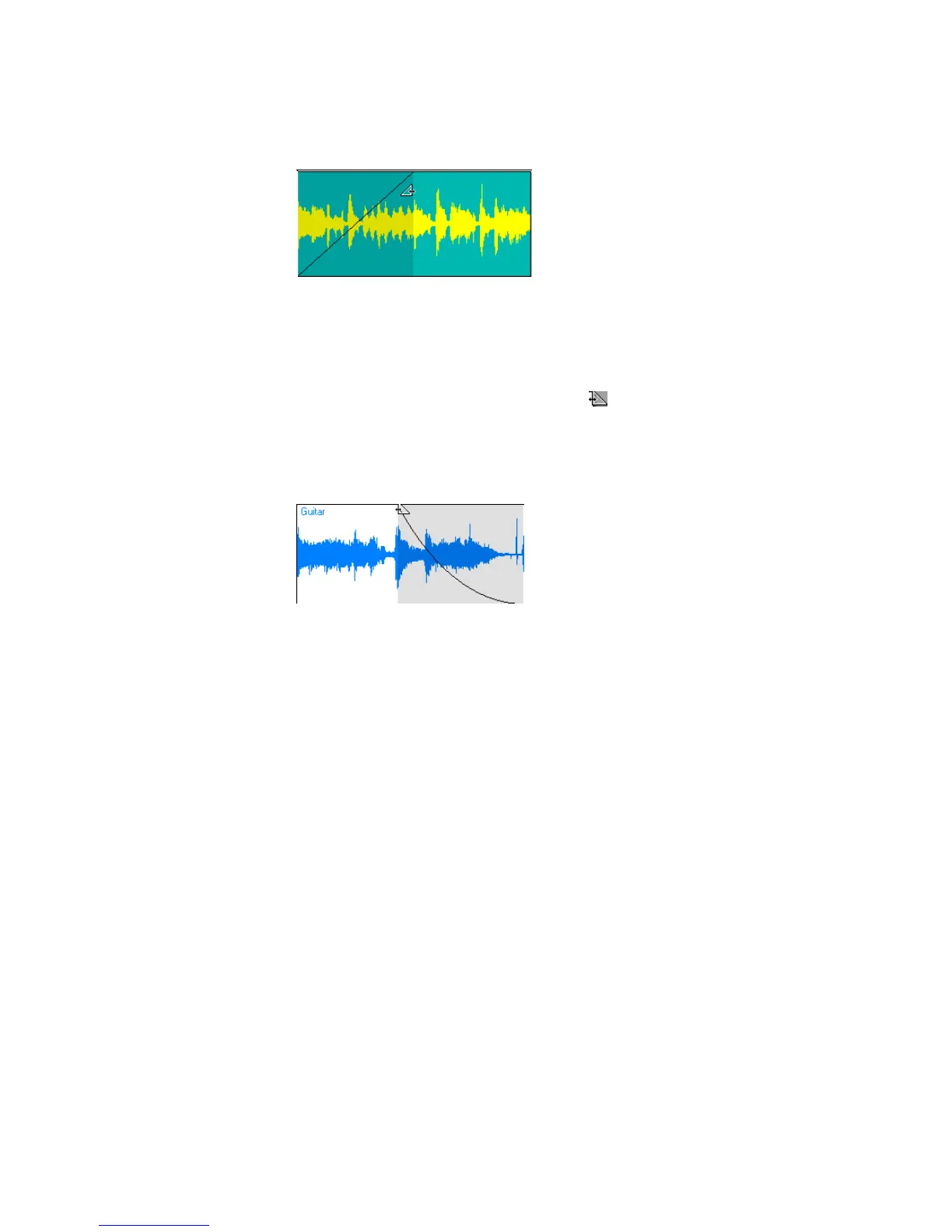
As you drag your mouse a fade-in appears on your clip.
To Create a Real-time Fade-out in an Audio Clip
Use the following procedure to create a fade-out in an audio clip:
1. In the Track view’s Clips pane, move your mouse over the top part of the end
of a clip until the cursor looks like this: .
2. When your cursor changes, click and drag to the left until you reach your
desired fade-out length.
As you drag your mouse a fade-out appears on your clip.
To Create an Automatic Crossfade (Real-time)
Use the following procedure to create a crossfade between two audio clips:
1. In the Track view, click the Enable/Disable Automatic Crossfades combo
button located next to the Snap to Grid button or press the x key.
2. Click the down arrow on the Enable/Disable Automatic Crossfades combo
button, select Default Crossfade Curves and select a crossfade curve.
3. Select and drag an audio clip so that it overlaps another audio clip. You should
overlap the clips by the length you want the crossfade.
4. When you have the clip positioned where you want it, release the mouse
button to drop the clip.
The Drag and Drop Options dialog appears.
5. In the Drag and Drop Options dialog, check the Blend Old With New checkbox
and click OK.



 To Next Page