39
2. Alarm mode app
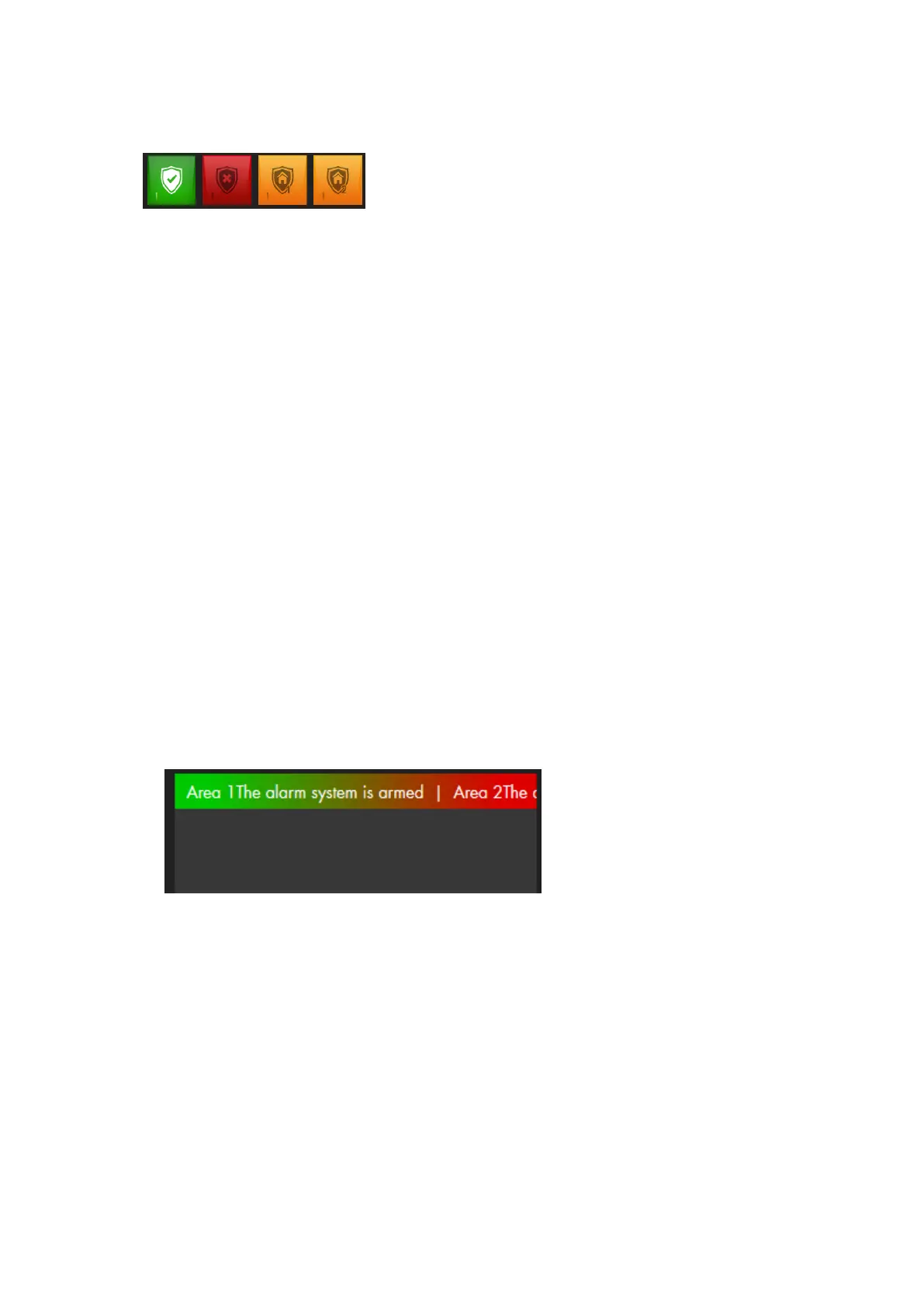
Section 2 shows altogether four alarm mode symbols. Click to set the alarm panel to
arm, disarm, or one of the home modes. The section consists of altogether four alarm
mode apps. Each app fulfills its own function and enables the mode set in the app
settings.
a: If the alarm panel is set to “Arm”, it is armed, meaning that each sensor
activation triggers an alarm. The alarm panel sounds a single long notification
tone when you arm it.
b: If the alarm panel is set to “Disarm”, it is disarmed and does typically not trigger
alarms. The alarm panel sounds two short notification tones when you disarm
it.
o There are exceptions (water, medical emergency, fire alarm…) which are
described in more detail in the chapter “Edit sensor”.
o In case of an alarm, you can use the “Disarm” button to end the alarm.
c, d: The Home modes 1-3 (the example only shows two) activate specific alarm
zones within the areas. The alarm panel sounds three short notification
tones when you switch to home mode.
Example: If you do not want to trigger an alarm by a motion detector when
someone enters the kitchen at night, set the option “Home 1 response” to “No
response” in the settings of the motion detector to deactivate the sensor in this
mode.
3. System status app
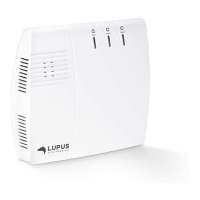
The “System status” app shows the currently most important messages. In the
example above, it shows that area 1 is armed and area 2 is not. Furthermore,
Important problems would be listed in this section. You can ignore an error and the
status (ignored / not ignored) is always listed behind an error.


 To Next Page