CONTROL ITEMS 4-79
iPASOLINK EX Advanced: OPERATION & MAINTENANCE GGS-000548-01E
4.9.2.3 Update FPGA Data
NOTE: Proceeding through the following restarts the equipment, which terminates
the
WebLCT connection.
Important:
1. Ensure that the data file of FPGA from NEC has already been on the site.
2.
Check the F/W versions using the Equipment Inventory Information window.
3. To operate the FPGA data download, the system must be set into the
Maintenance mode; Do not cancel the Maintenance mode while the download
process is in progress.
Procedure 4-24
1. Click the Maintenance tool button on the tool bar of the WebLCT to put the
system into the Maintenance Mode. The
MAINT indicator on the tool bar
changes to orange.
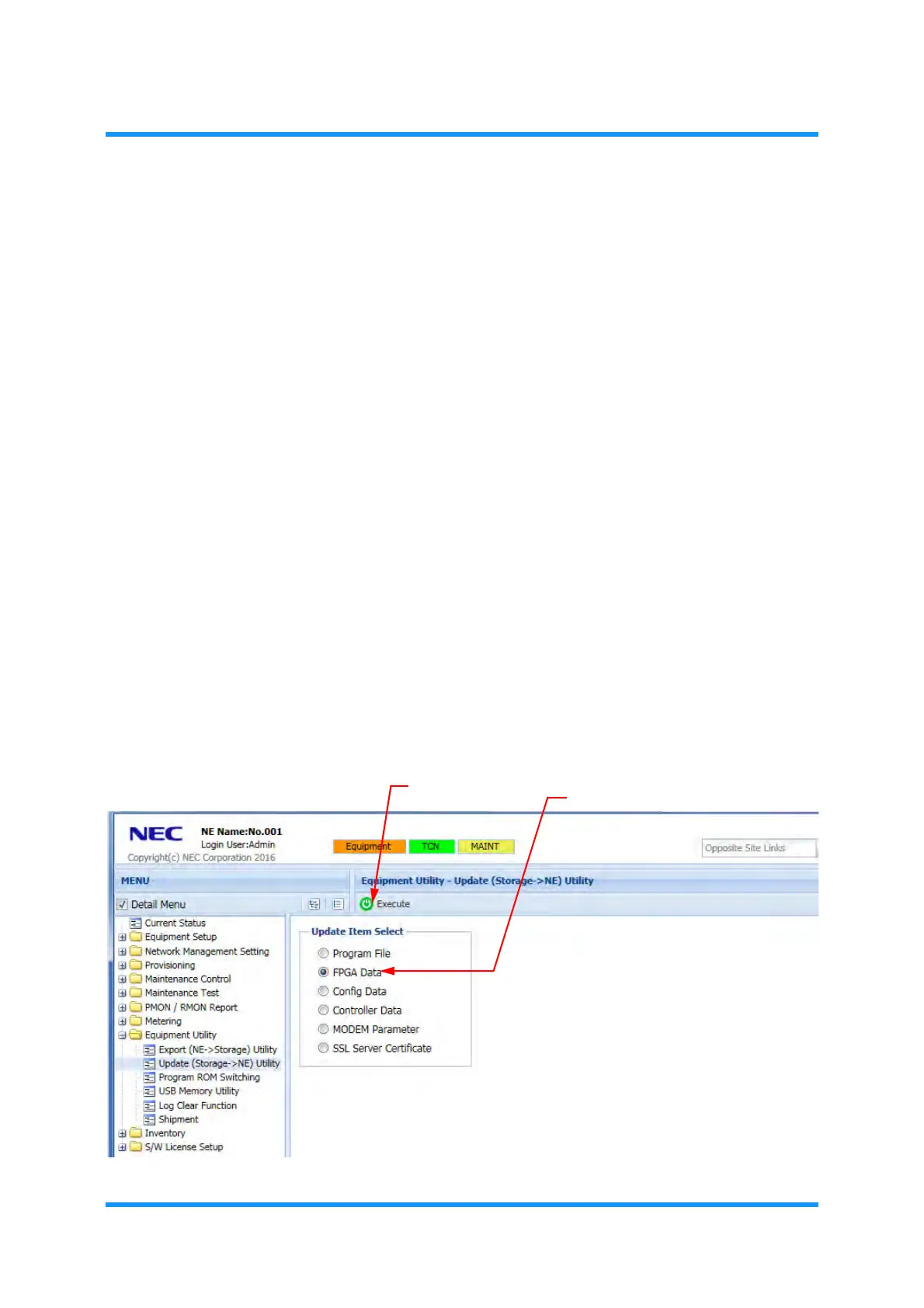
2. In the
MENU frame on the left, expand the Equipment Utility to select Update
(Storage -> NE) Utility
. The Update (Storage -> NE) Utility window appears.
3. Select
FPGA Data by clicking its radio button, and then click the Execute tool
button.
Figure 4-126 Update (Storage -> NE) Utility Window
Execute tool button
FPGA Data


 To Next Page