Tungsten™ E2 Handheld 134
CHAPTER 7 Managing Your Calendar
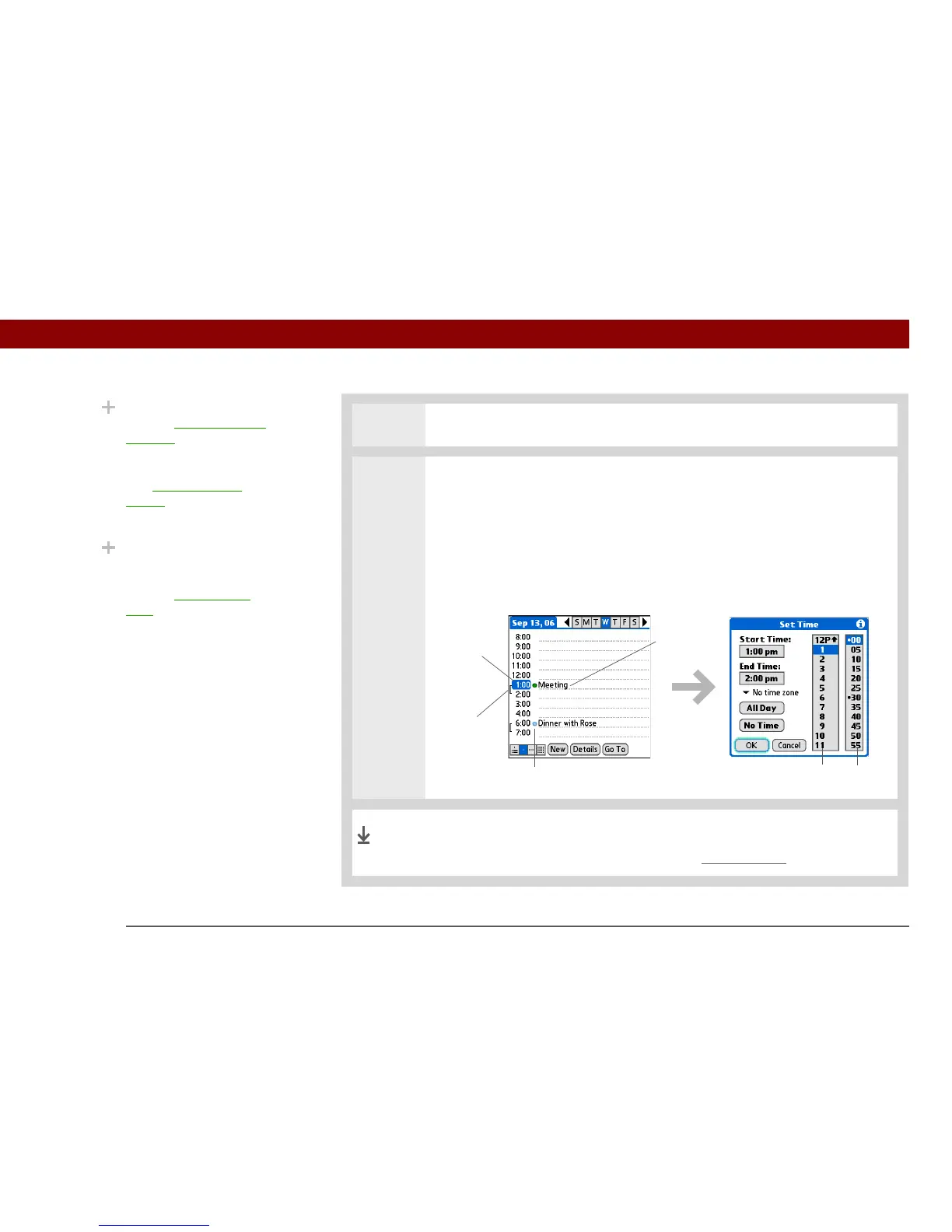
3 Tap the line next to the time the appointment begins, and enter a description.
4 If the appointment is longer or shorter than an hour, set the duration:
a. In Day View, tap the start time.
b. In the Set Time dialog box, tap End Time.
c. Tap the hour and minute lists to select the time the appointment ends.
d. Select OK.
That’s it. Your handheld automatically saves the appointment.
Make sure you have a current backup. Synchronize often.
Did You Know?
You can color-code your
calendar to file events in
categories. Each category
has its own color. You can
also mark events as
private to hide them from
prying eyes.
Did You Know?
If you are synchronizing
with Outlook on your PC,
you can select a time
zone when creating a
new event. Also, if you
created appointments in
Outlook that include
more than one person,
these person’s names
appear when you
synchronize with your
handheld. You cannot
edit this information on
your handheld.
Hour
list
Minute
list
Duration
Start time
Description
Category marker
Done


 To Next Page