Tungsten™ E2 Handheld 296
CHAPTER 15 Sending and Receiving Email Messages
Setting notification options
You can choose a sound—such as a bird, a phone, or an alarm—to let you know when new email
arrives.
0
1
Turn on notification:
a. In the Inbox or on another folder screen, open the menus
.
b. Select Options, and then select Notification.
c. Check the Notify me of new mail box.
2
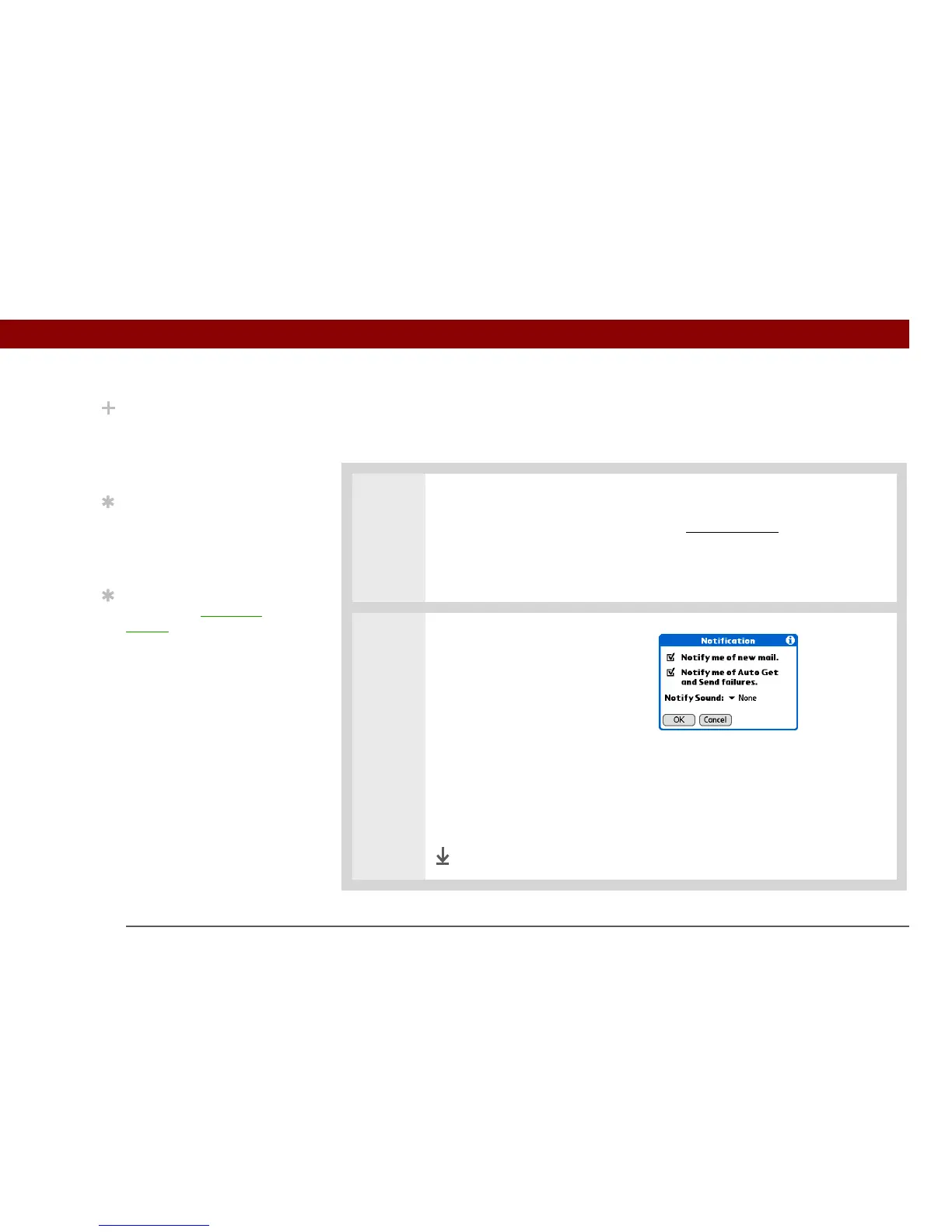
Select notification options:
a. Select the Notify Sound pick list,
and then select a sound. The
handheld plays a brief
demo of the sound.
b. To receive notifications of
successful auto get mail and automatic send retries only, uncheck the Notify
me of Auto Get and Send failures box. Leave the box checked if you want to
receive notifications of both successful and failed auto get mail and
automatic send retries.
c. Select OK.
Done
Did You Know?
Any custom sound you
install on your handheld
appears on the Notify
Sound pick list.
Tip
You can follow these
steps to change the
notification sound at any
time.
Tip
You can also adjust the
volume of the notification
sound.


 To Next Page