Tungsten™ E2 Handheld 443
CHAPTER 20 Managing Your Expenses
Choosing currency options
Expense is even easier to use when you customize the currency list. You can choose what
currencies appear in the pick list, and what symbol automatically appears in new expenses, and
you can even create your own currency symbol.
Customizing the currency pick list
Place the currency symbols that you use most often in the currency pick list.
0
1 Go to Applications and select Expense .
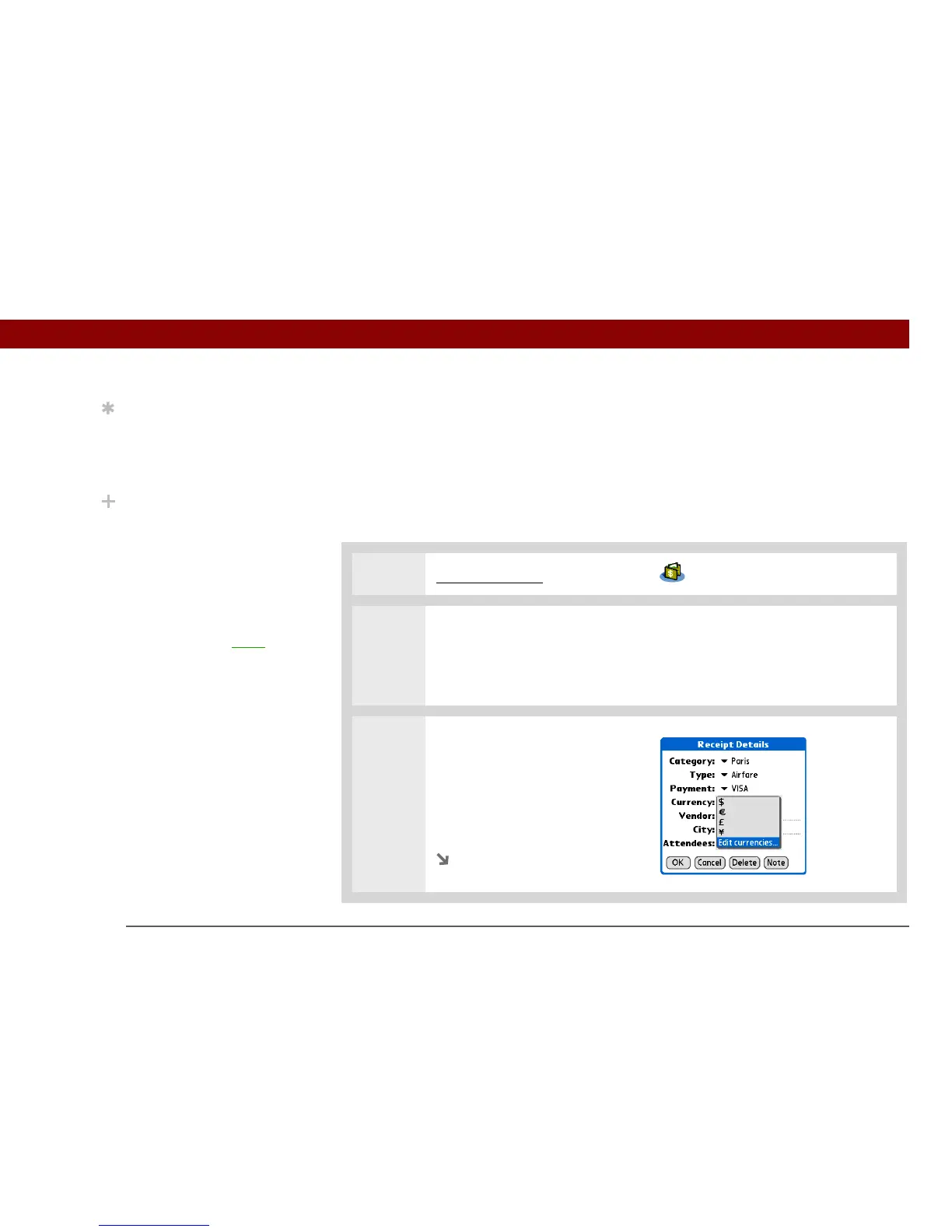
2 Open the Receipt Details dialog box:
a. Tap an expense item.
b. Tap Details.
3 Select the currency symbol(s)
that you want to see in the pick
list:
a. Select the Currency pick list,
and then select Edit
currencies.
Continued
Tip
If you travel a lot, update
the currency pick list, so
that you can quickly get to
the symbols you need.
Did You Know?
Use separate categories
for related expenses. For
example, create a London
category for a trip to
London. After you file
your expense report for
the London trip, you can
easily delete the related
expenses with the Purge
command.


 To Next Page