Tungsten™ E2 Handheld 329
CHAPTER 15 Sending and Receiving Email Messages
3
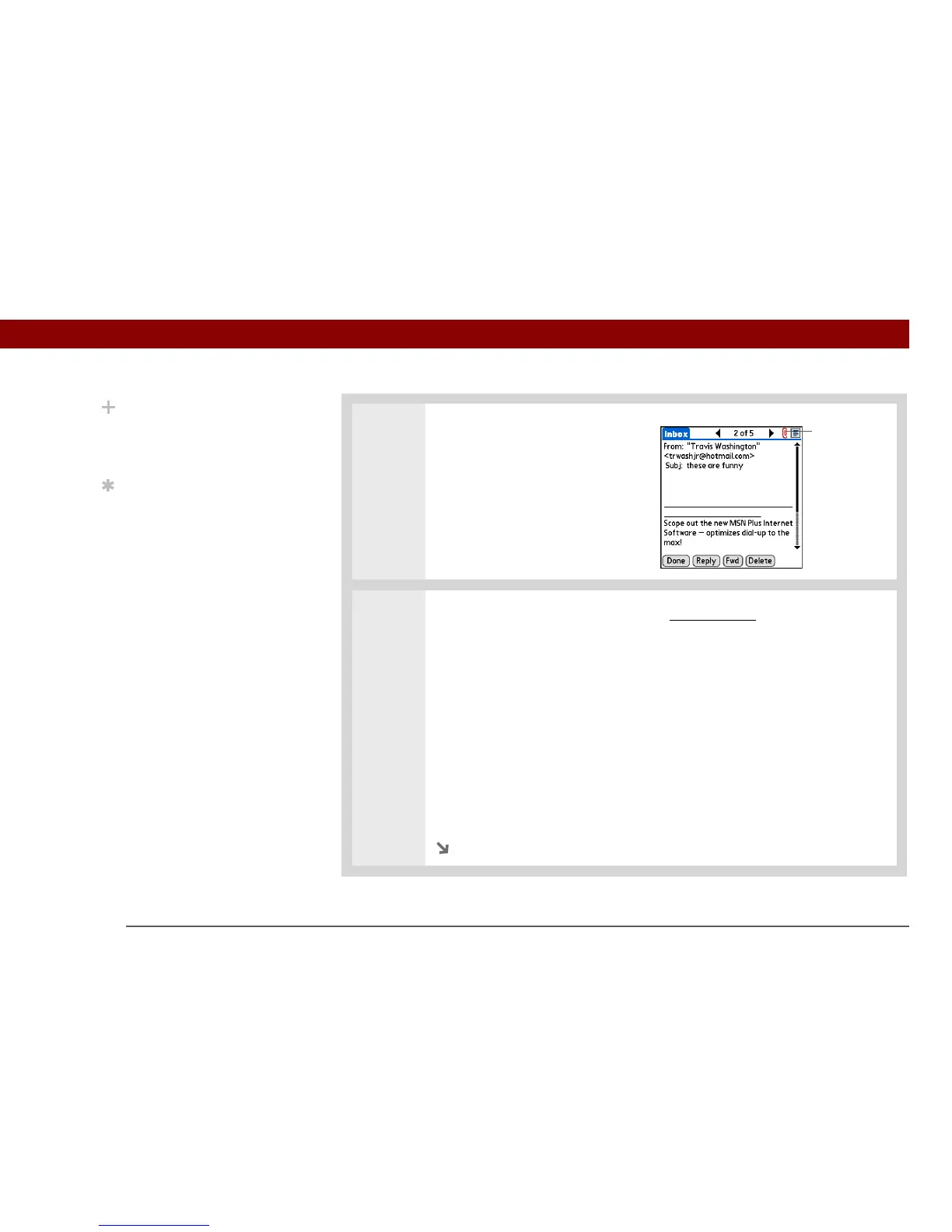
Tap the red paper clip icon in the
upper-right corner. If the
attachment is not downloaded,
a paper clip icon doesn’t appear
even though the message was
sent with an attachment. You
must download the attachment
for the paper clip icon to appear.
4
Select Save to save the attachment to an expansion card, or do one of the
following, depending on the attachment file type:
Viewable file: text, Word document, Excel spreadsheet, PowerPoint
presentation, task, HTML, graphic, and so on Select the name of the
attachment you want to view, and then select View. If there are multiple viewers
registered on your handheld for the attachment file type, either use the default
viewer shown, or select a viewer from the list. For example, if you have two
photo-viewing applications on your handheld and you select a photo
attachment, the Viewer pick list appears containing the names of the photo-
viewing applications. Select the pick list, and then select the application you
want to use to view the photo attachment.
If there is only one viewer registered for the attachment file type, the viewer is
shown without a list.
Continued
Paper clip icon
Did You Know?
You can save any type of
attached file, regardless
of file type.
Tip
After viewing an
attachment, you can save
it to an expansion card.


 To Next Page