Section 4: Tutorial
4 - 54 Euphonix CS3000/2000 Operation Manual
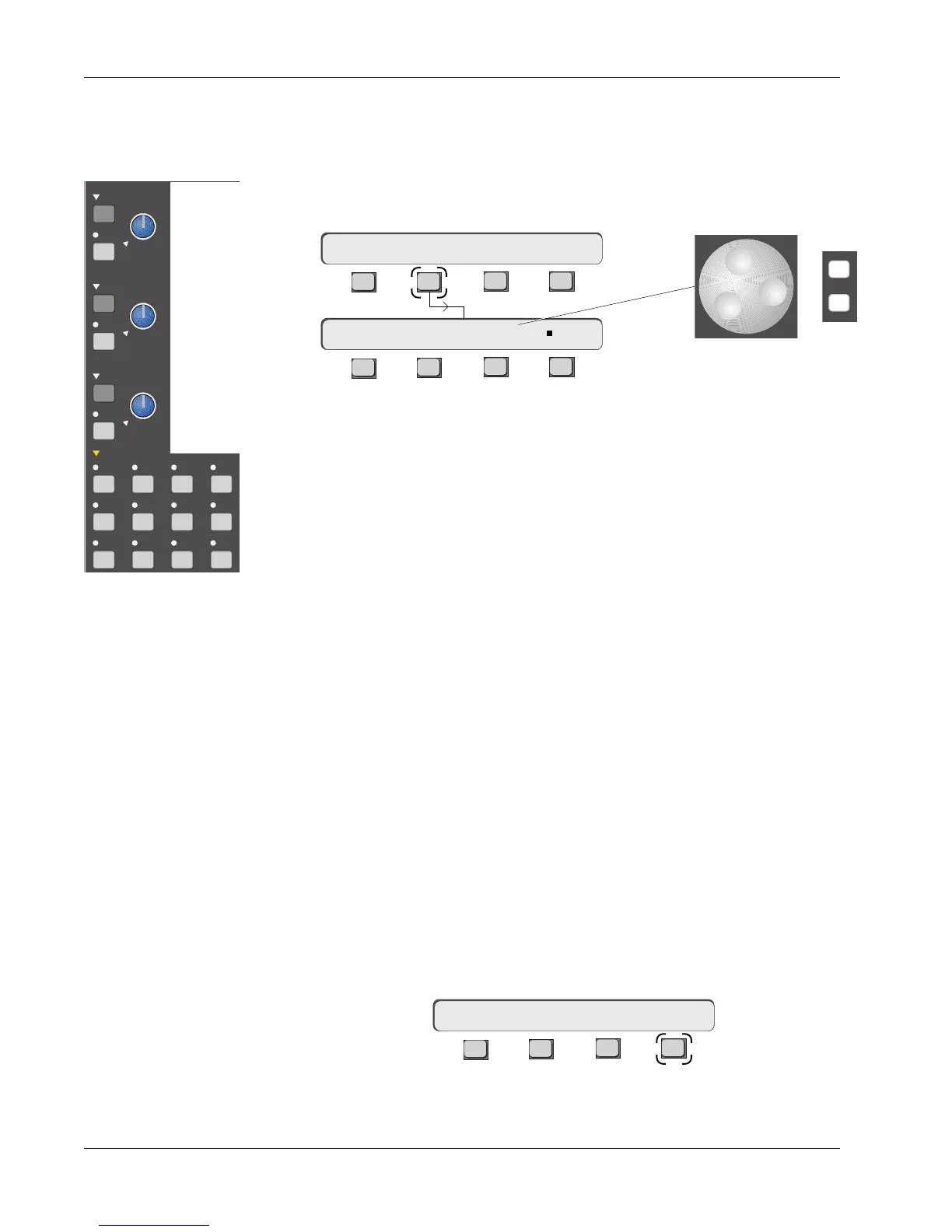
This sets the level that the monitor will dim when you press the [DIM] button.
It defaults to -20dB, and can always be reset to this value by pressing the
[CLR] button when in this menu. You can change the amount of dim by turning
theSpinKnob or using the DSC [+]/[–] keys. Pressing [F4] will automatically
make the monitor dim when the [TB MIC] key is pressed. The square to the
left of TB in the menu, indicates when this function is enabled.
[Esc] back to the Monitor Set menu, or just press the Monitor [SET] key again.
Press [F3] (I/C) to toggle the Automute function. This function switches off the
speaker
unless
its SET key is selected. You would set the Automute function
on when you wanted to use 2 or 3 of the monitor outputs as intercancelling
monitors (e.g., you wanted to switch between two or three monitors in the
same room, such as small and large monitors and only wanted one speaker
active at a time). When Automute is selected a square indicator lights to the
left of the I/C indication in the SmartDisplay.
Each monitor has this function, so you could set it on Monitor B and C but not
on A. In this example, monitors B and C would be intercancelling (I/C) and
would switch from B to C as you hit the appropriate [SET] key. Monitor A
would always be on and could therefore be used as a studio loudspeaker feed.
This last option allows one monitor output to be controlled by another
monitor’s level control. You could use this for 4-channel or 6-channel monitor
level control. Go to the Mon C Set menu and press [F4] a couple of times.
Notice that it sequences between LINKC, LINKA, and LINKB. Set it to LINKB:
F3F1 F2 F4
Now both Monitor B and C are controlled from Monitor B, so you have a single
level control for each of the B and C outputs. You will notice that both B and C
Left Right Stereo Mono
DIM
SET
C monitor
DIM
SET
B monitor
DIM
SET
A monitor
monitor SET
A1•2 A3•4 A5•6 A7•8
Ext 1 Ext 2 ST1 ST2
SOLO
A
B
C
Active
ST1
ST2
BU
D monitor
Solo
Ext—
C pre
Kill
Monitor Link
When you wish to set a source for a monitor output, press the [SET] key in the
appropriate monitor block. You will notice that as well as being able to set the
source for the monitor in the monitor SET area, you can also set certain
options for the monitor from the SmartDisplay Monitor Set menu which
appears when you press the set key. From the Monitor Set menu, press [F2] to
set the Dim level:
Monitor SET
Options
Monitor AutoMute
Monitor
Dim
F3F1 F2 F4
F3F1 F2 F4
m C–> DIM I/C LINKC
Monitor Set Menu
m C–> LVL -20dB TB
-
DIR
+
Bus
m C-> DIM I/C LINKB


 To Next Page