Section 9: Dynamics
Euphonix CS3000/2000 Operation Manual 9 - 47
Dynamics User
Presets
*
ST
-
DIR
+
Bus
F3F1 F2 F4
Shows that preset
recall (RCL) is enabled
Recall/store
the selected
user preset
Shows last recalled
or stored user preset
Toggles between
user presets and
factory presets
Shows to which channel
the dynamics preset will be
recalled, and also to which
dynamics processor in that
channel (Dyn1 or Dyn2)
F3F1 F2 F4
F3F1 F2 F4
Dynamics
Access Menu
Preset Assign Calib31D1-> Gate Dpth -> >-
31D1 1u RCL 2u
Preset Menu
SpinKnob scrolls
through presets
on the screen.
DSC [+]/[–] keys
recall presets as
they are scrolled
Toggles between
RCL and STO
modes
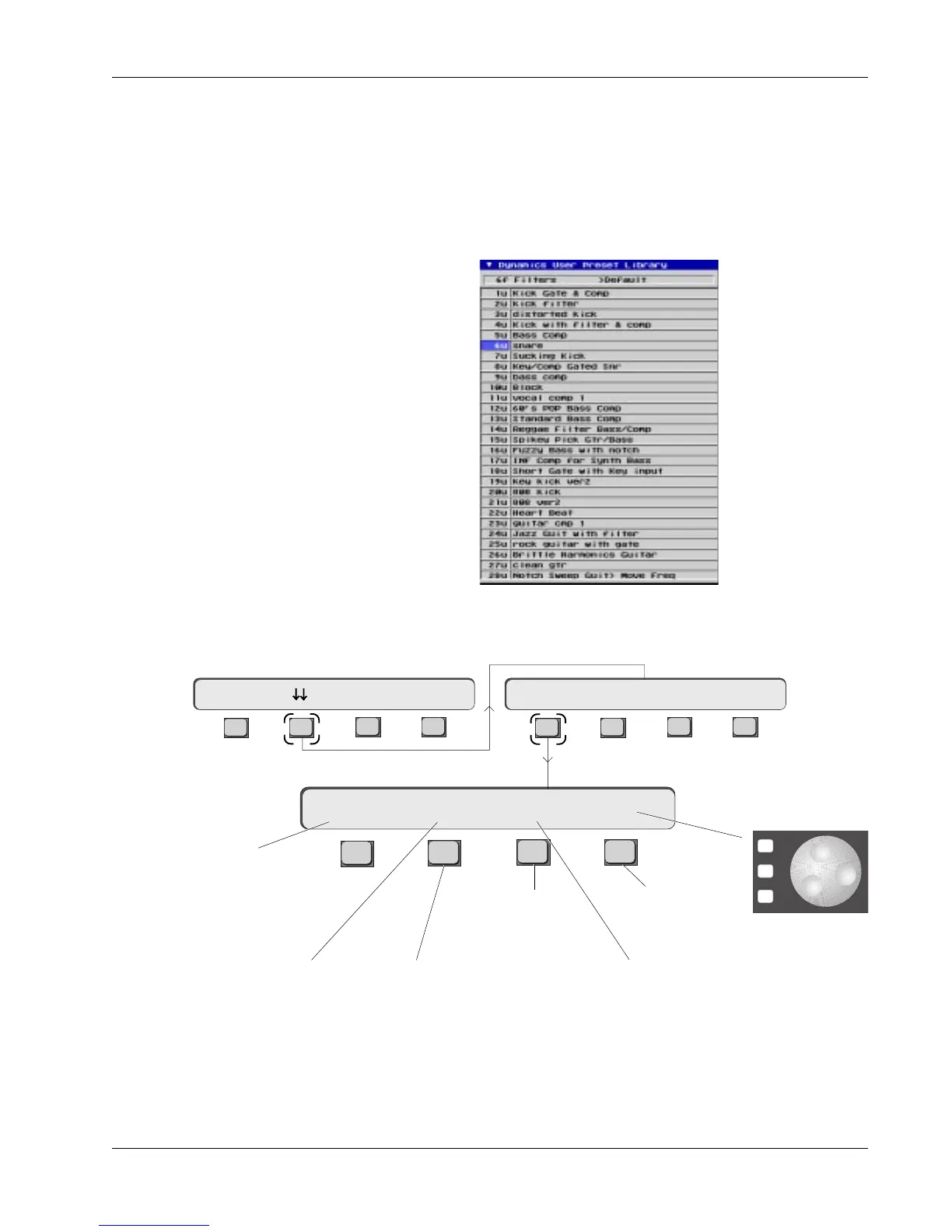
The Dynamics User Preset Library is saved with system information. This is a
store of 100 user-programmable dynamics settings and are available from
every project and title. Note that dynamics settings are stored in SnapShots
just as other console settings like EQs, routing, etc. The Preset Library is useful
for storing settings that you frequently use. For example, you could save a
preset with only high pass and low pass filters in the signal path, another for a
compressor set specifically for vocals, and so on.
From the Dynamics Access menu, press [F2] (down arrows) and then [F1]
(Preset):
To store a user preset, configure the dynamics processor the way you want it
set, and enter the preset menu. Select the preset number using the SpinKnob,
then toggle RCL to STO by pressing [F3]. Name the preset using the QWERTY
keyboard, and store by pressing [F4] or [Enter].
Customized User
Preset Library


 To Next Page