Section 7: Automation
Euphonix CS3000/2000 Operation Manual 7 - 9
Switching
Automation On
There are two possible automation modes; ABSolute and Trim. The first mode
we will work with is ABS. In this mode the absolute position of the fader or
control is recorded and any moves up or down are recorded as absolute level
changes.
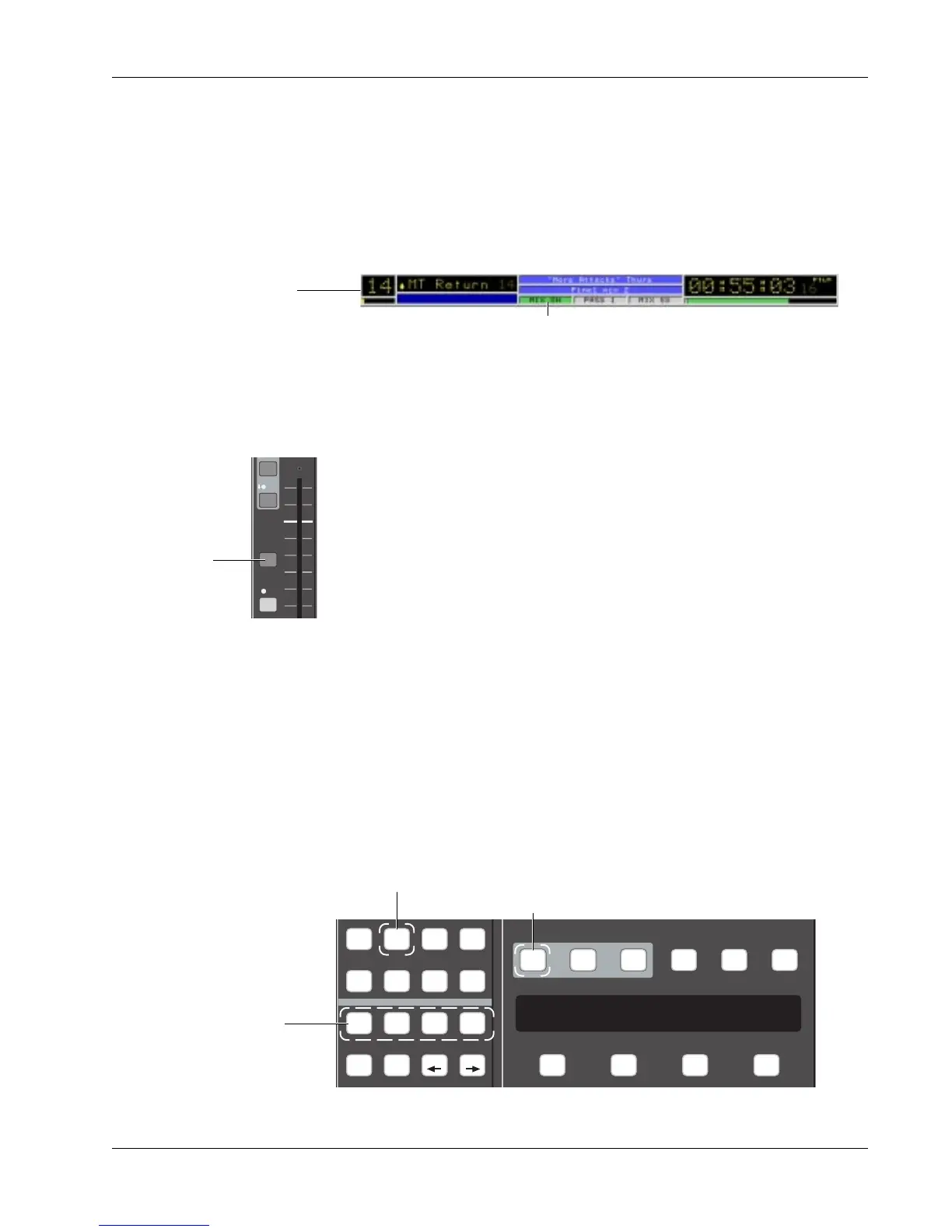
Press the DSC [Mix On] key above the SmartDisplay. Observe that the grey
Mix Off indicator in the screen display status bar turns green and says Mix On.
The automation immediately resets all objects containing mix data to their
recorded level. With no mix data (no moves written), the levels of objects will
not change.
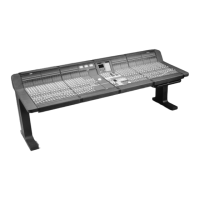
Normally the dark grey block keys on the I/O module function as attention keys
for source/mode/assign select. However with Mix turned on and the punch
light lit, they function as automation punch keys. This applies to the fader
block keys, the aux block keys and EQ1/EQ2. If it becomes necessary to change
channel routing or modes while Mix is on, the block keys can quickly be put
back into attention mode by pressing the DSC [Attn] key to the left of the
[Pnch] key. Automation is not affected and Punch mode can be just as quickly
reentered.
Besides knowing
that
you want to automate, MixView will need to know
what
you want to automate. Using the object select keys (Fader/Aux A, Pan/
Aux B, On/Aux C, EQ/Aux D), choose the object(s) that you want to punch in
and automate. If you want to write a mute for example, press the [On/C]
object Select key. By then pressing a fader block key (Mute ON is part of the
fader block), only the mute will be punched-in and recorded. Aux C will not be
punched in because you have not pressed the Aux C/D block key (located on
the Aux C/D block). It is possible to record automation on more than one type
of object at a time if you so choose. This is done by turning on more Object
Select keys.
The Punch key
Object Select keys
BUS
2R
PFL
DIR
ST1
ST2
Fader Block
Attention key
Setup Snap System Grps
Mix
On
Pass
Rec
Pass
Ctrl
Grps Mtrs
Attn Pnch Tplt Auto
SS
Set Iso Dyn Safe
Fader
A
Pan
B
On
CD
Trim ATO W in W out
F1 F2 F3 F4
Object Select keys
(at least one lit)
[Pnch] lit
[Mix On] lit
Mix On (lit green)
Status Bar


 To Next Page