Section 6: Moving Faders
Euphonix CS3000/2000 Operation Manual 6 - 5
With Mix off, traditionally the null lights are used to indicate a difference
between the physical position of the fader and the level of the DCA. However,
with our moving fader system, the fader’s position always represents the true
level of the DCA as long as Motors are set ON. With Motors set OFF, the null
lights operate identically to those in a standard non-moving fader system.
When Mix is on and Motors are on, the green null light is on all the time
because the fader is, by definition, always at the null point. If however you
touch the fader cap and move the fader away from the automation null point,
the null lights will show which direction the null point is, relative to the
current fader position just like in the standard, non-moving fader system.
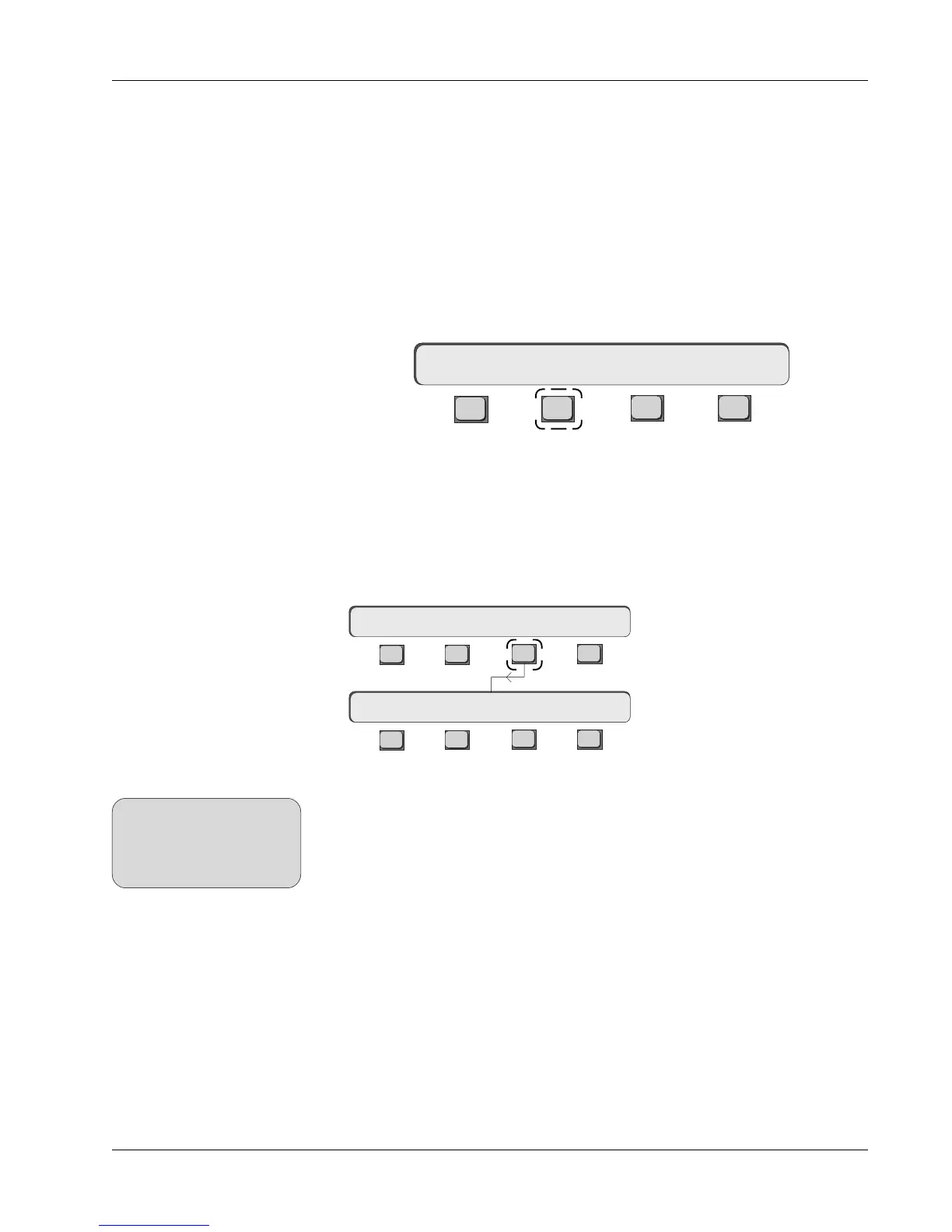
F3F1 F2 F4
Pressing [F2] sets the Motors option OFF, disabling all fader motors, causing
them to operate exactly like standard, non-motorized automation faders (all
relative movement is indicated with the fader null lights).
The console default
is Motors:ON
.
The next option we will look at is Touch:On/OFF. This preference is located in
the Touch/Release menu. Press [F3] to get the Touch/Release menu.
Motors ON/OFF
Motors:OFF Touch Slvs
Touch ON/OFF
Press the DSC [Punch] key
to quickly access the settings
for Touch & Release from
the top-level Punch menu.
SIDE NOTE:
F3F1 F2 F4
F3F1 F2 F4
Touch/Release Menu
Moving Faders Menu
Motors:ON Touch Slvs
Touch:ON Release:ON
The Touch option globally activates the touch-sensitive punch-in feature for all
moving faders in the console. You can begin writing (punch-in) fader automa-
tion data simply by touching the fader cap at the desired time to make any
necessary changes.
On any
initial
automation pass, automation punch-in is accomplished by
pressing the appropriate fader’s punch (attention) key, just as with standard
non-motorized automation faders. Any subsequent punch-ins, however, can be
accomplished simply by touching the fader cap. To think of it another way,
fader automation data
must
exist in order for the touch punch feature to be
active. This is called
First Punch Manual
and is explained in detail later in
this section.
The console default is Touch:ON.


 To Next Page