Section 4: Tutorial
Euphonix CS3000/2000 Operation Manual 4 - 31
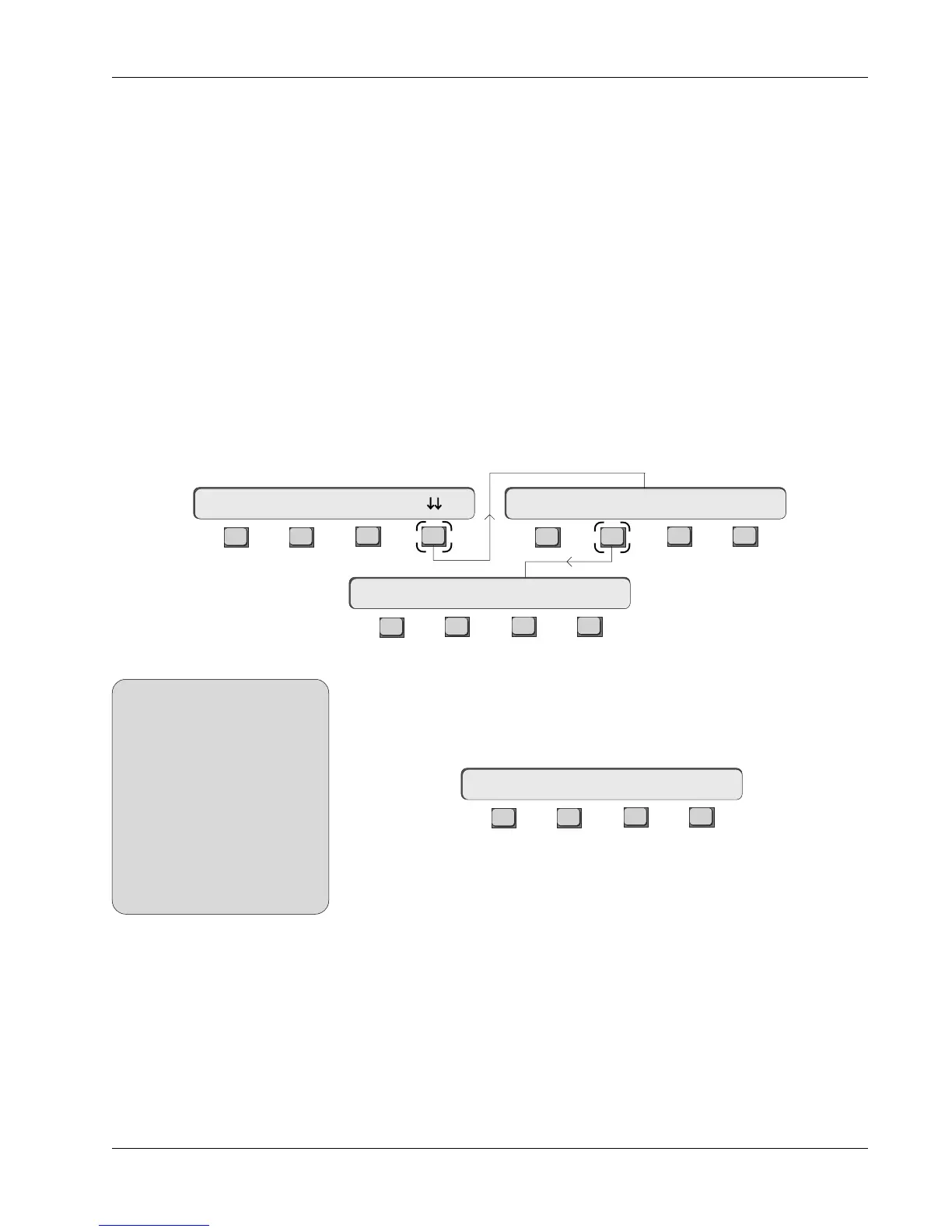
F4 is used to set the aux send Fader Source Tracking. A lower case letter “p”
denotes pre fader routing and an upper case letter “P” denotes post fader
routing, while two dots “ . .” denotes fader tracking disabled. To select Post
Lower Fader Source Tracking, press [F4]:
F3F1 F2 F4
Repeat the previous steps for aux sends B, C and D. Once completed, the aux
sends’ sources will automatically “track” whatever sources have been se-
lected to the channel’s Lower fader.
You can verify source tracking with the following steps:
1. Press channel 16’s fader block attention key.
2. Remove the L4 source selection by pressing the [L4] source select key
and confirm that L4 has also been removed as an aux send source.
3. As you select or deselect other fader sources (M1, L3, etc.), notice that
the Aux source indicator lights track the Lower fader source display.
As mentioned earlier, control of aux send muting and pre/Post routing is still
possible from the top-level Aux Status menu.
For reference, the possible aux send pre/Post routing configurations as seen in
the Aux Status menu are:
pre pre lower & upper fader
PostLF post lower fader
PostUF post upper fader
Aux source selections are independent from fader source selections by
default. However, if desired, you can set any aux send to “track” a fader’s
source selection changes using the Fader Source Tracking feature.
In this exercise, we will setup aux sends A thru D to source track channel 16’s
lower fader source selections.
Press channel 16’s aux A/B block attention key to display the Aux Status menu
and confirm that console attention is directed to aux send A. Press [F4] (down
arrows), then [F2] (SRC) to display the Aux Source Select menu:
F3F1 F2 F4
F3F1 F2 F4
F3F1 F2 F4
16A-> SRC MODE ASGN
Aux Source Select Menu
16A-> SRC ? <-p . .
16A-> ON pre
Fader Source
Tracking
Exercise 6
16A-> SRC ? <-PLF
SIDE NOTE:
After setting Fader Source Tracking,
the aux source selection changes
immediately to match that of the
designated fader, overriding any
previous aux settings. Note that
the previous aux settings are
not restored if tracking is later
dis-engaged. After removing
Fader Source Tracking, the aux
send retains the fader settings it
inherited but no longer follows any
fader source selection changes.



 To Next Page