Section 9: Dynamics
Euphonix CS3000/2000 Operation Manual 9 - 33
Assignable Function
Keys
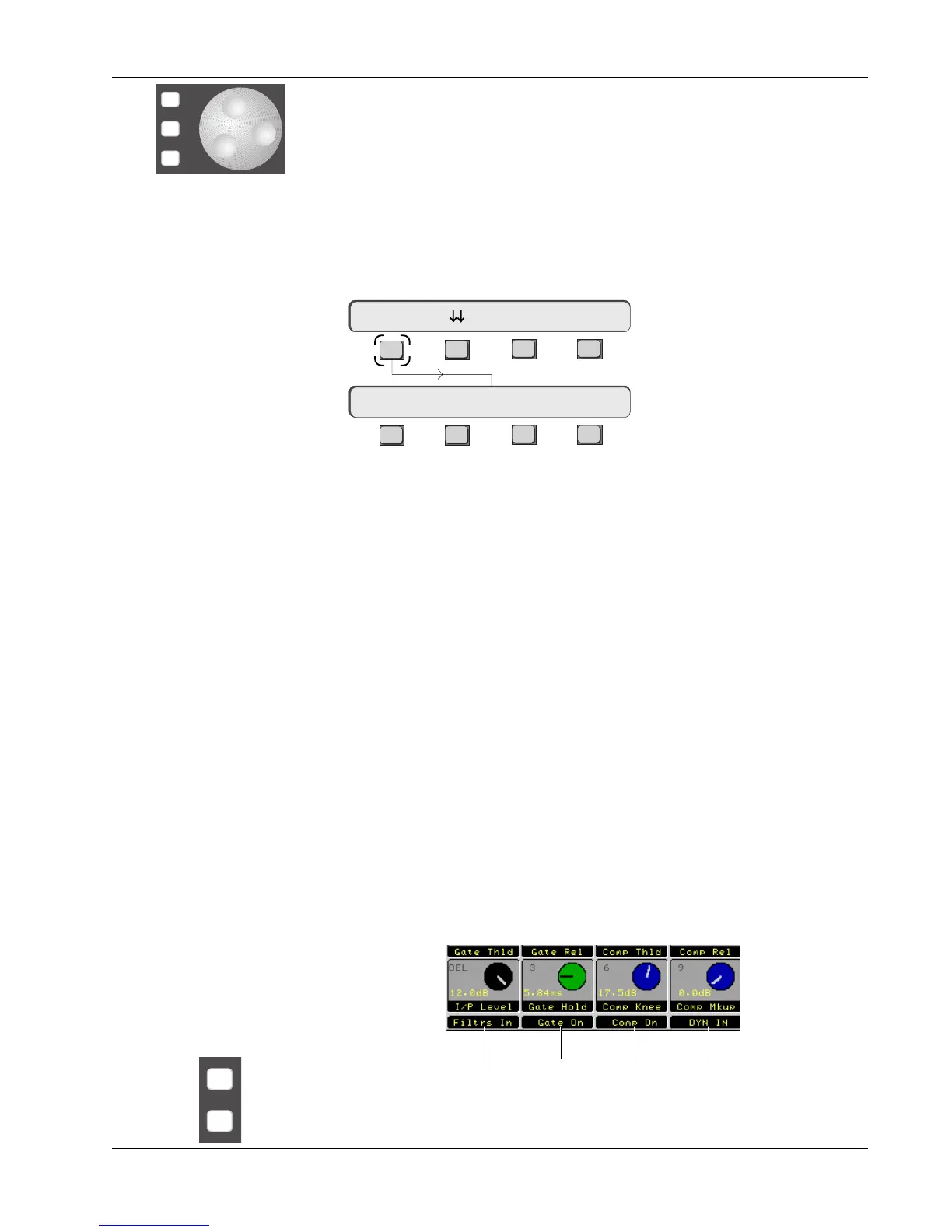
Try scrolling through the available values for Gate Depth using both the
SpinKnob and the DSC [+]/[–] keys. You can select any of the other parameters
on the screen and adjust them in the same way, selecting first with the keypad
and then using the SpinKnob or [+]/[–] keys to nudge values up and down.
To copy settings from one processor to another, press [F1] while you are in
Page 1 or Page 2 of the Dynamics Access menus:
-
DIR
+
Bus
Use to adjust parameter values
*
ST
-
DIR
+
Bus
Copy Dynamics Settings
F3F1 F2 F4
F3F1 F2 F4
Dynamics Access Menu
???? <- Copy Ch28 Dyn1
31D1 -> Gate Dpth -> >-
Now you can press any EQ key which has a dynamics assigned, and the
settings from Dynamics 1 in channel 31 will be copied across. If you do not
complete the copy by selecting a destination processor, the “copy to” prompt
will time-out in about 10 seconds. After every copy, the SmartDisplay will
revert to the Dynamics Access menu. To copy repeatedly between channels,
press the next processor’s attention key.
To copy one dynamics processor’s settings to all other processors in the
system, press the [*ST] key at the “copy to” prompt. The SmartDisplay will
then ask you to confirm by pressing [F3], or you can cancel by pressing [F4] or
[Esc].
CAUTION:
Since the dynamics processors are connected via a communication
link between the PC and the Mix Controller, each copy operation requires time
to complete. Pausing between repeated [*ST] key presses will allow each
copy operation to complete. Failure to do this will result in some copy opera-
tions to fail as the system does not cache multiple key strokes.
At the bottom of the screen display are the four assignable function keys.
These map straight down to the four keys at the bottom of the Rotary Control
Set, and also the L1-L4 Source-selector keys.
The [+]/[–] keys switch between Page 1 (Compress/Gate) and Page 2 (Filters)
when in the Dynamics Access menu.
[L1] [L2] [L3] [L4]


 To Next Page