Euphonix CS3000/2000 Operation Manual A - 3
System Setup
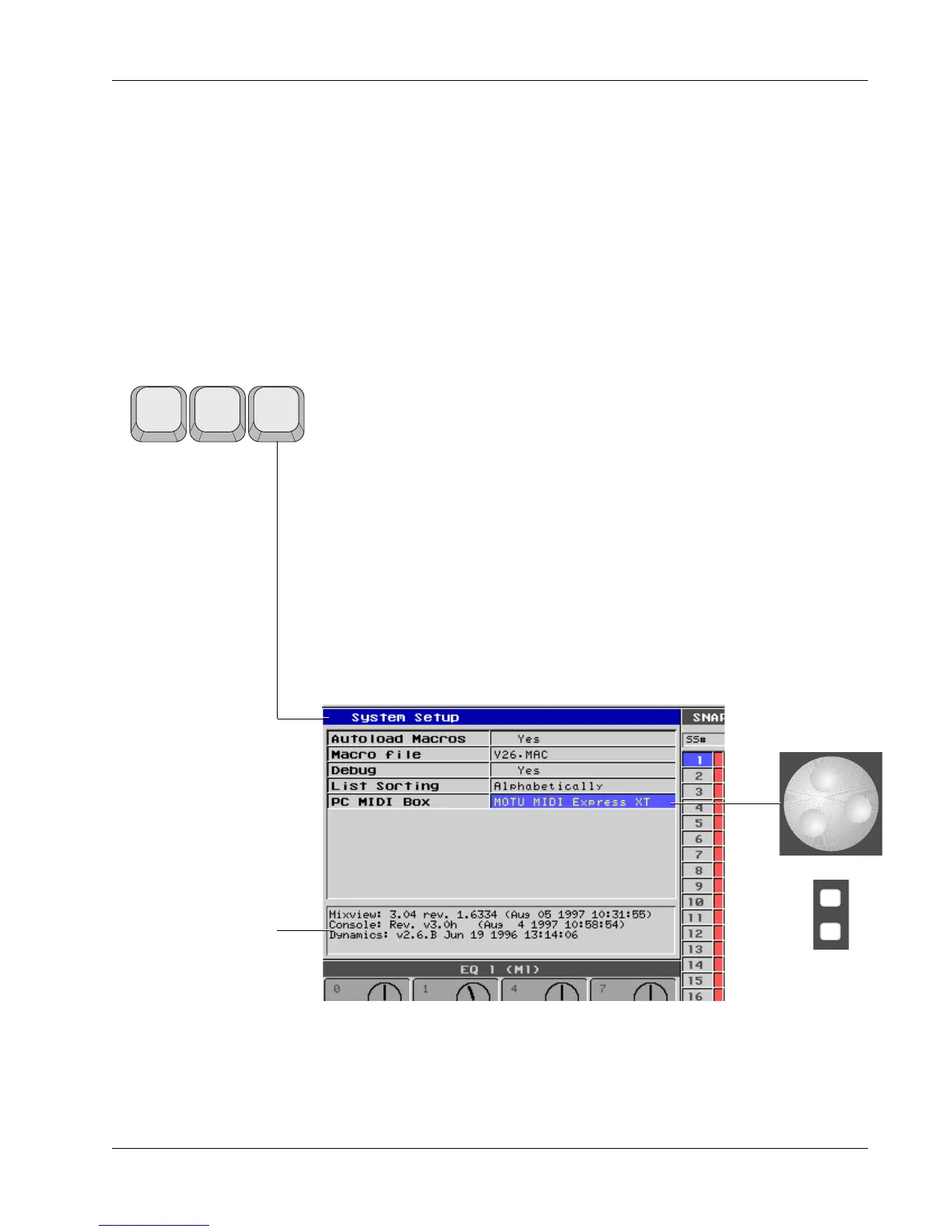
System setup options can be accessed by hitting [F10] on the QWERTY
keyboard. This brings up the screen shown below. From the DSC, options can
be selected by scrolling up and down the fields with the SpinKnob and select-
ing field options with the DSC [+]/[–] keys. From the QWERTY keyboard, you
can use the up and down cursor keys to move up and down the different fields,
and use the [>] or [<] keys to toggle through the options for each field:
Autoload Macros (Yes/No): When “Yes”, the system will upload the
named macro bank after reboot.
Macro File: Type the name of the macro bank you wish to upload on
start-up. The standard macro file name is “V26•MAC”.
Debug (Yes/No): This option is for Euphonix Customer Support personnel
only.
List Sorting (Alphabetically/Chronologically): This chooses the mode in
which lists (e.g., Snapshots, Titles, etc.) are sorted on the screen, either .
PC MIDI Box (PC/XT): Selects PC or XT version of the MIDI Express
interface. MixView software must be restarted for any changes to take
effect.
Appendix 1: System Setup Menu
System Setup Window
accessed from QWERTY
Keyboard Function key [F10]
F8 F9 F10
Shows console and
MixView software
versions
-
DIR
+
Bus
or


 To Next Page