Section 9: Dynamics
Euphonix CS3000/2000 Operation Manual 9 - 11
Before you can insert dynamics into a signal path, the console needs to know
how the processors have been wired. For example, maybe your studio has only
one ES108A (8 processors) and these are normalled into channels 1-8 on the
console. If you want to use the 8th processor in channel 15, you can cross
patch it from channel 8 at the patchbay (or repin connectors if you want to
change the normal configuration of your studio). Now you need to tell the
console that the 8th processor has been moved to channel 15 through the
software setup.
If the studio has one processor per channel, you will usually find that the units
will already have been assigned. If you are in a new studio environment, you
may want to confirm how the units have been configured so that you can avoid
confusion during a session.
Remember that assigning dynamics from software does not automatically put
the dynamics into the signal path, since there are many possible wiring
configurations. This will be covered in the next section.
The channel I/O EQ•Dyn(1) and EQ•Dyn(2) attention keys are used to access
dynamics when the Dynamics screen is on the screen display. During normal
console operation, pressing these attention keys accesses the EQs. When
adjusting dynamics, these keys are used to access control of the ES108A
processors.
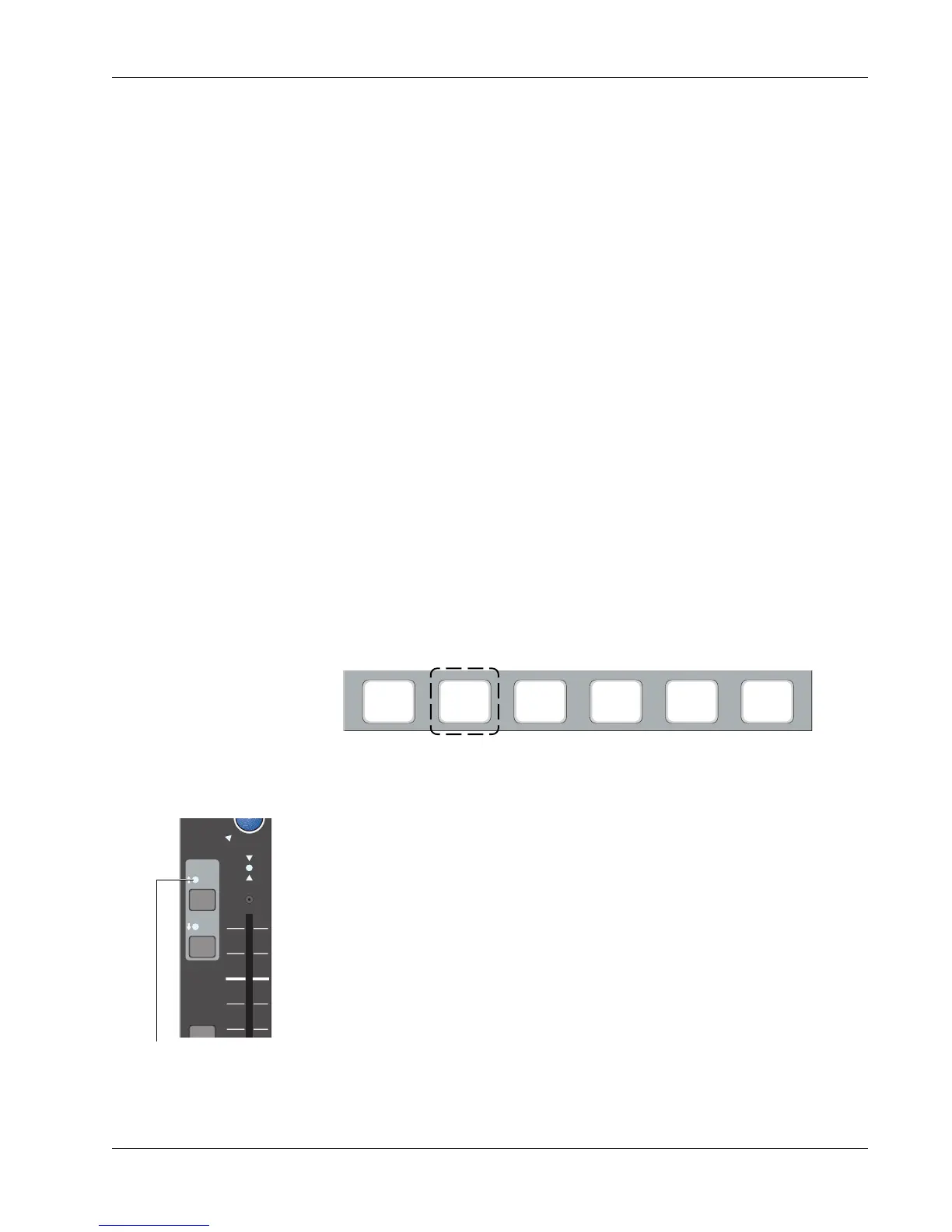
To access the dynamics, press the DSC [Dyn] key:
Dynamics
Software Setup
Accessing/Assigning
Dynamics
The gain curve for one dynamics channel will then be displayed on the DSC
screen. Now the amber LEDs above the EQ•Dyn keys on every channel strip
reflect dynamics assignments, not EQ assignments. Specifically, a lit LED
means that a dynamics processor is assigned to that channel and is in circuit
(not bypassed).
To again access the EQs from the EQ•Dyn(1) and EQ•Dyn(2) keys, press the
[EQ] Mode key at the top of the DSC (or any of the other Rotary Control Mode
keys besides the Dyn Mode key). The LEDs above the EQ•Dyn(1) and
EQ•Dyn(2) keys will then indicate the equalizers that are assigned (in circuit)
across the console.
EQ•Dyn
BUS
1
2
L
R
DIR
ST1
ovld
PAN BAL
ST2
Lit EQ•Dyn(1) LED now
shows that a dynamics
processor is assigned to
the channel and in-circuit
Assignable Rotary Control
Set Mode Select keys
(on DSC)
DynEQ Aux Pan
Assign
Bus
Master
Chan


 To Next Page