Appendix B: Printer Controls and System Menus
MP65492–1 177 Linx 4900 Operating Manual
B.1.4 Keyboard Control Keys
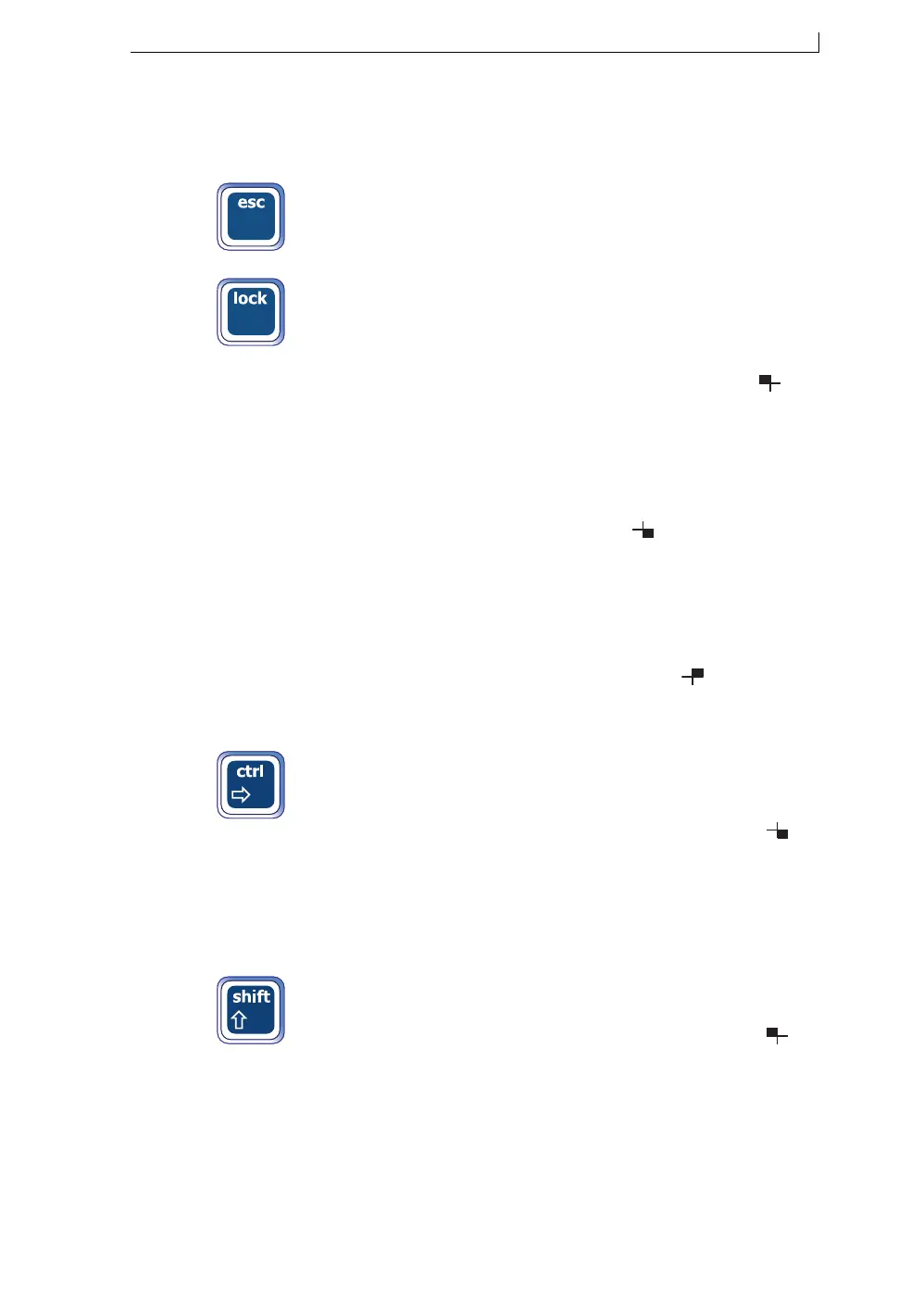
Press this key… To do this…
Exit from a menu or screen, and return to the
previous screen.
Toggle between locking and unlocking the
keyboard:
• Lock the keyboard with the [shift] key on to
type lower-case characters (top left). The
Keyboard Status Indicator changes to .
See ‘Keyboard Status Indicator’ on
page 179 for further information.
• Lock the keyboard with the [ctrl] key on to
type characters from the extended character
set (bottom right). The Keyboard Status
Indicator changes to . See ‘Keyboard
Status Indicator’ on page 179 for further
information.
• Lock the keyboard with the [shift] + [ctrl]
key on to type characters from the extended
character set (top right). The Keyboard
Status Indicator changes to . See
‘Keyboard Status Indicator’ on page 179 for
further information.
Toggle between the special characters (top
right), and uppercase and number characters
(bottom left, default) of the keyboard.
The Keyboard Status Indicator changes to .
See ‘Keyboard Status Indicator’ on page 179
for further information.
Note that pressing the [lock] key in conjunction
with this key locks the keyboard with this key
on.
Toggle between lowercase, and uppercase and
number characters (default) of the keyboard.
The Keyboard Status Indicator changes to .
See ‘Keyboard Status Indicator’ on page 179
for further information.
Note that pressing the [lock] key in conjunction
with this key locks the keyboard with this key
on.
4900 Op Manual.book Page 177 Tuesday, September 9, 2003 12:32 PM


 To Next Page