Chapter 3: Day-to-Day Operations
MP65492–1 27 Linx 4900 Operating Manual
3.2 Selecting and Printing
Messages
This section describes how to select a message for printing, then start and
stop message printing.
NOTE: These tasks assume that at least one message has been created and
saved. You should contact your supervisor if no messages have
been setup.
3.2.1 Before You Start Printing
• Check that the message displayed in the CURRENT MESSAGE
screen is the message you wish to print.
To choose another message for printing, you can select one from the
list of existing messages (see ‘To Select a Message for Printing’
below).
3.2.2 To Select a Message for Printing
NOTE: Printing must be stopped to select a message. If necessary, press
the [F1] function key to stop printing.
To select a message, use one of the following methods:
Method 1: Select and Preview
1. At the CURRENT MESSAGE screen, press the [F1] function key.
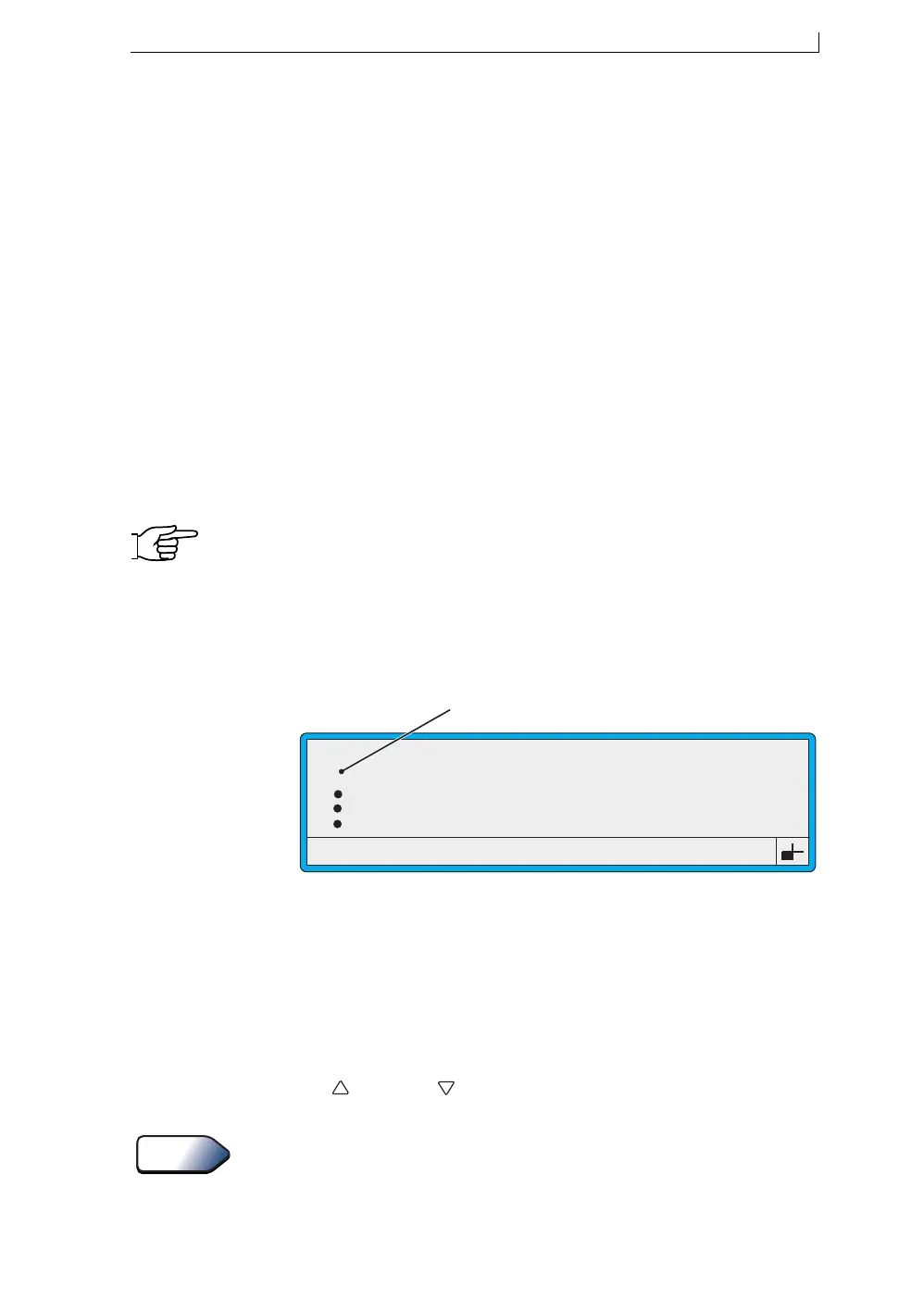
The SELECT MESSAGE menu is displayed:
Figure 3-2 Select Message Menu
NOTES:
1. The menu cursor () indicates which message in the list is the
currently selected message.
2. The SELECT MESSAGE menu lists all messages
alphabetically, showing just four messages at a time.
3. At the SELECT MESSAGE menu, scroll through the list using the
Up [ ] or Down [ ] cursor keys until the cursor rests at the message
you want.
Type in the first character of the message name to quickly find the
message you want. Note that the letter you enter is case sensitive.
4. Press the [enter] key.
49101
SELECT MESSAGE
MESSAGE 1
MESSAGE 2
MESSAGE 3
MESSAGE 4
>
Menu Cursor
>
Tip
4900 Op Manual.book Page 27 Tuesday, September 9, 2003 12:32 PM


 To Next Page