Chapter 3: Day-to-Day Operations
MP65492–1 37 Linx 4900 Operating Manual
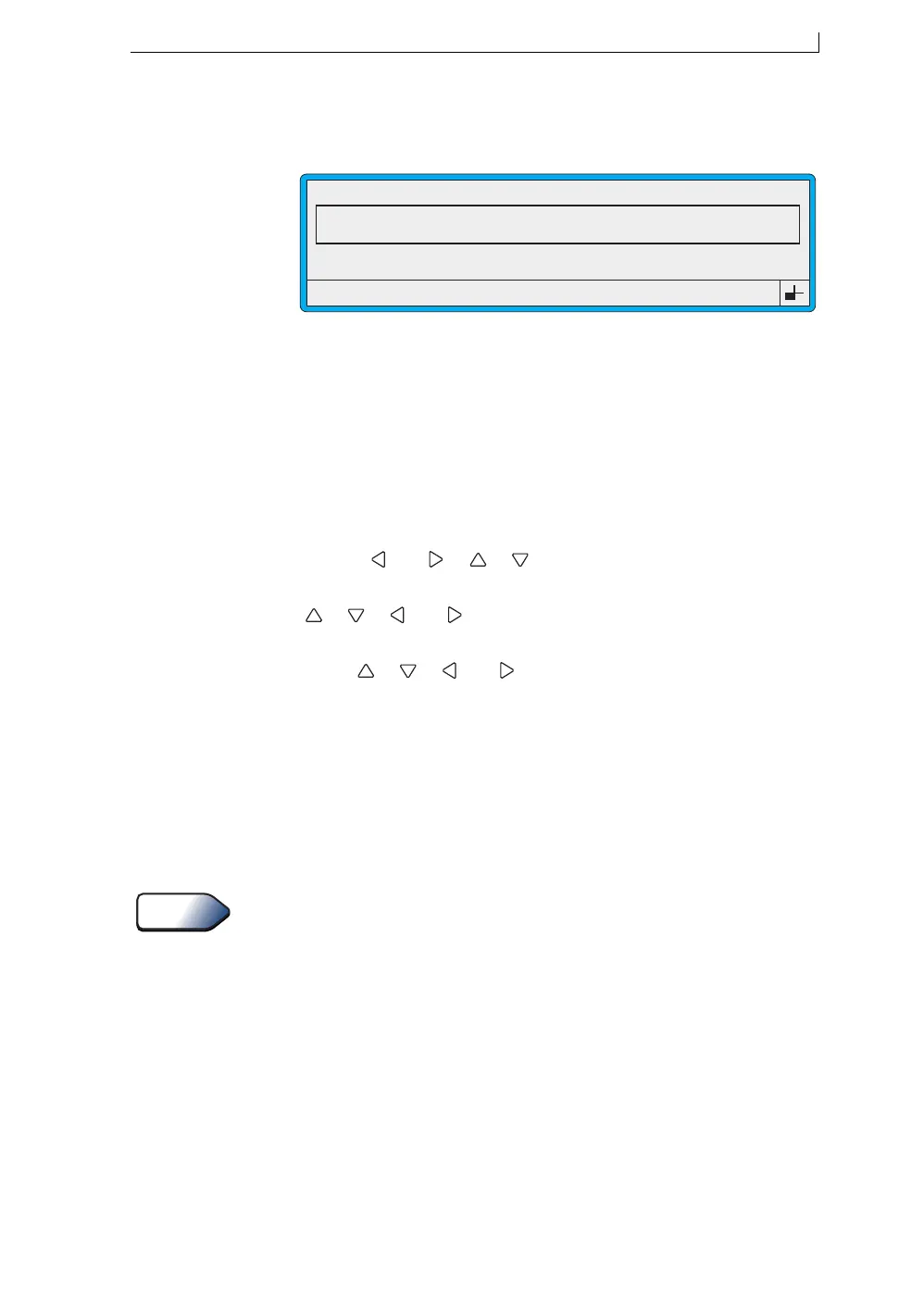
The EDIT MESSAGE screen is displayed with the selected message
shown in the Message Display Area:
Figure 3-11 Edit Message Screen
3.3.2 To Edit the Message
1. With the message displayed in the Message Display Area of the EDIT
MESSAGE screen, you edit the message by selecting each field in
turn and making the required changes:
For detailed instructions on how to create and edit all types of message
fields, see Chapter 4, ‘Creating and Editing Messages’.
2. When you have finished, press the [F4] function key to save the
changes and exit.
The CURRENT MESSAGE screen is redisplayed, showing the
edited message.
Press this key... To...
[enter] Select a field for editing.
[shift] + [ ] or [ ], [ ], [ ]
Move to the start, end, top or
bottom of the message.
[ ], [ ], [ ] or [ ]
Move the cursor up, down, left
or right (by one character).
[ctrl] +[], [], [] or []
Move the cursor up, down, left
or right (by one drop).
[F1] Change the character size.
[F2] Switch the bold factor on/off.
[F3] Change the field type.
[F4] Save changes and exit.
[ctrl] + [del] Delete the selected field.
49030
F1 : Size 16 FH (Caps)
F3 : Field Type
F2 : Bold Off
F4 : Save & Exit
EDIT MESSAGE : MESSAGE 1
LINX PRINTING
See Also
4900 Op Manual.book Page 37 Tuesday, September 9, 2003 12:32 PM


 To Next Page