44
detector, light sensor, smoke detector).
c) Status notification
This app displays the status of the alarm panel.
d) Notification
This app displays all the important sensor and system messages.
e) Sensor list
The Sensor list app displays the installed sensors with their icon and name. The
column to the right shows the signal strength of the sensor (“WIFI” symbol), the
status (“radio tower” symbol), the tampering contact (wrench symbol), and the
battery status (battery symbol). The indicators are colour coded, green signals that
everything is OK, red signals that there is a problem.
The amount of information in this app depends upon the selected size. If you
increase the size of this app, the amount of displayed information increases.
f) System status
This app displays the most important messages for the safe operation of the system,
e.g. alarm status, sensor failures, or other similarly important system messages.
g) Radio switch list
This app displays the integrated wireless power supply devices and relays. You can
use the displayed devices according to the description in the chapter “Smarthome”
“Wireless Plugs” “Wireless plugs list”.
h) Home automation
This app displays all home automation rules that are currently in your active home
automation profile. You can use the play symbol ( ) to trigger the rule manually.
i) Call List
Displays outbound, missed, and inbound telephone calls of your connected Fritz!Box.
j) Logs
You can choose between the available logs that are in the menu “System” “Logs”
(System Messages, Notifications, System events, Reported events, Sensor
messages) and display them in the GRID.
k) Camera
This app opens a live window for the selected camera. The app size is adjustable.
You can only add one camera app to the GRID. If a camera app is already part of
your GIRD layout, “Add Grid” does not offer you to add another one.
A functional button ( ) in the bottom right corner of the app serves to activate the
automatic image cycle of all installed cameras. By pressing on the arrows at the left
and right when moving the mouse over the live stream, you can circle through all your
cameras.
Move up apps
This function moves all apps as far as possible to the top.
Unlock GRID
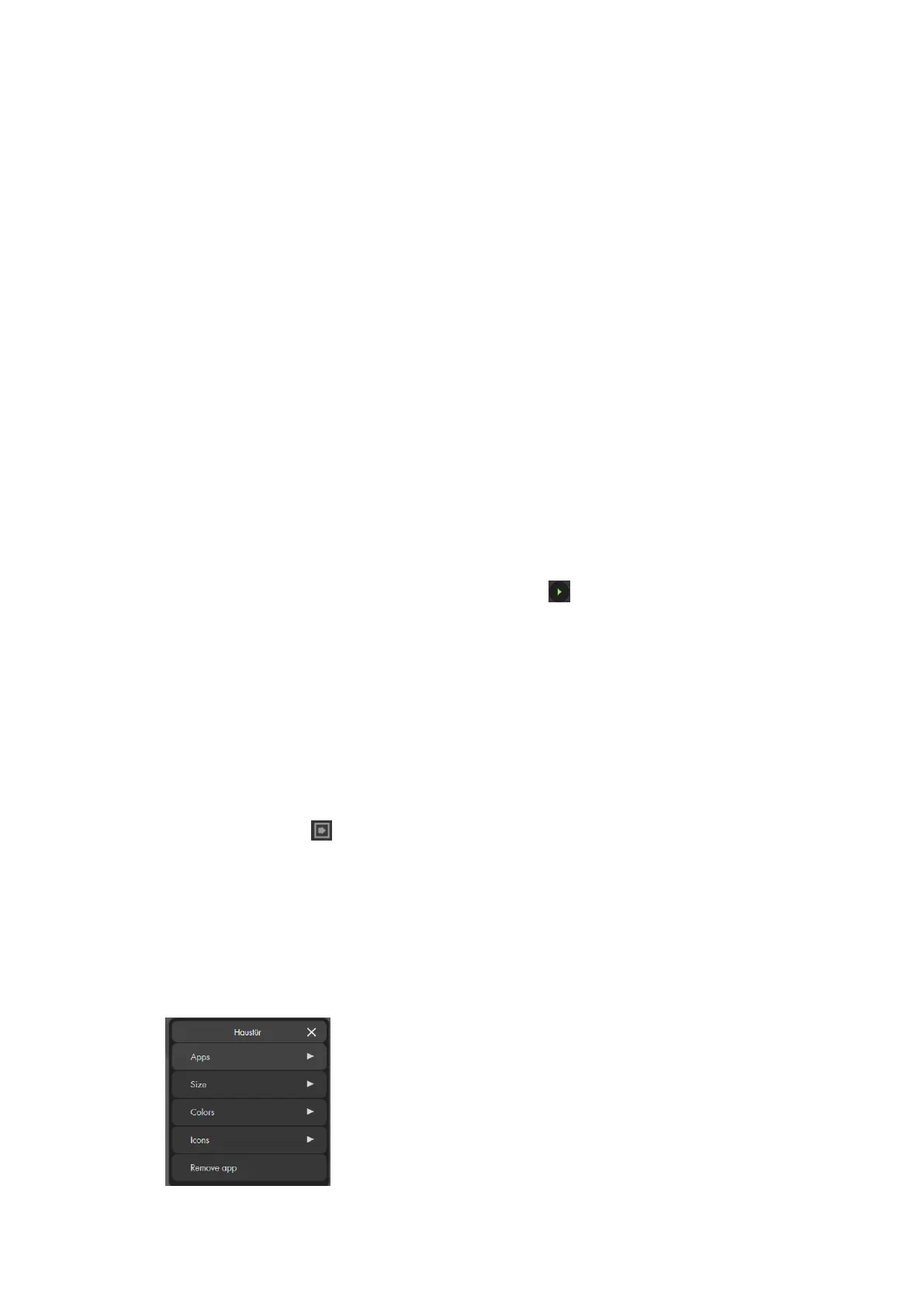
When you unlock the GRID, you can right click on an app for additional options:
1. Apps


 To Next Page