Tungsten™ E2 Handheld 74
CHAPTER 5 Moving Info Between Your Handheld and Your Computer
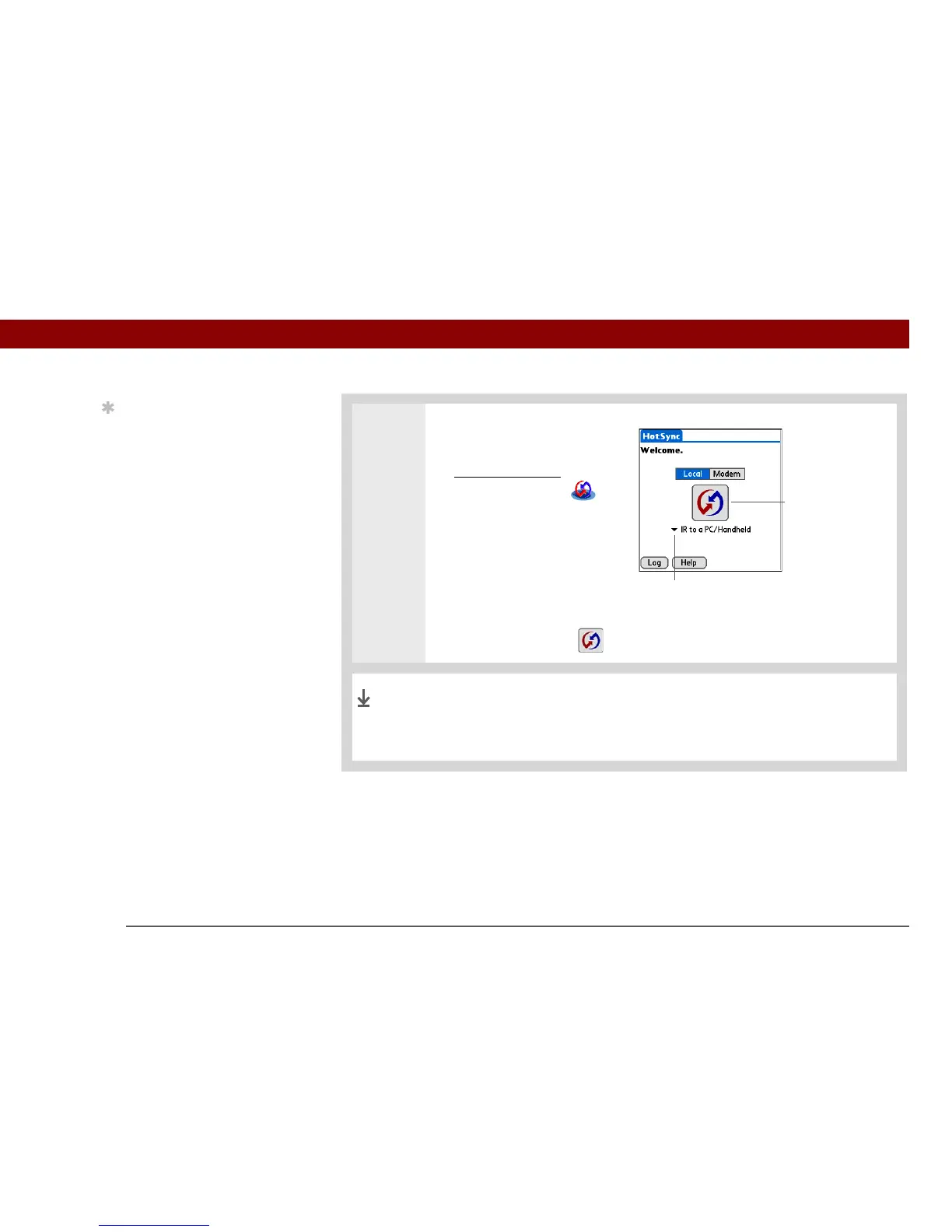
2 Synchronize your handheld with
your computer:
a. Go to Applications
and
then select HotSync .
b. Tap Local.
c. Tap the pick list below the
HotSync icon and select IR to
a PC/Handheld.
d. Position the IR port of your
handheld within a few inches of the IR port of your computer.
e. Tap the HotSync icon on your handheld.
When synchronization is complete, a message appears at the top
of your handheld screen. Be patient; synchronization may take up
to a few minutes.
Tip
You can continue to use
the sync cable even if
your computer is set up
for IR synchronization. If
you disconnect the cable
after selecting Infrared on
a Windows computer, be
sure to click the HotSync
Manager icon and select
Local USB before
reconnecting the cable.
HotSync icon
Tap pick list
Done


 To Next Page