Configuration with the web interface
6-32 Chapter 6: Configuration 98-137654-A
6.3.11 Sending a diagnostics report
You can send automatically generated diagnostic reports at fixed
intervals. The diagnostic report contains information relevant for the
service personnel during troubleshooting.
To set up sending a statistics report, do as follows:
1. Go to SETTINGS > Reports.
2. In the section DIAGNOSTICS REPORT enter the following:
• Email sender.
• Email recipients (comma separated).
• Send interval: Select disabled, day (default) with 2-minute
samples, week with hourly samples or month with hourly
samples. The report contains statistics data for the selected
intervals.
3. Click Apply.
To generate a diagnostic report, click Send now or go to the page
HELPDESK and click Download to download it directly to your
computer. See also Download of a diagnostic report or a statistics
report on page 8-2.
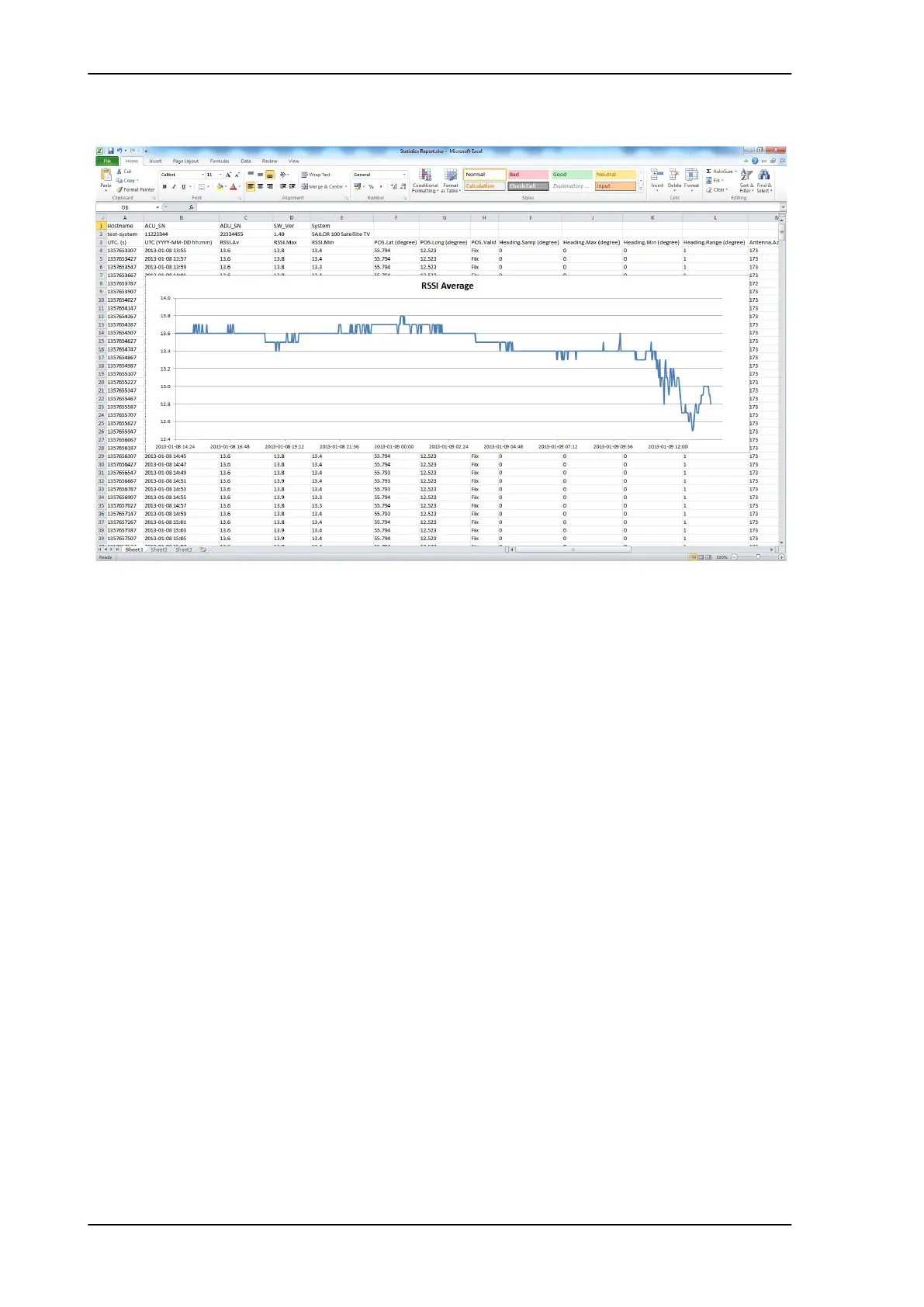
Figure 6-24: Statistics report (example)
SAILOR100TM.book Page 32 Tuesday, January 29, 2013 2:44 PM



 To Next Page