Configuration with the Control Panel
6-40 Chapter 6: Configuration 98-137654-A
6.4.2 Creating or editing a profile
To create or edit a profile, i.e. satellite profile, do as follows:
1. Tap the menu icon .
2. Select Manage Profiles.
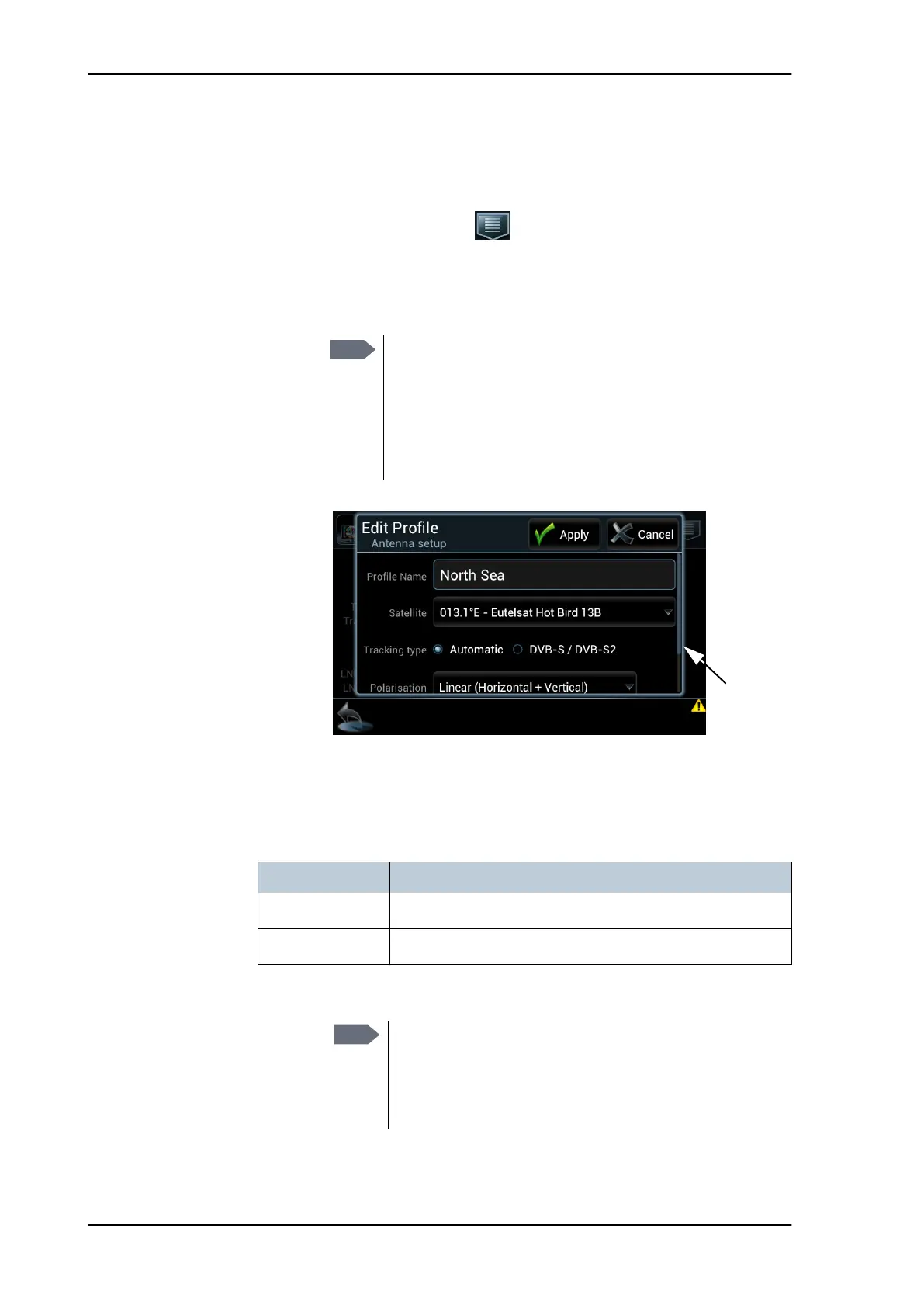
3. Select Create Profile or Edit Profile. When creating a new profile
start by filling in the satellite profile name.
.
4. Tap the field Satellite. A new window is displayed. Tap and scroll
to find the wanted satellite, then tap on a satellite to select it. The
list is sorted as follows: 180°W -> 0° -> 180°E.
5. Configure the tracking properties.
Note
It is helpful to assign a name containing the location
where the Satellite profile is to be used (e.g. "Gulf of
Mexico" or "North Sea") and possibly the provider.
If the profile contains more items than can be shown in
the window, a scroll indicator is displayed. Scroll the
window content to view all items.
Figure 6-32: Control Panel — Editing a satellite profile
Scroll
indicator
Profile handling Default satellite in the list
Create new profile The satellite closest to the ship’s position is highlighted.
Edit profile The satellite currently selected for this profile is highlighted.
Table 6-10: Control Panel, create or edit satellite profiles
Note
At some longitudes, multiple satellites are co-located. In this
case, it is not important which is chosen as long as the
longitude is correct. The chosen satellite will be the one the
system tracks, but it will receive and forward the TV signals
from all the co-located satellites.
SAILOR100TM.book Page 40 Tuesday, January 29, 2013 2:44 PM


 To Next Page