Vista Digital Mixing System
Date printed: 29.08.03 SW V3.3 Introduction 1-11
The Difference from the Layer Concept:
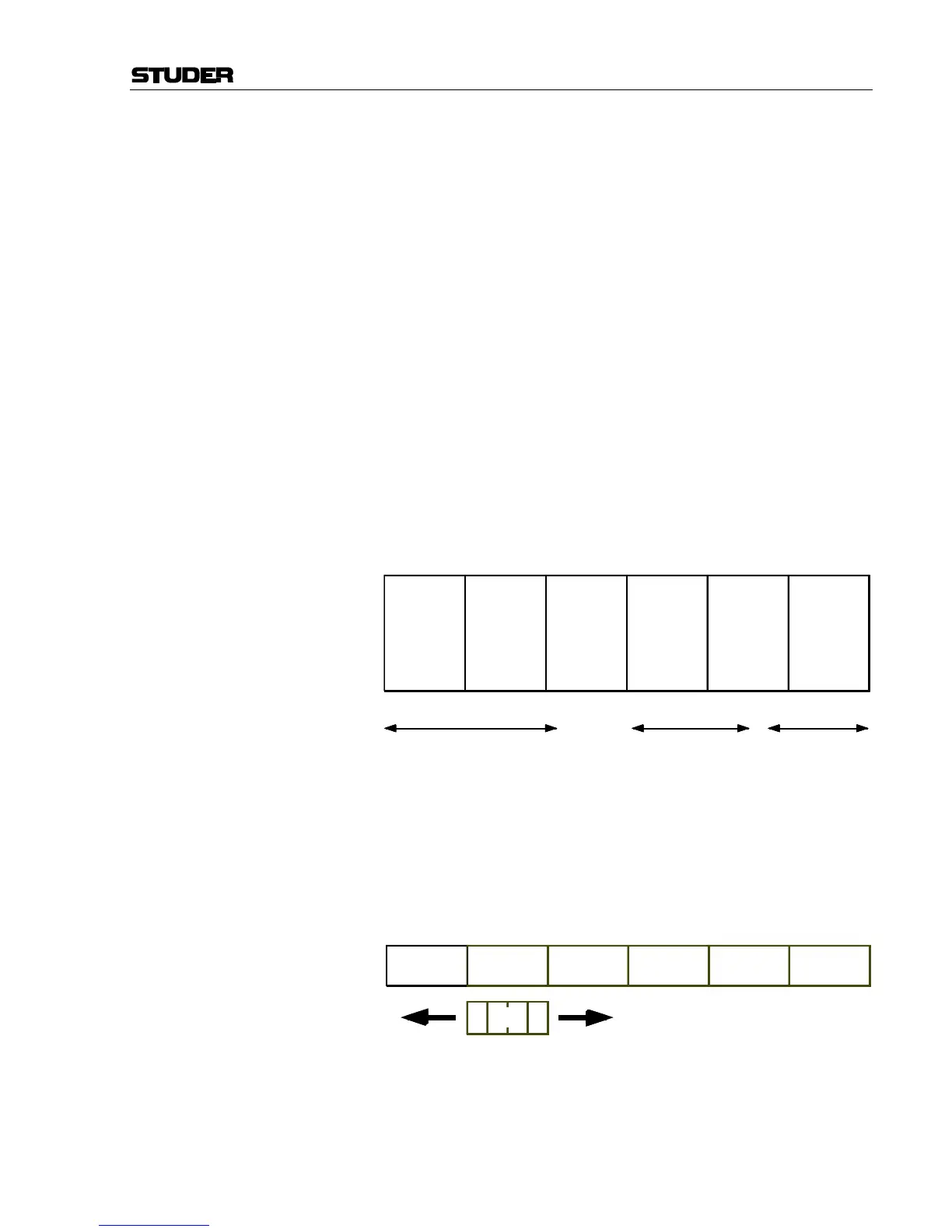
Rather than just switching to another section, it is possible to scroll
through the sections by pressing any arrow key (for this purpose, SCROLL:
SECTION has to be OFF on the fader bays). This will make the physical
surface scroll through all sections with a step size of one bay (10 chan-
nels). It is therefore possible to move any channels close to the position of
the operator, allowing him to stay in the “sweet spot” at all times. This
concept can also be imagined like moving a chair in front of an analog
console. On Studer Vista, you move the surface of an imaginary console
that is six times larger than the physical console. Which DSP channel is
shown where is defined in the “strip setup” dialog in the Graphic Control-
ler (refer to chapter 4.4.7).
Desk Navigation Example Let’s assume a desk with 30 faders (between 20 and 70 possible in steps of
10). Since the desk can jump to six sections, this user can operate up to
6 × 30 DSP channels. Please note that it is possible to have the same DSP
channel visible in multiple places within the six sections.
Step 1: The user defines the order of the 180 DSP channels in the strip setup dia-
log box in the GC. There he will find six empty sections with 30
placeholders, each for a channel assignment.
The definition will most likely be made in such a way that the user starts
with a new section when he starts with new channel type (as shown be-
low).
Step 2: The user can now navigate through the “virtual surface” (6 sections wide)
in two ways: Either he jumps to a specific section by pressing the corre-
sponding key in the control bay, or he scrolls from the present position to
the destination by pressing one of the arrow keys (< and >) in any of the
bays. Pressing one of these arrow keys will virtually move the physical
surface in front of the total console (6 sections) by one bay (10 faders) at a
time in the corresponding direction (like moving a chair in front of a huge
console).
The arrow keys are located in every bay, they all have the same function-
ality. This prevents the user from moving to the center of the console to
navigate.
Section
1
Desk
Section
2
Section
3
Section
4
Section
5
Section
6
User occupies 70 Placeholders
with DSP Channels
"Input Mono 1...70"
Section
1
(30 Channel Strips
to Occupy)
Section
2
Section
3
Section
4
Section
5
Section
6
(30 Channel Strips
to Occupy)
(30 Channel Strips
to Occupy)
(30 Channel Strips
to Occupy)
(30 Channel Strips
to Occupy)
(30 Channel Strips
to Occupy)
User occupies 48 Placeholders
with DSP Channels
"Track Return 1...48"
42 Places with
DSP Channels
"AUX Send", "CGM",
"Master Outputs"



 To Next Page