Vista Digital Mixing System
2-36 Desk Operation SW V3.3 Date printed: 05.08.03
2.5.1 Clipboard Library Window
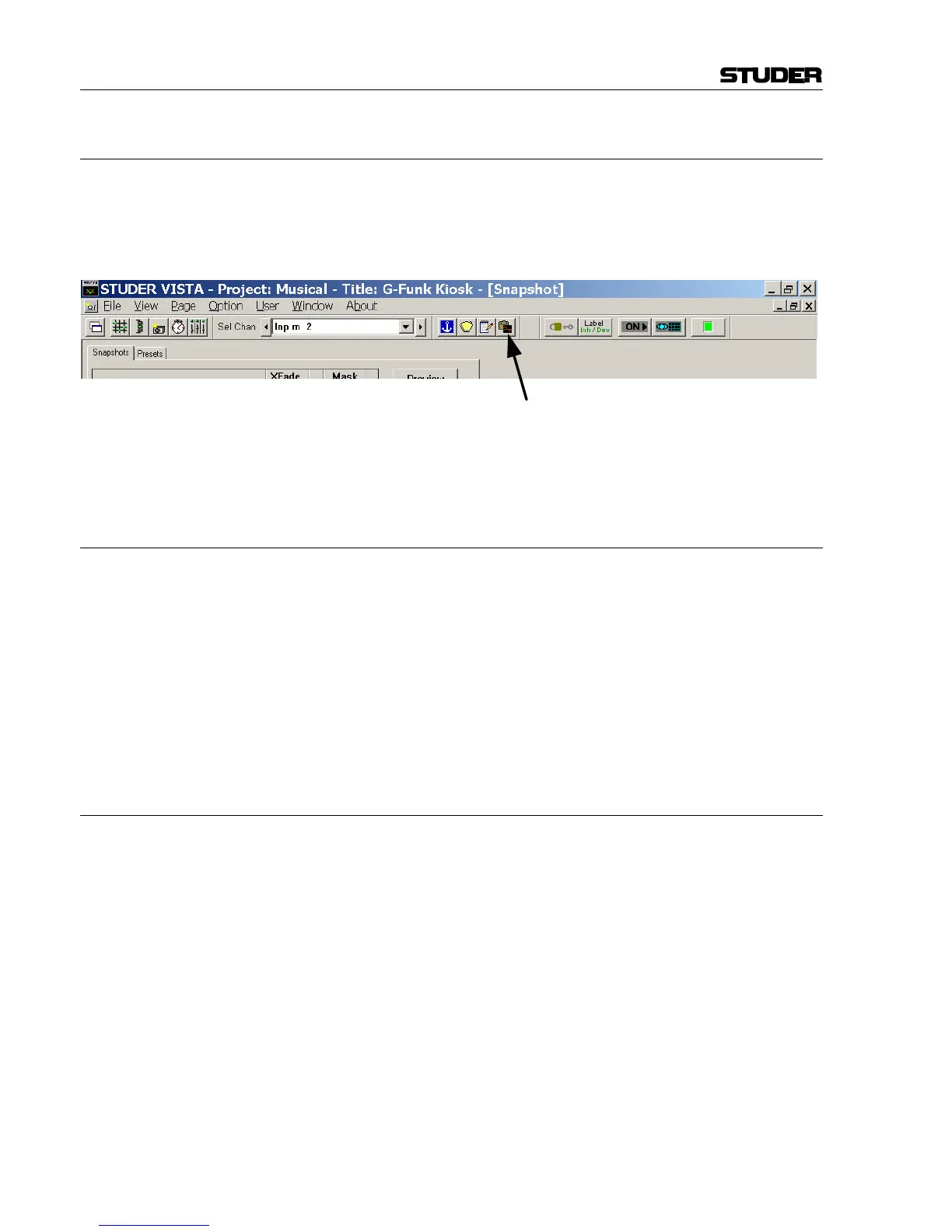
The Clipboard Library window is automatically opened whenever a paste
function is pending on the Vista console. In order to open the window
manually (e.g., to load the console clipboard with a stored value), select the
corresponding icon from the toolbar or press the OPTIONS F4 key on the
console. It is also possible to select the window from the View menu.
The window may be closed by clicking on the close box on the top right
corner of the window, by clicking on the Close button, or by pressing F4
again.
2.5.2 Paste into Clipboard Library
1 Press the 2 (Copy/Paste) key on one or more audio functions of any
channel strip(s) on the console surface. The Clipboard Library window
will be opened automatically whenever a paste operation is pending.
2 Click on the half-lit 2 button in the window. If multiple audio func-
tions are pending to be pasted (e.g. EQ and Dynamics settings), it is
possible to click on the half-lit 2 A (Copy/Paste All) button in the win-
dow. The pasted values will be graphically displayed.
3 The Save dialog opens, now you can give a name to the clipboard. It
will be stored in the currently active Clipboard library.
4 Close the Clipboard Library window (see above)
2.5.3 Copy from Clipboard Library
1 Open the Clipboard Library window (see above).
2 If the desired library is not opened already (indicated in the title bar of
the window), open the requested library by selecting “Open Library”
from the File menu.
3 Select the desired tab. Each of them represents a group of stored set-
tings, which mans that all listed files within a tab have the same type of
audio function settings. “All files” will show a list of all available clip-
board files within this library, containing all the content of the other
tabs. Files in the “Combined” tab contain a combination of audio func-
tion settings. (e.g. EQ and Dynamics settings together). Files in the
“Copy All” tab contain complete channel settings.
4 Select a clipboard setting from the list by clicking on it. This will acti-
vate a preview function on the panel, shown at the right-hand side of the
window. In this way it is easy to search for a special setting by looking
at its graphical representation. The preview function lets you also iden-
tify which audio functions are contained in the selected clipboard file:
The graphical representation of their “On/Off” key will be grayed-out if
there is no value present in this file.



 To Next Page