Vista Digital Mixing System
Date printed: 05.08.03 SW V3.3 Desk Operation 2-13
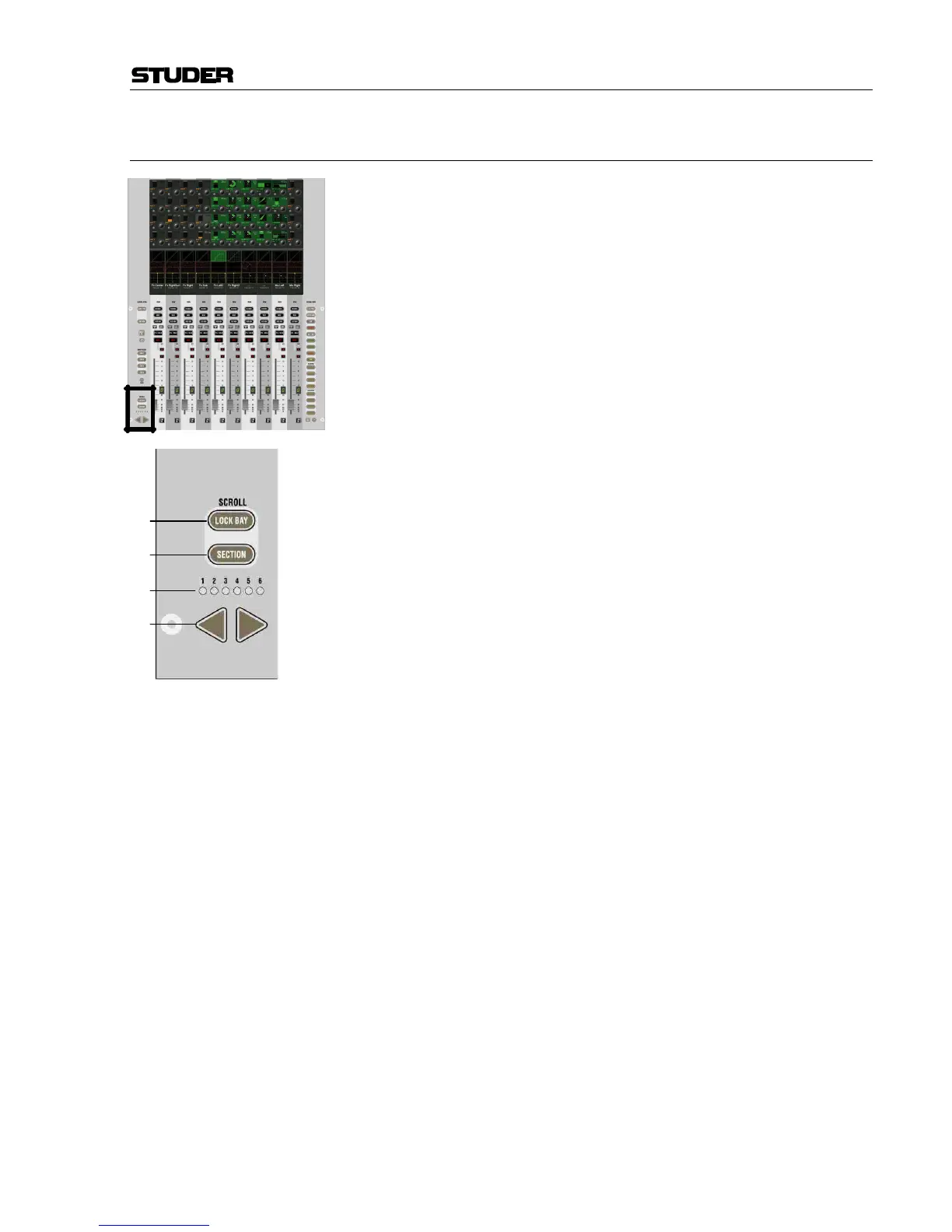
2.2.7 Area 6 – Desk Scrolling
[60] SCROLL: LOCK BAY
Used to lock the corresponding bay. This prevents this particular bay from
global scrolling and view changes. However, even a locked bay can be
scrolled when using the scroll keys on this particular bay. Global view
changes are also only affecting this particular bay if a GLOBAL VIEW key is
pressed on the locked bay. The global view is not changed if a GLOBAL
VIEW key is pressed on another bay.
Note: Starting with software version V3.3, it is possible to create a “lock group”
by pressing and holding this key on two bays at the same time. All bays in
between will then also be part of the lock group. All bays in a lock group
will react together in terms of scrolling and global view changes. In this
way it is possible to operate the desk with multiple operators. Restrictions:
Only one gang and only one pending paste action are available at a time.
[61] SCROLL: SECTION
When activated, pressing the arrow keys [63] will navigate not only by one
bay, but by a whole section (= number of physical faders).
Note: If the SCROLL: LOCK BAY and SCROLL: SECTION keys are both active,
scrolling this bay will make it move to the same position within the next
section, allowing a kind of “layered” operation with ten channels at a time.
[62] Section Indication
Indication of the current position within all sections. Acts similar to a
scroll bar.
[63] 34 Scrolling Arrow Keys
By pressing one of these arrow keys, the desk will move by 10 faders to
the left or right, similar to scroll keys on a PC.



 To Next Page