Vista Digital Mixing System
2-6 Desk Operation SW V3.3 Date printed: 05.08.03
2.2.3 Area 3a – Channel Control
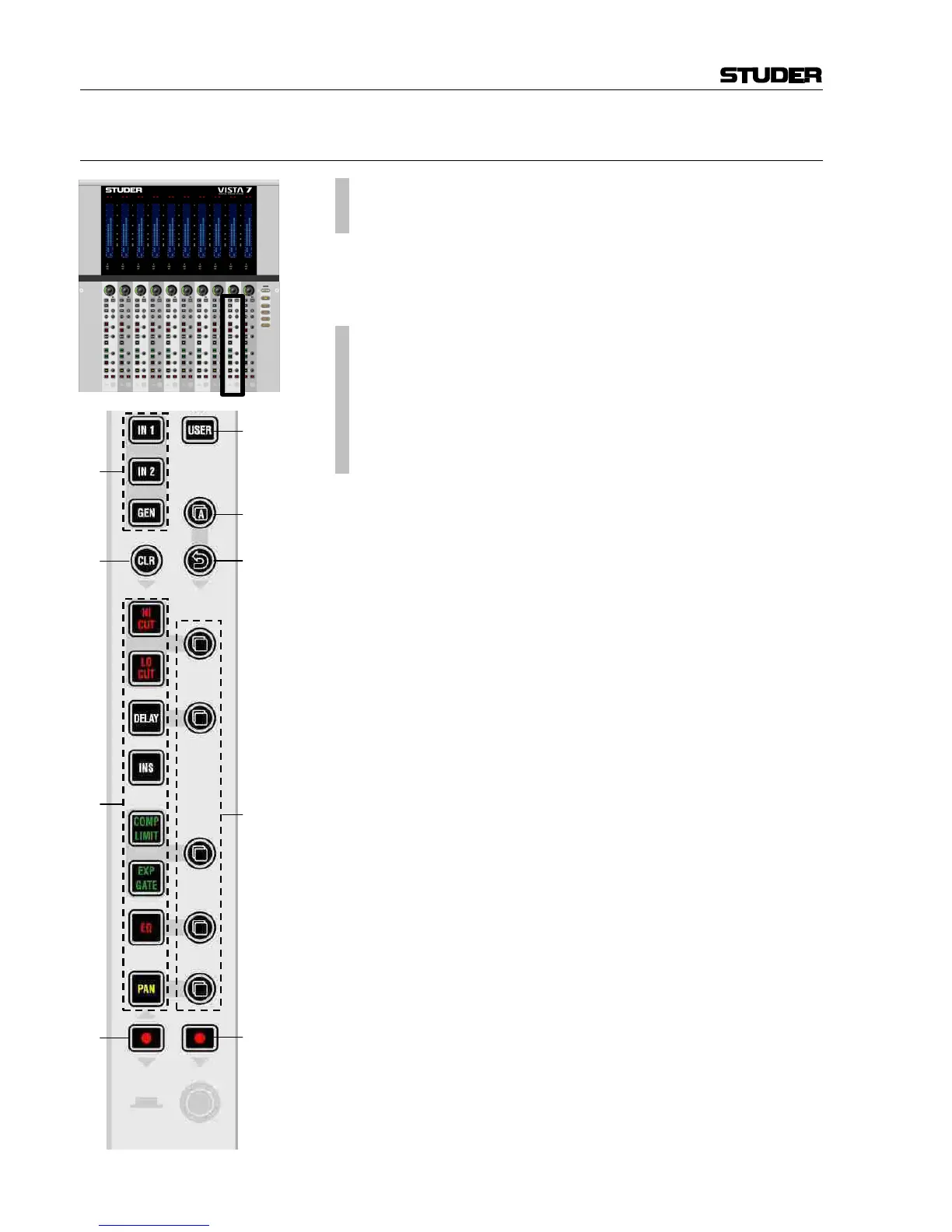
[10] ¹ IN1
¹ IN2
¹ GEN
Input Selector. Each channel has three patch points available (the patch is
viewable on the Graphic Controller TFT screen, chapter 2.4.3). Input 3 is
patched to the internal generator's output by default, but can be changed by
the user at any time.
[11]
¹ HI CUT
¹ LO CUT
¹ DELAY
¹ INS
¹ COMP / LIMIT
¹ EXP / GATE
¹ EQ
¹ PAN
Audio functions on/off; if lit, the corresponding audio function is acti-
vated. If dark, the function is bypassed. For more details about functions
and their parameters refer to chapters 3.3 and 3.4).
[12] 2 (Copy/Paste)
Dedicated to each audio function, these keys act as copy (first press) and
paste (second press) at the same time. After having copied the value of the
source channel into the internal clipboard (first press), the source channel
key is fully lit while all possible destination channels are half-lit. This
guides the user to select the destination channel efficiently. After having
selected one of them as destination key (second press), the copy/paste
function is terminated. Nevertheless there are several ways to paste the
clipboard value to multiple channels:
• Create a gang and paste the value into one of the members
• Press and hold the first channel and press another one in addition: All
channels in between will get pasted the same value
• Hold MULTI SEL [50] (chapter 2.2.6) and paste to channels of your
choice.
[13] 2 A (Copy/Paste All)
As 2 [12] above, but includes all functions of a channel at the same time.
This includes input gains, AUX, fader and bus assign. This function
“clones” the whole channel.
Tip for console setup: Set one channel to the desired status, including bus
assignment etc., create a “super gang” by linking all input channels to-
gether, and press 2 A (Copy/Paste All) twice. This will bring all linked
channels into the same status.
Note: Software version V3.3 will add extensive clipboard functionality so that
specific settings may be saved to the hard disk and recalled for pasting at
any time. For details, please refer to chapter 2.5.



 To Next Page