Vista Digital Mixing System
8-22 Vista 8 Differences
SW V3.5 Date printed: 05.04.2005
8.6 Other Software Improvements
8.6.1 Updating Multiple Snapshots
Very often, certain parameters should be overwritten in multiple snapshots.
It may be important that only certain parameters are overwritten and others
are left as they are in the individual snapshots. In order to achieve this,
place those parameters into “Isolate” mode and recall a snapshot. If this ac-
tion is now followed by an Update command, the values are changed as re-
quested.
By using Trim mode (see chapter 4.4.4.5), it is even possible to apply rela-
tive changes to individual parameters of snapshots. E.g. place the fader 1
into Trim mode and lower it by 8 dB. Recall the next snapshot and click
Update. This will save the original value of the second snapshot, reduced
by 8 dB, to the hard disk. See example 2 below for details.
This can be done even faster: First select multiple snapshots and click Re-
call and Update once.
Note: The Update button is changing its name whenever multiple snapshots are
selected.
8.6.1.1 Selecting Multiple Snapshots
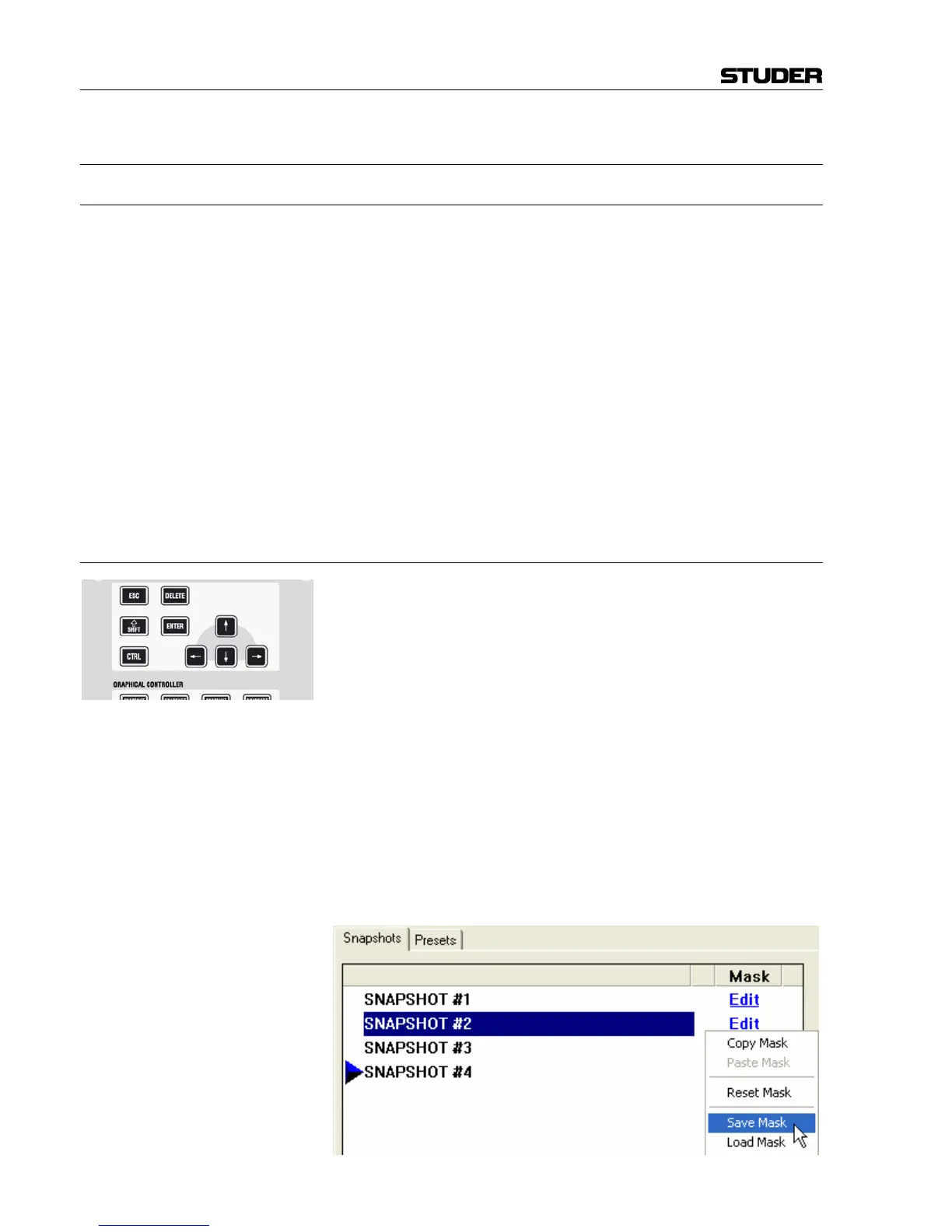
Multiple snapshots can be selected at the same time by using the keyboard
× SHIFT and CTRL keys. The selection of multiple snapshots is following
standard windows rules: × SHIFT + click selects all snapshots in between
the two, CTRL + click allows selection of individual snapshots.
Example 1: Goal: The value of channel 3 should be overwritten and set to –20 dB on “Snap-
shot #1”, “Snapshot #3”, and “Snapshot #5”
Procedure: Place the fader to –20 dB.
Hold ISO on channel strip 3. Touch the fader in order to put it into isolate
mode.
Select “Snapshot #1” with the trackball.
Hold the CTRL key on the control bay, and select “Snapshot #3” and
“Snapshot #5”.
Click on “Recall and Update”, and confirm that you want to overwrite
these snapshots.
The console will automatically recall and update the selected snapshots.



 To Next Page