Vista Digital Mixing System
8-48 Vista 8 Differences
SW V3.5 Date printed: 05.04.2005
8.6.13 Fast Adjustment of DIM and PFL/SOLO Offset Level
Up to the current software version it was possible to adjust the DIM level
in the control room as well as in the attached studios. It was also possible
to define an offset level for PFL and SOLO, so the control room monitor-
ing level would increase by a certain level whenever PFL or SOLO is ac-
tive. However, it was not accessible for operators to quickly change these
settings. Now this is performed easily. The settings are saved within the
monitoring file, as before.
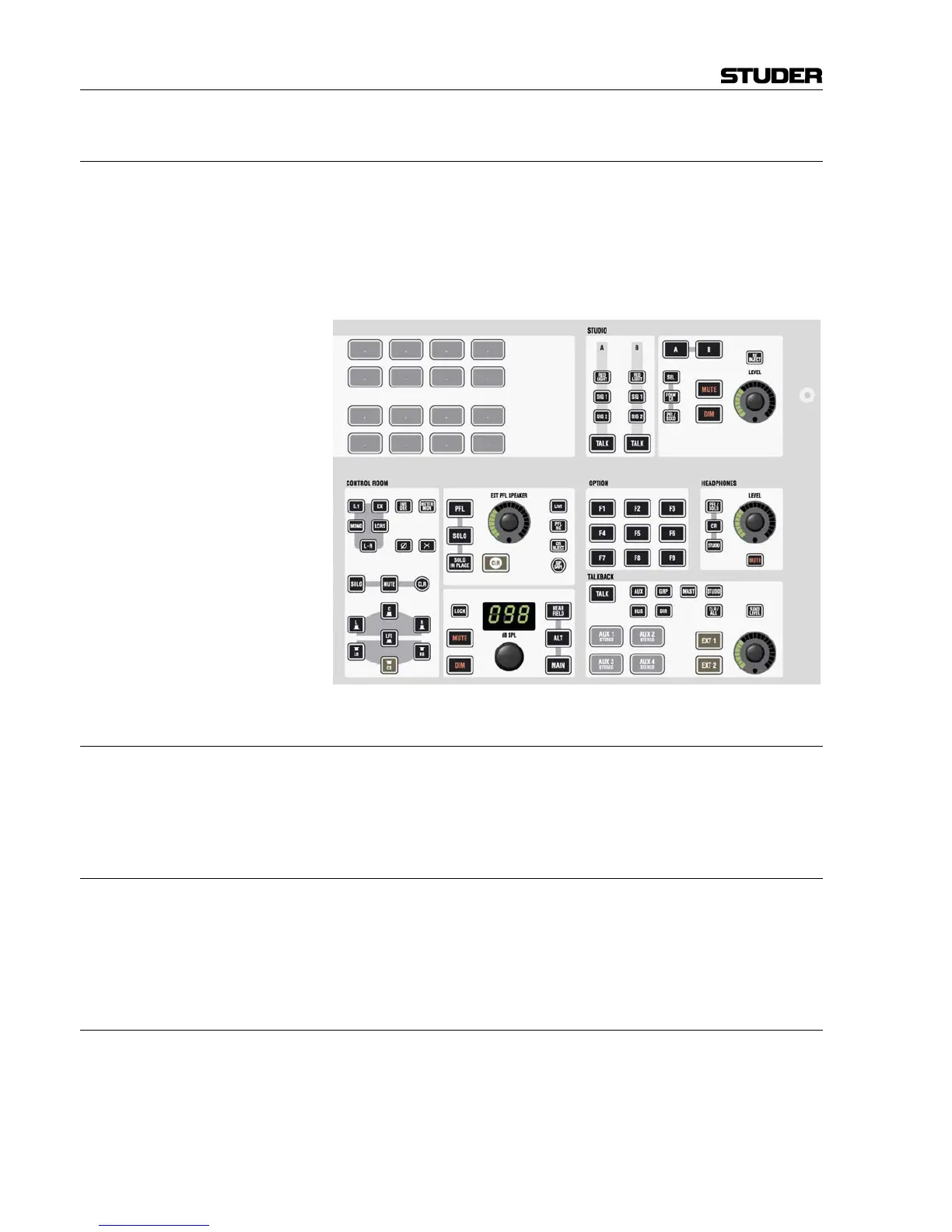
8.6.13.1 Control Room DIM Level Adjustment
Hold the DIM key next to the control room level rotary. After a short while
you will see the current DIM level on the level display. Turn the dB SPL
CR level control to adjust the dimming level, and then release the DIM key.
8.6.13.2 Studio DIM Level Adjustment
Hold the DIM key next to the studio monitor LEVEL rotary for two seconds.
Turn the LEVEL rotary control to adjust the dimming level and release the
DIM key. The current dimming level is displayed with the LED ring around
the LEVEL control.
8.6.13.3 PFL and SOLO Offset Level Adjustment
Hold the PFL or SOLO key (next to the EXT PFL SPEAKER level control).
After about two seconds you will see the current offset level in the control
room level display. Turn the dB SPL CR level control to adjust the offset
level and release the PFL or SOLO key.



 To Next Page