Vista Digital Mixing System
3-4 Parameters SW V3.3 Date printed: 05.08.03
3.2.2 Channel-Related View Change
The views listed below can be activated in a channel strip. Then the corre-
sponding values of this particular channel are shown.
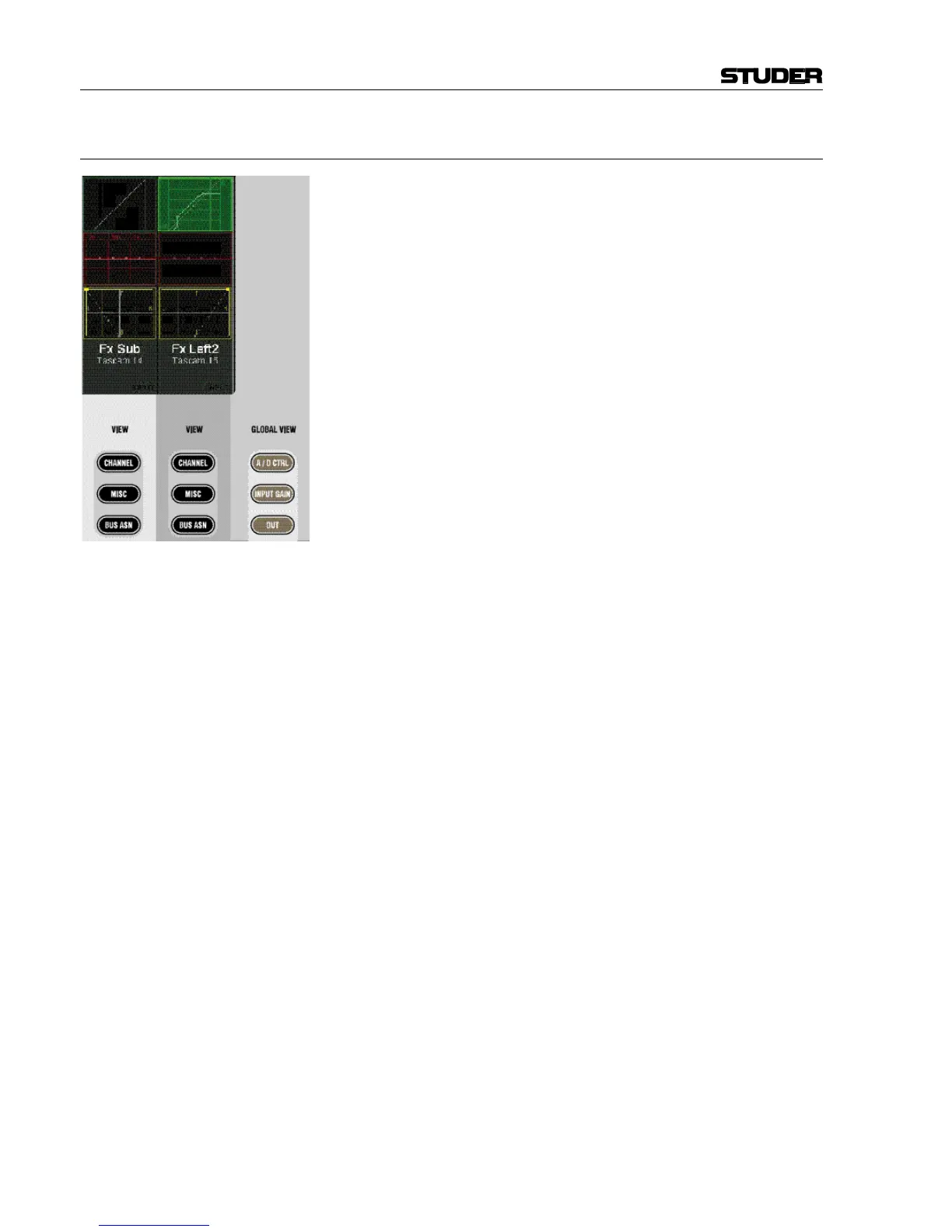
• Dynamics (by touching the dynamics curve on the TFT)
• EQ (by touching the EQ curve on the TFT)
• Panning (by touching the pan view on the TFT)
• Bus Assignment (by pressing the VIEW: BUS ASN key underneath the
TFT – as opposed to the GLOBAL VIEW: BUS ASN key described under
3.2.1).
• Channel parameters (by pressing the VIEW: CHANNEL key underneath
the TFT). This shows the rest of the needed controls, together with
AUX. This covers all 40 rotaries.
• Miscellaneous parameters (by pressing the VIEW: MISC key underneath
the TFT). This shows a reduced view of EQ, dynamics and pan pa-
rameters at a time; covers all 40 rotaries.
When touching a curve on the TFT, a picture with the available parameters
appears on the rotaries. The picture is “left-aligned” to the selected chan-
nel. When touching the dynamics curve of the third channel strip, for in-
stance, the corresponding graphics are shown on the rotary rows 3 through
7, since the dynamics parameters are covering five rows of rotaries. While
the function is unfolded on the display, the corresponding graphic field
(e.g. showing the dynamics curve) is highlighted, as shown in the picture
at the left.
In one fader bay, two audio functions can be shown at a time, either by
using the MULTI SEL key, or by simultaneously touching two graphics. In
this case, one of the two functions is displayed left-aligned, the second one
right-aligned. If there is room between them, they are interleaved by one or
more strips in black. The rotaries on these blackened strips are not used.



 To Next Page