STUDER 07. Mar. 2005 Release Notes Vista 3.5
9/21
2. Storing snapshot masks
This function is only available when in “static automation mode”.
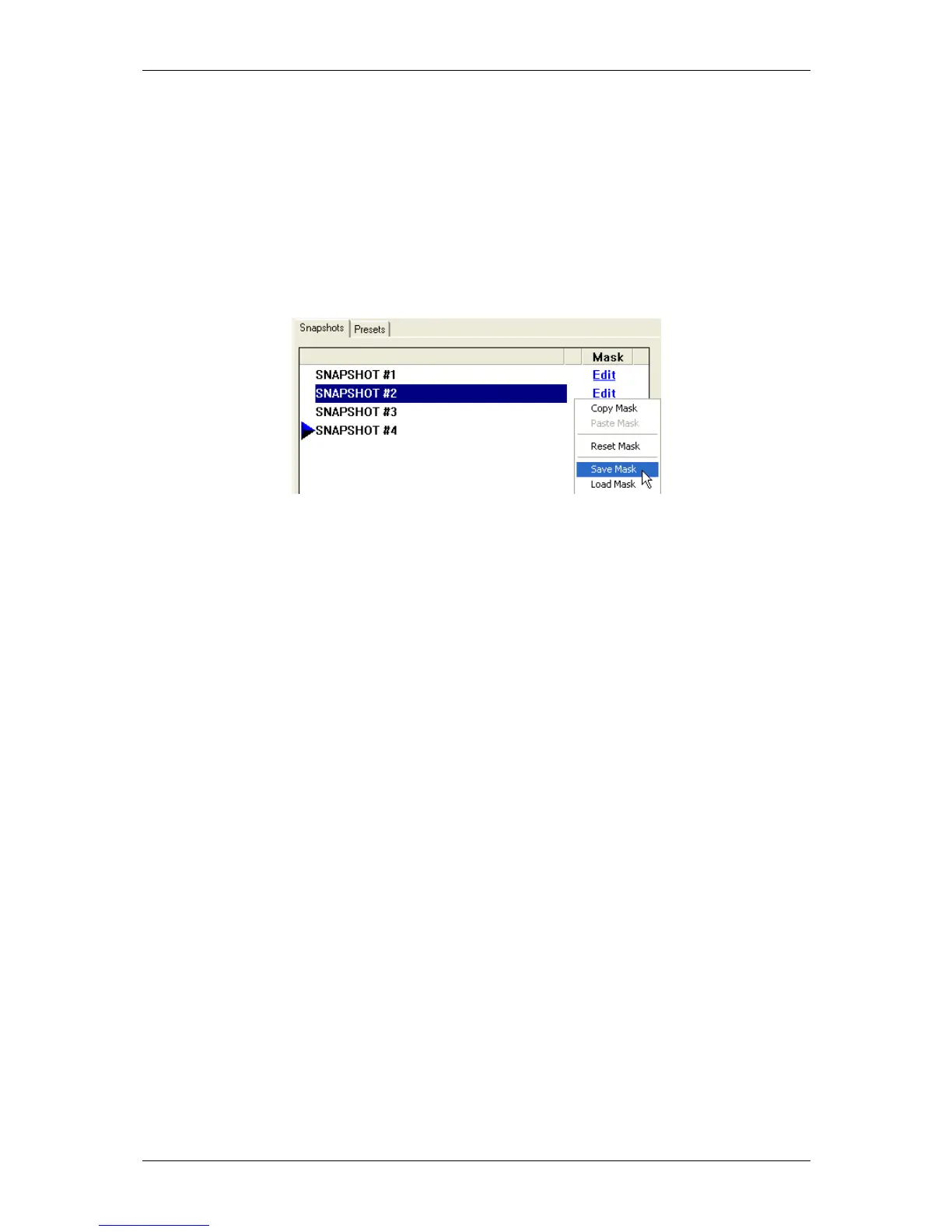
When working with partial snapshots (Option available in "Option", "Snapshot Automation"), it is
possible to right-click on the "Edit" button to the right of the snapshots. A context menu will allow
not only copying and pasting of masks between snapshots, but also saving and loading of masks into
files. The files will be stored in the directory "C:\d950System\Users".
This function will be very helpful e.g. when multiple operators are working on the console. During
rehearsals both operators may randomly store snapshots. After the rehearsal they select "their"
snapshots and apply a prepared mask to them. This will make those snapshots only influence the
part of the console where the operator was working on. Other applications may contain any recall
of more complex masks.
3. Updating multiple snapshots
This function makes only sense when in “static automation mode”.
Very often certain controls should be updated in multiple snapshots. It may be important that only
certain controls are overwritten and others obviously left as stored. In order to achieve this, place
those controls into "Isolate" mode and recall a snapshot. If this action is now followed by an UPDATE
command, only the isolated controls will be updated.
By using TRIM mode, it is even possible to apply relative changes to individual controls within
snapshots. E.g. place the fader 1 into TRIM and lower it by -8dB. Recall the next snapshot and press
UPDATE. This will store the original value of the second snapshot -8dB onto disk. See example 2
below for details.
It is possible to do all this even faster: First select multiple snapshots and press "Recall and Update"
once. Note: The button "Update" is changing its name whenever multiple snapshots are selected.
Selecting multiple snapshots
It is possible to select multiple snapshots at the same time by using the keyboard SHIFT or CTRL
key. The selection of multiple snapshots is following standard windows rules: SHIFT selects all
snapshots in between the two, CTRL+click allows selection of individual snapshots.
Example 1:
Goal:
The value of channel 3 should be overwritten and set to -20dB on the following snapshots:
"Snapshot #1", "Snapshot #3", "Snapshot #5"
Steps:
1. Place the fader at -20dB
2. Press-and-Hold ISO on channel strip 3. Touch the fader in order to put it into ISOLATE mode.
3. Select "Snapshot #1" with the mouse
4. Press-and-Hold the CTRL key on the control bay, followed by selecting "Snapshot #3" and
"Snapshot #5"
5. Click on "Recall and Update". Confirm that you want to overwrite those snapshots.



 To Next Page