Vista Digital Mixing System
8-34 Vista 8 Differences
SW V3.5 Date printed: 05.04.2005
8.6.6.1 Second Layer Disabled (Classic Operation)
Section 1 Section 2 Section 3 Section 4 Section 5 Section 6
Scrolling
8.6.6.2 Second Layer Enabled
“Layer 1:” Section 1 Section 2 Section 3
L2 Switches
“Layer 2:” Section 4 Section 5 Section 6
Scrolling
It is still possible to globally switch to the second layer by pressing the
section navigator keys 4…6. This will activate the L2 keys on each strip of
the console surface, indicating that the operator is now looking at the lower
half of the console.
8.6.6.3 Displaying Both Layers at the Same Time
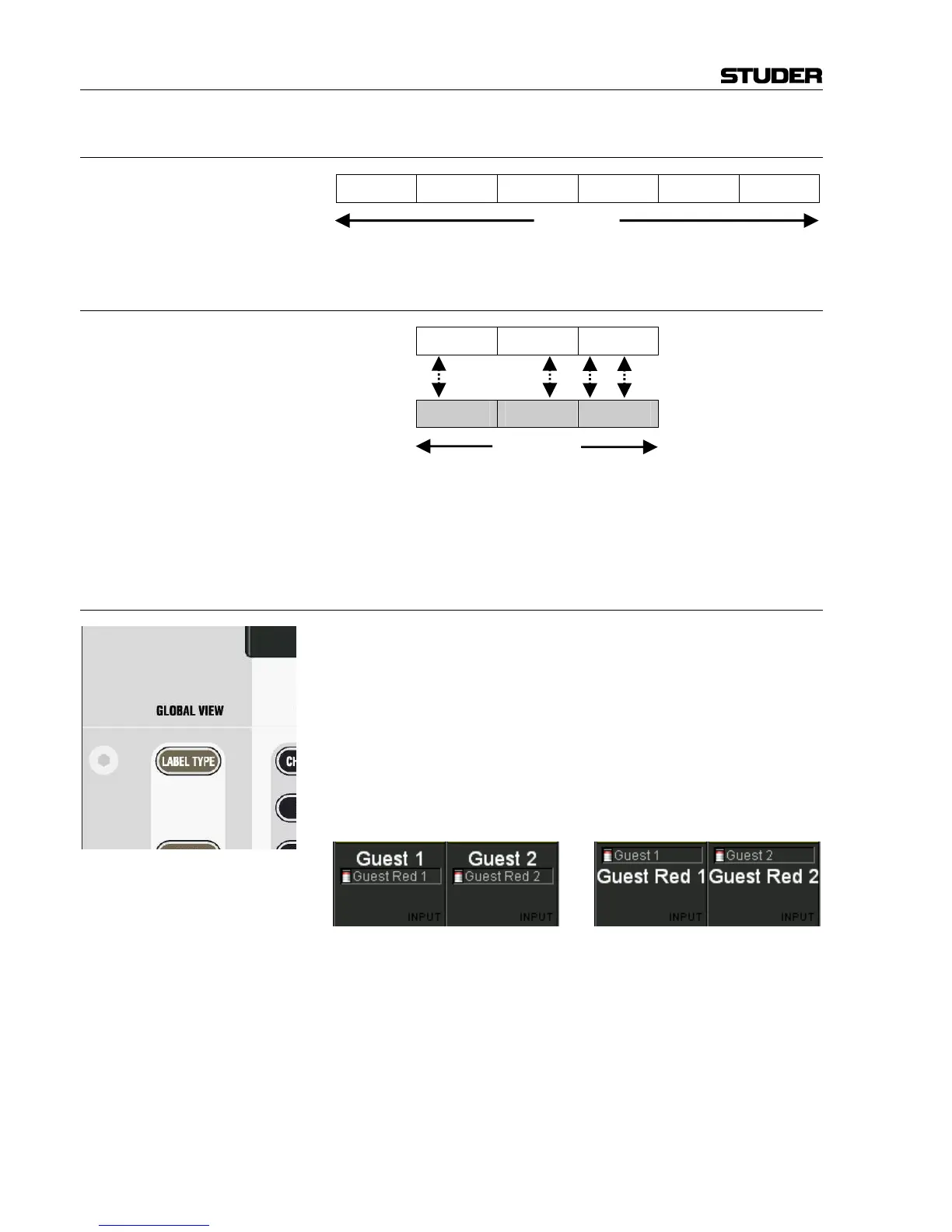
If the second layer option is activated, Vista 8 may display the label and
real time metering of both layers at the same time. In order to activate this
label view, press LABEL TYPE several times until the label display area on
the Vistonics
®
screen shows the labels of both layers. This label of the sec-
ond layer appears only if there is a channel assigned to that strip on both
layers. Use the Strip Setup dialog on the graphic controller screen to do
this.
Next to the label there is a small icon showing the level of the alternate
layer (below, left). When switched to the second layer, the label lines are
swapped, and the top line is showing the first layer label and metering (be-
low, right).
Notes: This option may be activated separately for all fader bays as well as for the
control bay.
The second layer is displayed only if the first layer is not empty.



 To Next Page