STUDER 07. Mar. 2005 Release Notes Vista 3.5
3/21
1. Cue List
This function is only available when in “static automation mode”.
Using software version 3.5 or newer, extensive cue list functionality is available. The Cue List allows
sorting of snapshots as well as attaching MIDI and HiQNet commands to each of them. Each title can
contain one cue list. The cue list can also be controlled from external controllers using MIDI
messages. It is additionally possible to use standard "MIDI show control" commands as well as
recalling certain cues with a user defined MIDI command (Note and Program change). The cue list is
only available in "static" mode, hence not when dynamic automation is active.
Opening the cuelist is done either by clicking on the cue icon
in the toolbar of the graphical
controller screen or using the LIST button on the Vista 8 control bay.
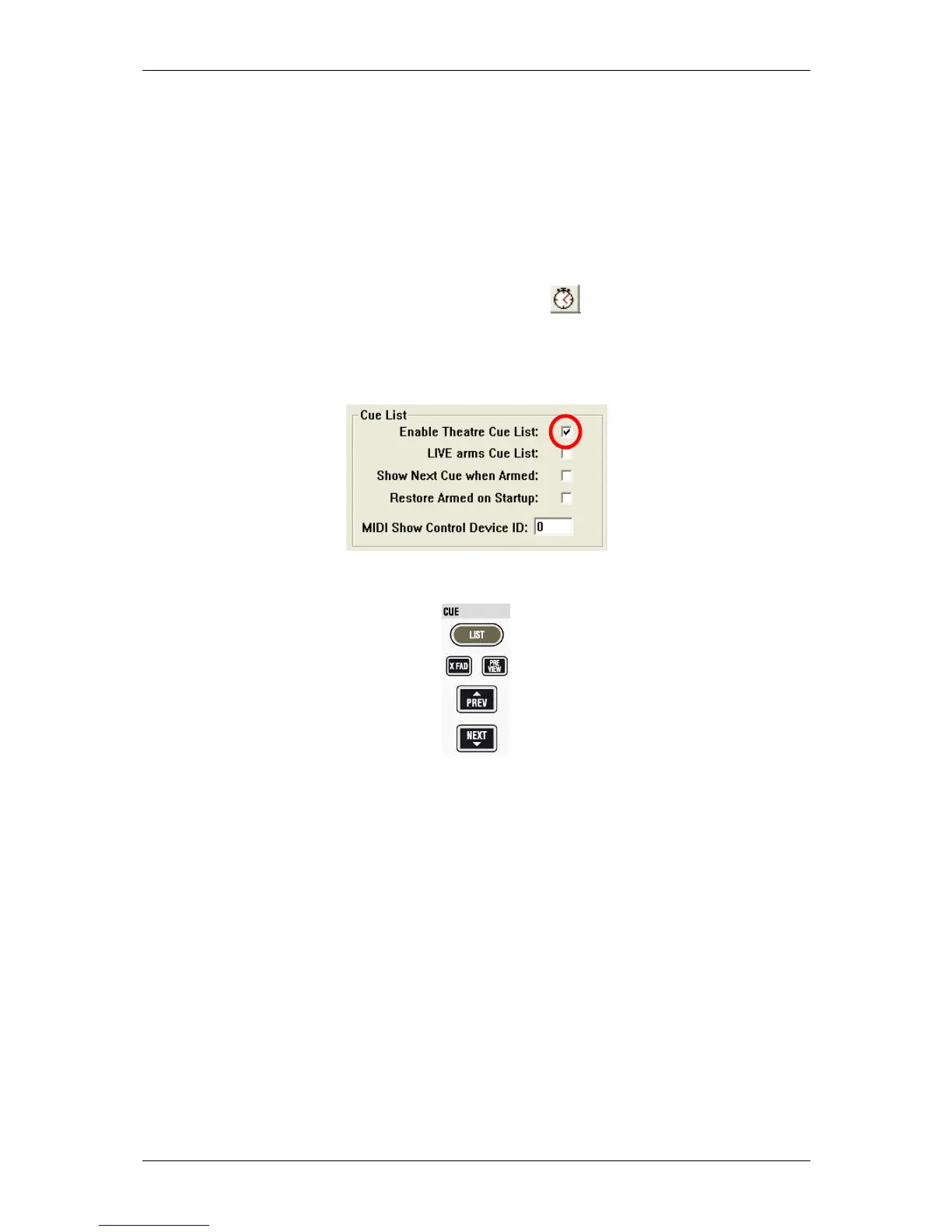
Activating Theatre Cue List functionality
In order to activate the "theatre cue list" functionality, enter the menu “Option: Snapshot
Automation” menu.
Hardware Buttons
The following keys are located on the Vista8 control bay:
It is possible to use these keys to control various functions of the cue list. They allow certain
functions to be switched using a hardware button, while it is still possible to use the mouse and
operate these functions on the graphical controller screen:
• Switching on/off the crossfade function between cues
• Activate or de-activate the cue preview mode
• Go to next or previous cue.
Creating a cue
In order to create a cue, simply drag&drop one of the available snapshots from the top left corner
or an event from below the snapshots to the cue area. It is also possible to create a cue using the
MAKE button on the right side of the cue list. A cue doesn't have to contain a snapshot. It is also
possible to just add any event without activating any console setting changes.
Recalling a cue
There are several ways to recall a cue:
- Double-click on its name
- Click on "NEXT" or "PREVIOUS" buttons on the graphical control screen
- If cuelist is armed: attach an incoming MIDI event to it and send the appropriate MIDI
message to the console



 To Next Page