Vista Digital Mixing System
8-20 Vista 8 Differences
SW V3.5 Date printed: 05.04.2005
8.4.3.1 Setting up a Mute Group
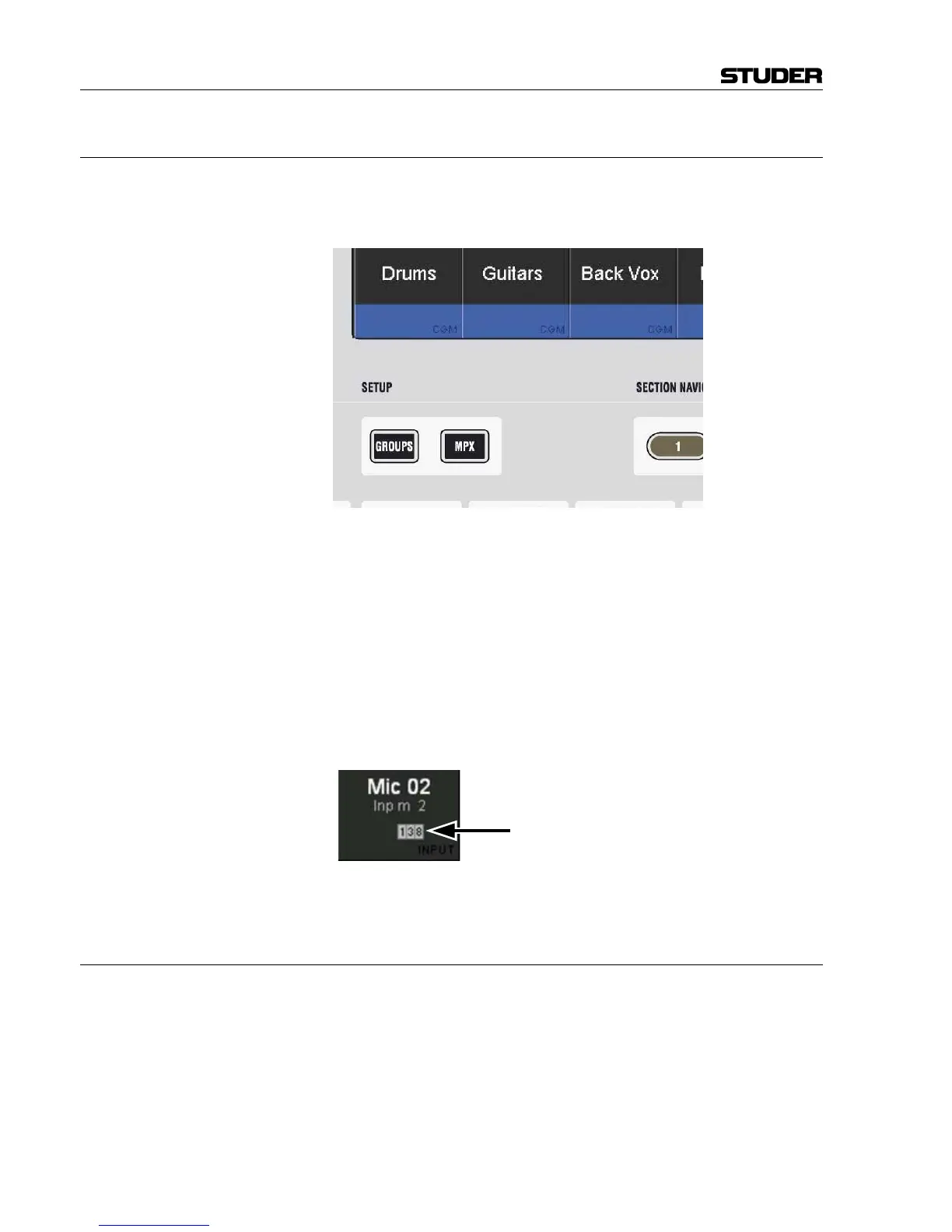
Press the SETUP GROUPS key on the control bay. The mute group master
keys (dedicated MUTE GROUPS M1...M8 keys, and if defined, the keys
9…16 in the SOURCE SELECTOR area, see above) will be half-lit.
Select the mute group you want to setup (mute group master keys, or one
of the source selectors 9…16).
A dialog will pop up on the graphic controller screen, allowing you either
to add all currently muted channels on the console to this mute group with
one trackball click, or to clear all members from the selected mute group.
You may also select or deselect members using their LINK / SEL key.
Press the mute group master key again in order to select another one.
Please note that hierarchies can be built up as well. In other words, a mute
group may contain individual channels as well as another mute group mas-
ter. Hierarchies are not indicated on the desk once the set-up menu is quit.
The area below the channel labels indicates whether a channel is a member
of one or multiple mute groups.
Press SETUP GROUPS again in order to leave the setup mode.
8.4.3.2 Where are the Mute Groups Saved?
Information on which channel belongs to which mute group is saved within
a so-called “start snapshot” of each title. I.e., this information is saved once
per title when the title is closed. However, the state of the mutes in each
channel is saved within each snapshot.
This Channel is Part of Mute Groups 1, 3, and 8



 To Next Page