11-4 PN: 10580-00343 Rev. H S820E UG
11-3 Touchscreen Menu System Operations
Touchscreen
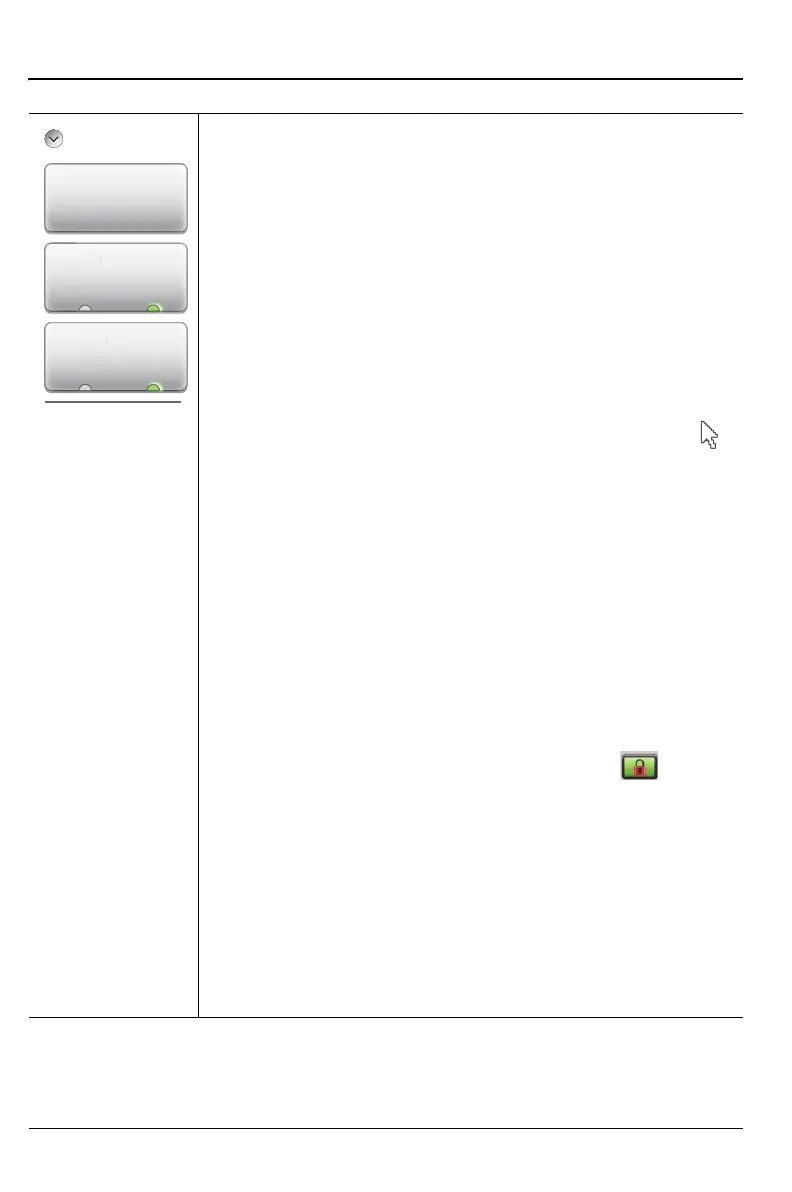
Calibrate: Calibrate the touchscreen if it does not seem to
correctly respond to screen presses. Press Calibrate (or the
7 key on the number keypad) and follow the on-screen
instructions to recalibrate the touchscreen. Use an
appropriate touchscreen stylus for the most accurate results.
After the calibration procedure, press Enter to accept, or
press Esc to cancel the recalibration.
Cursor: The Site Master includes a screen cursor that can
be controlled with the four directional Arrow keys (#7 in
Figure 2-5 on page 2-12) above the keypad. Toggle the
Touchscreen menu Cursor button to On and press one of the
four directional Arrow keys to display the screen cursor .
Control the cursor movement with the 4 Arrow keys, and use
the Enter key for selection. You can also toggle the Cursor
key On and Off by pressing the 4 key on the number keypad.
When a message box is displayed, the Left and Right
Arrow keys are used to make a selection.
Note that when the cursor is enabled, the Enter key is used
exclusively for activating the cursor mouse-up/mouse-down
key functions. All other Enter key functions are disabled.
Lock: When Lock is toggled to On, the touchscreen does
not register user input. The touchscreen would normally be
locked only if it was registering unintended input that was not
resolved with a touchscreen calibration. This scenario may
happen after touchscreen damage. A lock icon is
displayed at the top of the screen in the Status Tool Bar when
Lock is set to On.
To unlock the touchscreen, press Touchscreen (0) to
display the Touchscreen menu, and then press the 1 key on
the number keypad.
The Site Master can continue to be used to make
measurements and save files (even with touchscreen locked
or damaged) by using a USB mouse or by turning on the
Arrow Cursor control.
Figure 11-3. Touch Menu
Calibrate
Touchscreen
Cursor
oc









 To Next Page