S820E UG PN: 10580-00343 Rev. H 2-23
Instrument Overview 2-5 Touchscreen Display Overview
System Function Tool Bar
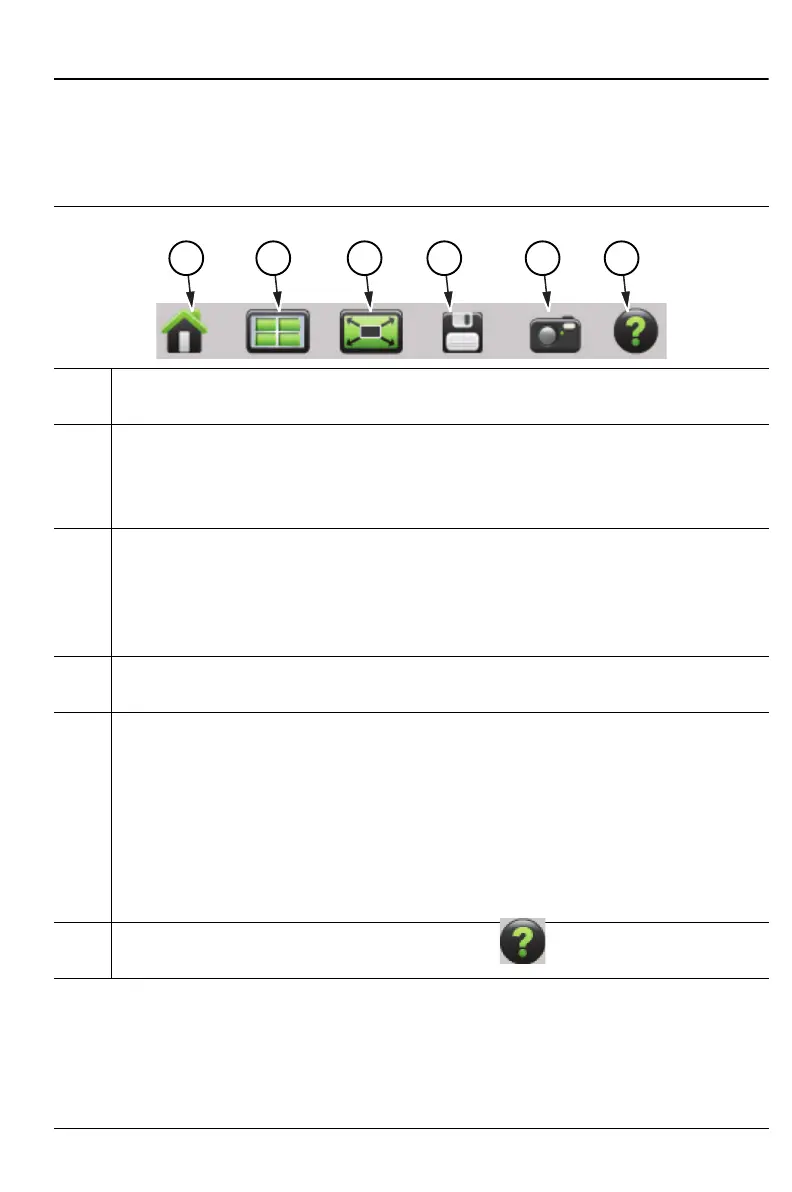
The System Function Tool Bar icons allow quick access to functions that are
not measurement specific. Figure 2-11 shows the icons that are displayed in
the Status Tool Bar Area (Not available in Classic mode).
1. Preset icon. Opens the Preset (1) Menu. See “Preset Menu”
on page 11-27 for additional information.
2. Mode Selector icon. Press to change measurement mode (including
switching between Advanced and Classic Cable-Antenna Analyzer
mode). Tap an icon (Figure 2-12 on page 2-24) to change modes or press
Esc to cancel.
3. Full Screen icon. Sets the display to full screen view mode (hides all of the
tool bars, shortcut icons, and menus). Full screen view increases the view
size of the graph. Press Esc to return to the standard view. Measurement
menus are not available in Full screen mode. Refer to Figure 2-13
on page 2-25 for a comparison of the two views.
4. Save icon. Shortcut to open the File (7) > Save menu. See “Save Files”
on page 10-4 for additional information.
5. Screen Capture icon. Press to capture and save an image of the current
screen. The file is automatically saved to internal memory in the
ScrnShots folder. The file is automatically named based on the
measurement type and saved in Portable Network Graphics (.png)
format.
Refer to “Screen Shot Capture” on page 11-12 for examples and details
on the image capture options (capture size, background color, and
header/footer).
6. Help icon. Shortcut to open the Help menu . See “Help Menu”
on page 11-5 for additional information.
Figure 2-11. System Function Tool Bar Icons









 To Next Page