7
Copy paper/originals
7-16 CS193/CS173/CS163
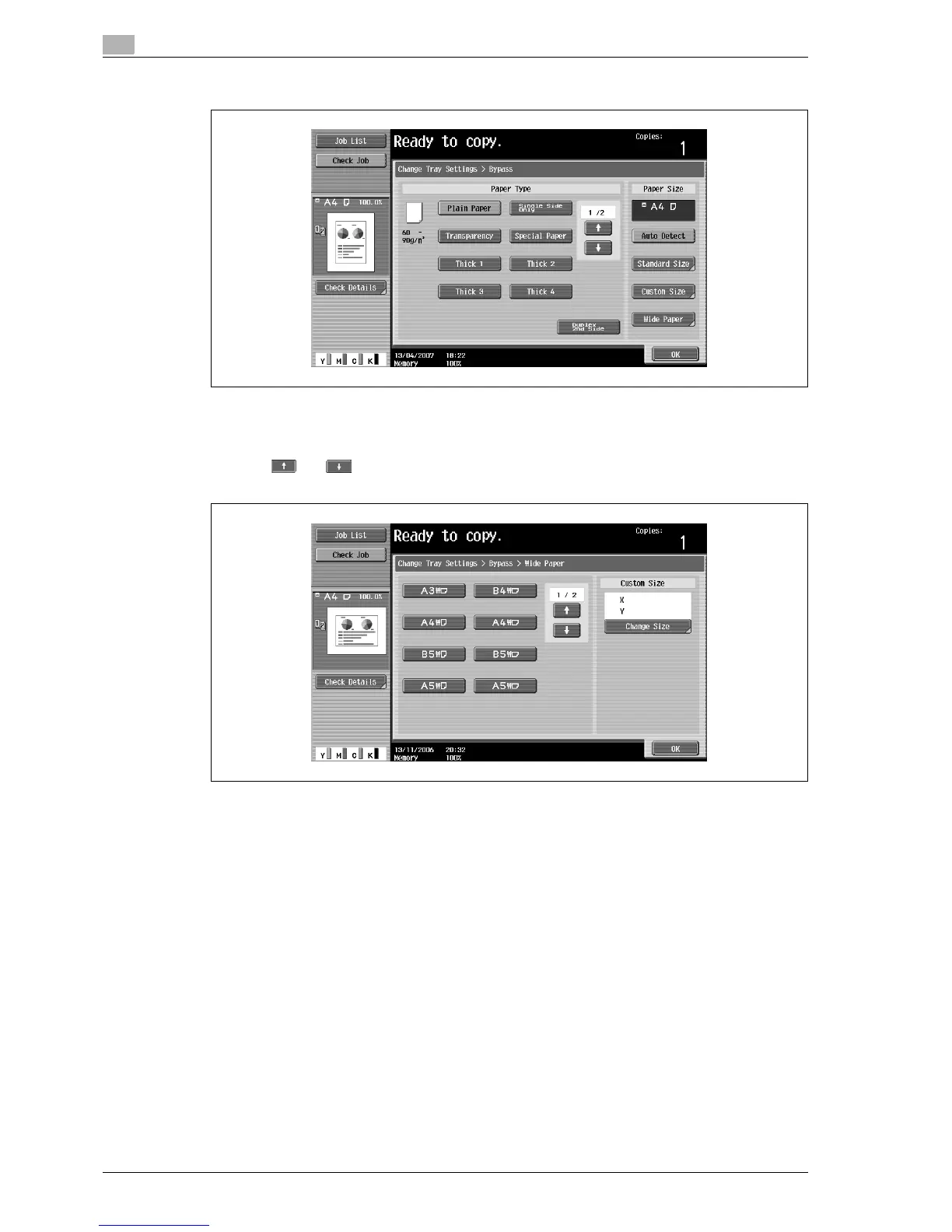
4 Touch [Wide Paper].
The Wide Paper screen appears.
5 Select the size of the paper to be loaded.
– Touch and until the button for the desired paper size is displayed.
– If tray 1/2/3/4 is set for wide paper, the size cannot be changed.
6 To change the size, touch [Change Size].
The Change Size screen for oversized paper appears.
7 Specify the X and Y sides of the paper, and then touch [OK].
– Touch either [X] or [Y], press the [C] (clear) key to clear the current setting, and then use the keypad
to type in the size.
– To store a paper size of 12 e 18 w, touch [12 e 18 w]. Enter values for "X" and "Y".
– If a value outside the allowable range is specified, the message "Input error" appears. Type a value
within the allowable range. The allowable range differs depending on the paper sizes.
– If the orientation of the loaded paper does not match the sizes specified for "X" and "Y", "Input
error" appears, even if the values are within the allowable range. In addition, do not enter the same
size for "X" and "Y".
– If the value was incorrectly entered, press the [C] (clear) key in the keypad to erase the value, and
then specify the correct value.



 To Next Page