CS193/CS173/CS163 12-17
Utility mode
12
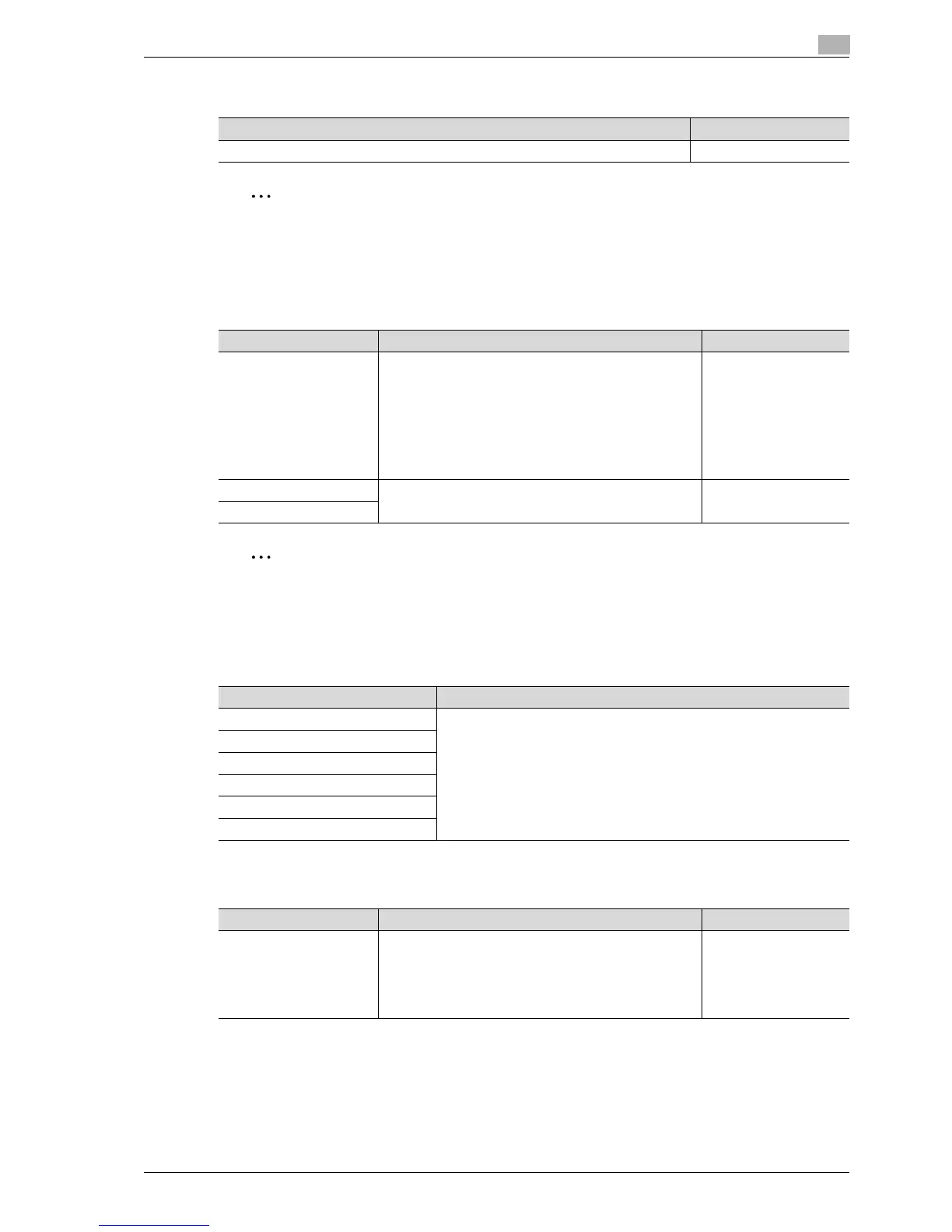
Blank Page Print Settings
2
Note
[Output Settings], [AE Level Adjustment] and [Blank Page Print Settings] appear only if the
"Administrator Security Levels" parameter in Administrator mode is set to "Level 2".
12.3.2 Custom Display Settings
Copier Settings
2
Note
If the image controller icon appears in the Basic screen on CS193/CS173, only one shortcut key for the
Basic screen can be specified.
Scan/Fax Settings
Copy Screen
Description Default Setting
Select whether or not stamps and overlays are printed on blank pages. Do Not Print
Parameter Description Default Setting
Default Tab Specify the default display for the Basic screen in Copy
mode.
•Basic:
This is the normal basic display.
• Quick Copy:
Displays all selectable items for the "Paper" function,
"Zoom" function and "Duplex/Combine" function. All
can also be displayed for the "Color" function. The nor-
mal Basic screen appears as a different tab.
Basic
Shortcut Key 1 Shortcut keys for frequently used Application functions can
be added to the Basic screen of Copy mode.
OFF
Shortcut Key 2
Parameter Description
Default Tab Specify settings for faxing and scanning. For details, refer to the User man-
ual – Network Scan/Fax/Network Fax Operations.
Program Default
Address Book Index Default
Shortcut Key 1
Shortcut Key 2
Default Address Book
Parameter Description Default Setting
Copy Operating Screen Select the screen that is displayed while printing.
• Yes: A screen for reserving a copy job appears while
printing and, if [Program Next Job] is touched, a job
can be reserved.
• No: A copy job can be reserved while the Basic screen
in Copy mode is displayed.
No



 To Next Page