12
Utility mode
12-44 CS193/CS173/CS163
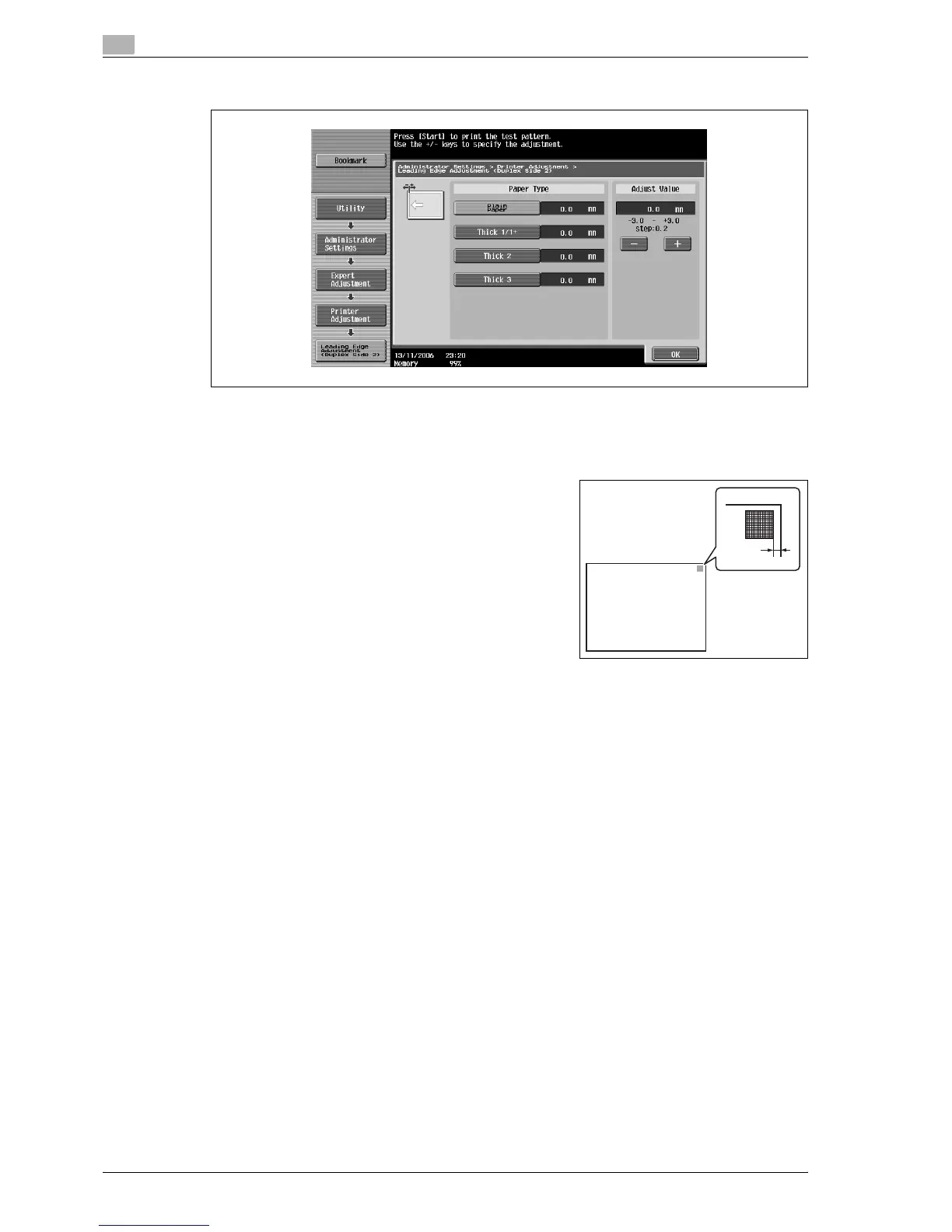
6 Touch the button for the paper type to be set.
7 Press the [Start] key.
– Only paper loaded into the bypass tray can be used.
A test pattern is printed.
8 Check that the distance from the starting print position of the
test pattern to the edge of the paper (c) is 4.2 mm.
– If the distance is less than 4.2 mm, touch [+] to increase the
adjustment (between 0.2 mm and 3.0 mm).
– If the distance is more than 4.2 mm, touch [-] to reduce the
adjustment (between -0.2 mm and -3.0 mm).
– Each time [+] or [-] is touched, the value is increased or
decreased by one increment.
9 Press the [Start] key.
The adjusted test pattern is printed.
10 Check the distance from the starting print position of the test pattern to the edge of the paper.
– Check that the distance has been adjusted to 4.2 mm.
– If more adjustment is necessary, repeat steps 8 and 9.
– To adjust the print position for a different paper type, return to step 6.
11 Touch [OK].
The print position is adjusted.
12.7.4 Centering (Duplex 2nd Side)
The starting print position at the left edge of the paper for the second side during automatic double-sided
copying for each paper tray can be adjusted.
0 The starting print position is adjusted during manufacturing of the machine. Normally, the starting print
position will not need to be adjusted.
0 Only A4 v paper can be used to adjust the bypass tray.
1 Display the Administrator Settings screen.
– For details on displaying the Administrator Settings screen, refer to "Displaying the Administrator
Settings screen" on page 12-37.
2 Touch [1 System Settings].
The System Settings screen appears.
cc: 4.2 mm



 To Next Page