12
Utility mode
12-78 CS193/CS173/CS163
12.14.3 Viewing account counters
1 Display the Administrator Settings screen.
– For details on displaying the Administrator Settings screen, refer to "Displaying the Administrator
Settings screen" on page 12-37.
2 Touch [4 User Authentication/Account Track].
The User Authentication/Account Track screen appears.
3 Touch [3 Account Track Settings].
The Account Track Setting screen appears.
4 Touch [2 Account Track Counter].
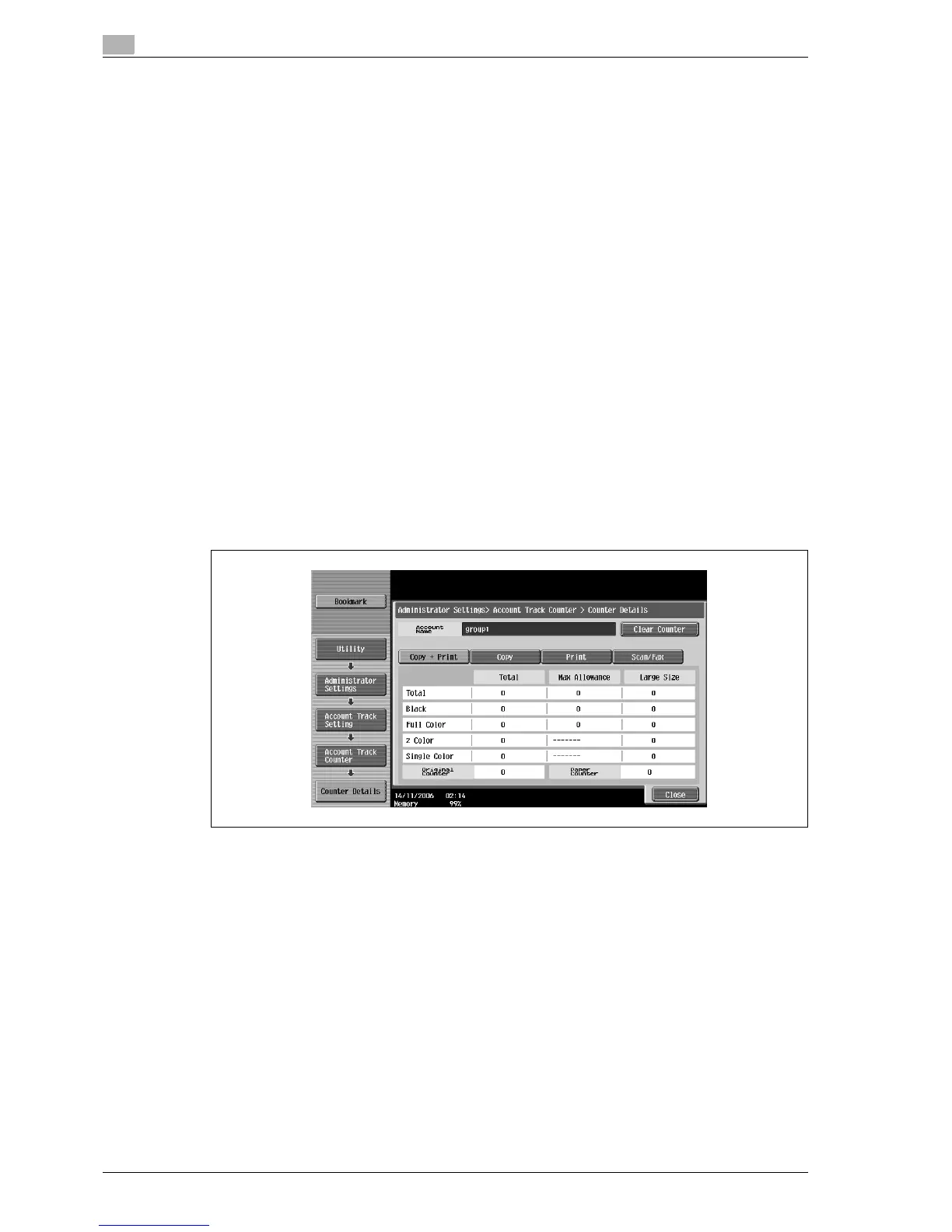
5 Touch the button for the desired account, and then touch [Counter Details].
The Counter Details screen for the account appears.
6 Touch the button for the counter to be viewed, and then check the counter.
– To clear the counters for the current account, touch [Clear Counter] in the Counter Details screen
for the current account. A confirmation message appears, asking whether the counter should be
cleared. To clear the counters for the displayed account, touch [Yes] in the confirmation message
screen, and then touch [OK]. The maximum number allowed is not cleared.
– To clear the counters for all accounts, touch [Reset All Counters] in the Account Track Counter
screen containing a list of all accounts. A confirmation message appears, asking whether the
counters should be cleared. To clear the counters for all accounts, touch [Yes] in the confirmation
message screen, and then touch [OK]. The maximum number allowed is not cleared.
7 Touch [Close].



 To Next Page