11
Managing jobs
11-10 CS193/CS173/CS163
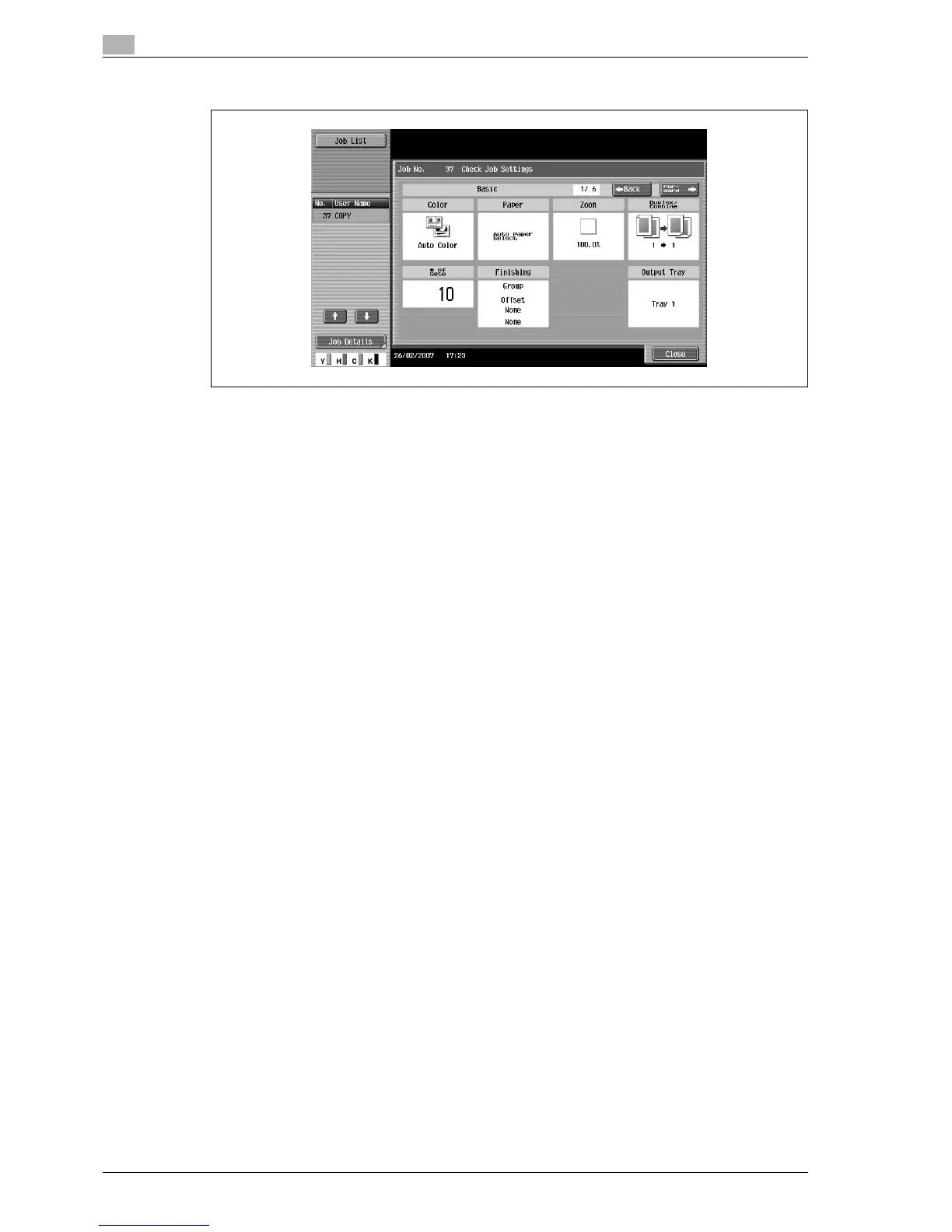
The Check Job Settings screen appears.
4 After checking the settings, touch [Close] or press the [Reset] key.
– To return to the screen displayed before [Check Job Set.] was touched, touch [Close].
– To return to the Basic screen, press the [Reset] key.
11.2.3 Checking job details
The following information can be checked from the Job List screen.
- Print tab
Status (Receiving, PrintWait, Printing, StopPrint, Print Err, Job Stored)
*1
, Result (Job Complete, Deleted
Due To Error, Deleted by User, Reset Modes)
*2
, Error Details
*2
, User Name, Document Name, Output
Tray, hours (Job Start, Job End
*2
), Prints (Original, # of Sets)
- Send tab
Status (Transferring, Waiting, Dialing, Waiting To Redial)
*1
, Result (Job Complete, Deleted Due To Error,
Deleted by User)
*2
, User Name, Document Name, Address Type (E-Mail, FTP, File (SMB), TWAIN, Fax,
Others), Dest (Detail
*3
), hours (Job Start, Type), Prints (Document), External Server Information
*4
- Receive tab
Status (Receiving, Dialing (only with polling reception), Print Wait, Printing, StopPrint, Print Err, Saving
to Memory)
*1
, Result (Job Complete, Deleted Due To Error, Deleted by User, Reset Modes)
*2
, Error
Details
*2
, User Name, Document Name, Output Tray, hours (Job Start, Type), Prints (Document)
- Save tab
Status (Receiving, Saving to Memory)
*1
, Result (Job Complete, Deleted Due to Error, Deleted by User,
Reset Modes, Write Error)
*2
, Error Details
*2
, User Name, User Box (box number/box name), hours (Job
Start), Prints (Original)
*1
Displayed only for jobs on the Current Jobs list
*2
Displayed only for jobs on the Job History list
*3
Displayed only for jobs on the Currently Jobs list transmitted to multiple destinations
*4
Displayed only with external server authentication
1 Touch [Job List] in the left panel, and then touch [Job Details].
The Job List screen appears.
2 Display the list containing the job whose details are to be checked.



 To Next Page