4
Additional copy operations
4-26 CS193/CS173/CS163
4.7.5 Setting the "Auto Reset Confirmation" function
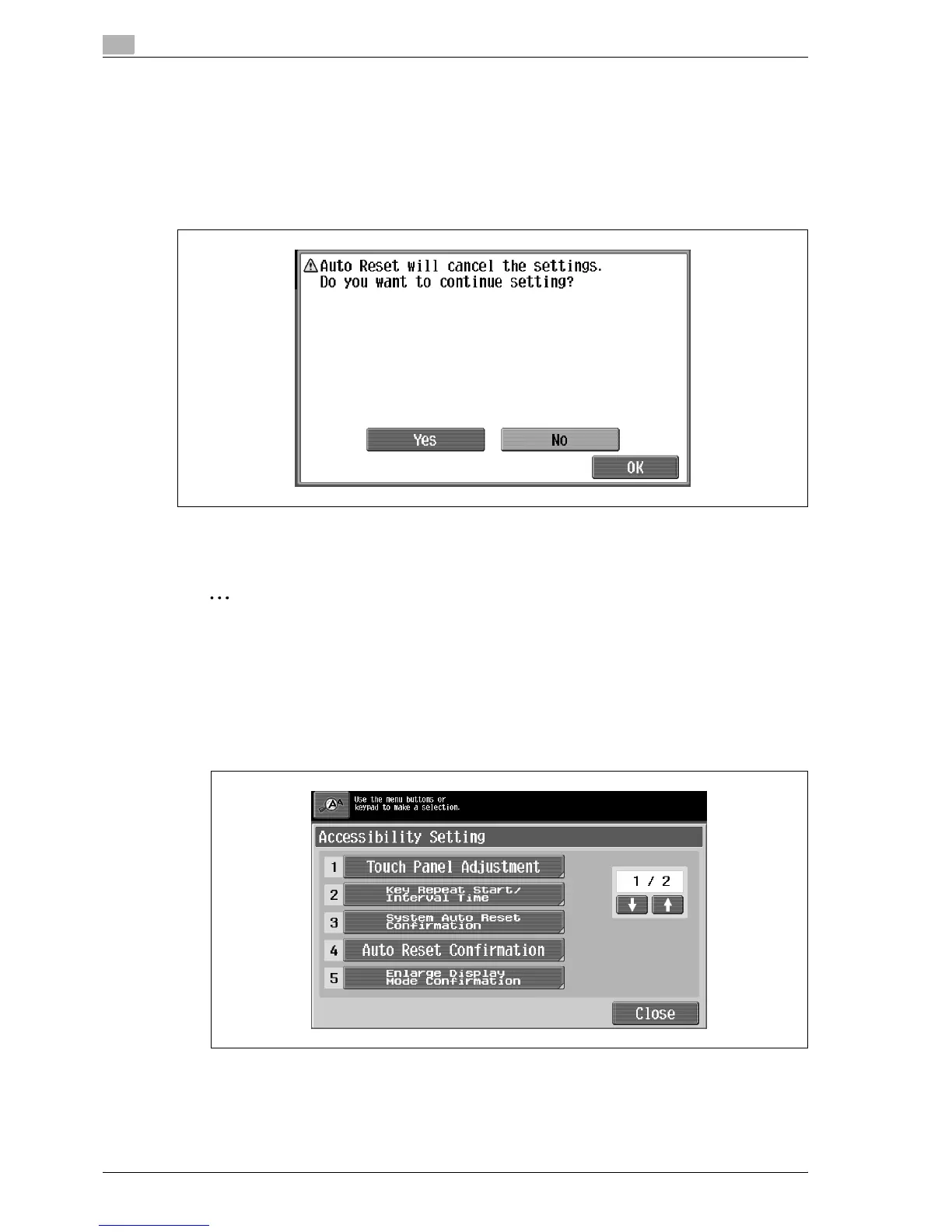
When the automatic panel reset operation is performed in Enlarge Display mode, a message can be
displayed, allowing you to choose either to continue operating without resetting the current settings or to
reset the settings.
In addition, it is possible to specify when the message is displayed, requesting confirmation to reset the
settings in Enlarge Display mode.
As the factory default, "No" is selected.
Yes: The current settings are not reset.
No: The current settings are reset to the default settings.
2
Note
For details on the automatic panel reset operation, refer to "Automatically clearing settings (automatic
panel reset)" on page 2-26.
1 Display the Accessibility Setting screen.
– For details on displaying the Accessibility Setting screen, refer to "Displaying the Accessibility
Setting screen" on page 4-21.
2 Touch [Auto Reset Confirmation] or press the [4] key in the keypad.
The Auto Reset Confirmation screen appears.



 To Next Page