12
Utility mode
12-12 CS193/CS173/CS163
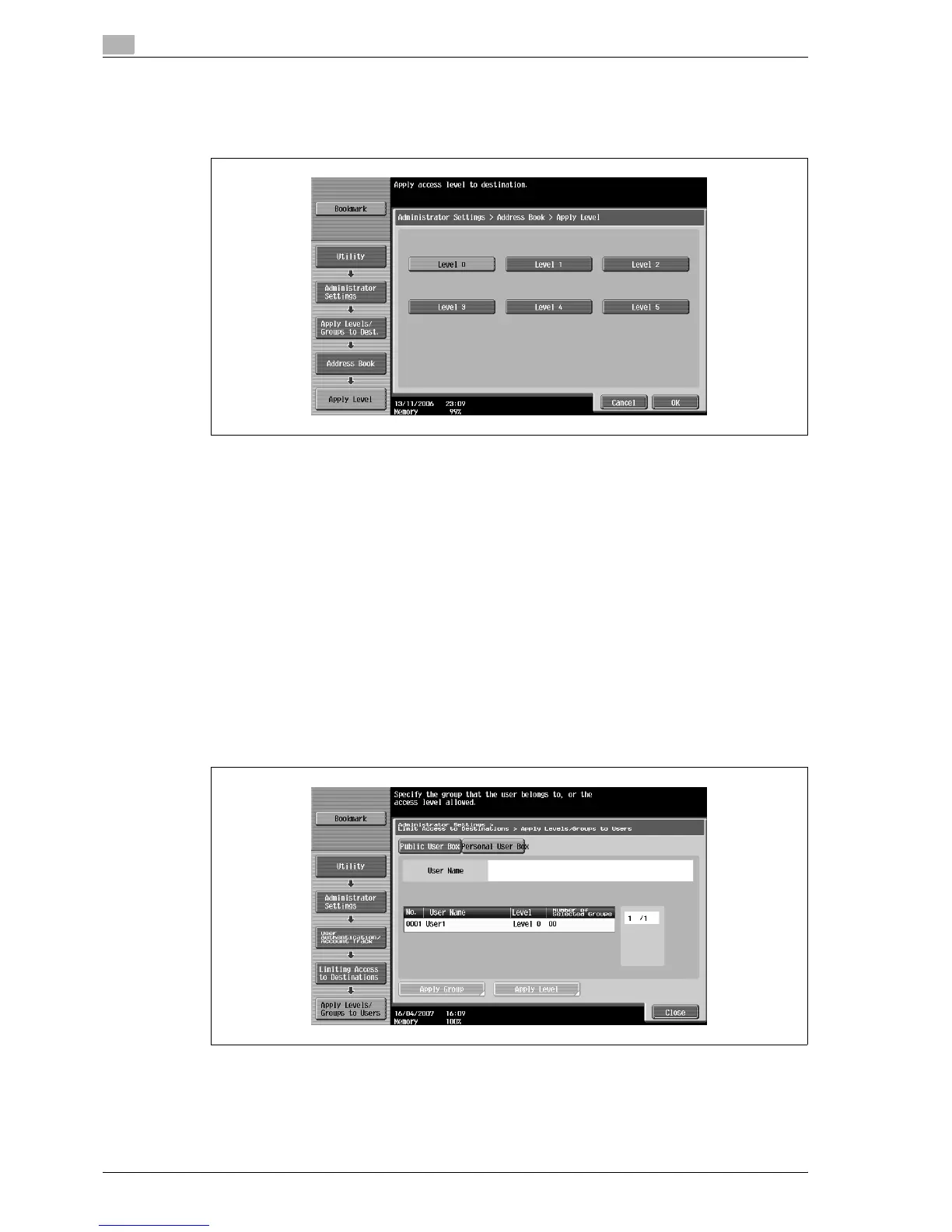
– To specify the destination level, touch [Apply Level]. Touch the button for the desired level, and then
touch [OK].
– Touch the button for a group, touch [Details], and then check the destinations and names of users
belonging to that group.
Specifying a user level
1 Display the Administrator Settings screen.
– For details on displaying the Administrator Settings screen, refer to "Displaying the Administrator
Settings screen" on page 12-37.
2 Touch [4 User Authentication/Account Track].
The User Authentication/Account Track screen appears.
3 Touch [7 Limiting Access to Destinations].
The Limiting Access to Destinations screen appears.
4 Touch [3 Apply Levels/Groups to Users].
The Apply Levels/Groups to Users screen appears.
5 Select either "Public User Box" or "Personal User Box" as the user type, and then touch the button for
the desired User.
– The "Public User Box" and "Personal User Box" settings appear only when access by a public user
is permitted.
– If use by a public user is permitted, "Public" appears as the user name. As the default, level 0 is
specified.



 To Next Page