CS193/CS173/CS163 12-49
Utility mode
12
8 Touch [OK].
– To cancel the setting and select the default, press the [Reset] key.
The center folding position is adjusted.
If the folding position was at the center of the paper in step 7, this completes the procedure.
9 Use the "Half-Fold" setting to print another sample copy.
10 Check the print result.
– Check that the folding position is adjusted to the center of the paper.
– If more adjustment is necessary, repeat steps 6 through 9.
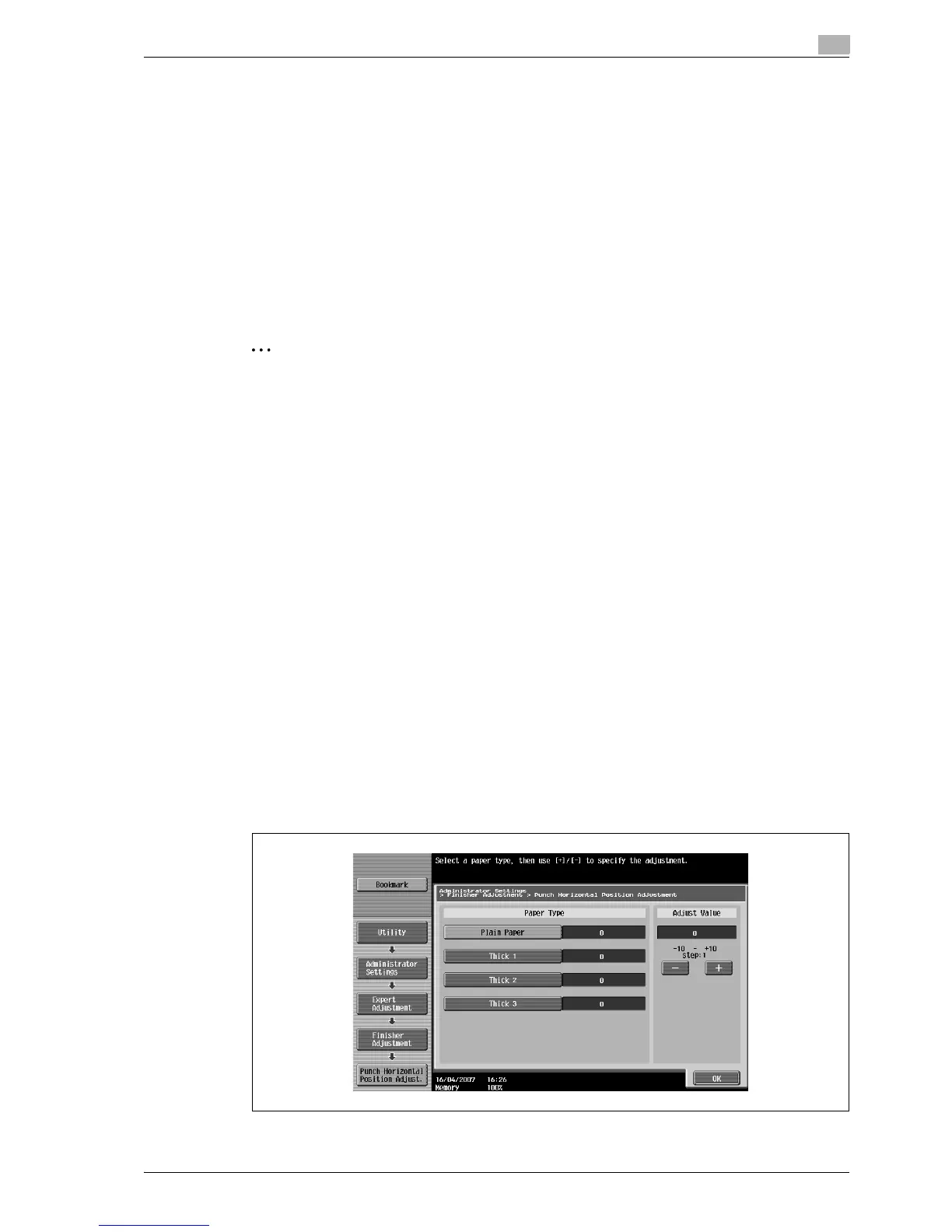
12.8.3 Punch Horizontal Position Adjustment
When printing with a Punch setting, the angle of punched holes along the side of the paper can be adjusted.
2
Note
[Punch Horizontal Position Adjustment] does not appear if optional finisher and punch kit are not
installed.
!
Detail
For details on the Punch settings, refer to "Punching holes in copies (Punch settings)" on page 3-75.
0 Before making any adjustments, use a Punch setting to print a sample copy. Perform the adjustment
while checking the sample that was created.
1 Display the Administrator Settings screen.
– For details on displaying the Administrator Settings screen, refer to "Displaying the Administrator
Settings screen" on page 12-37.
2 Touch [1 System Settings].
The System Settings screen appears.
3 Touch [7 Expert Adjustment].
The Expert Adjustment screen appears.
4 Touch [3 Finisher Adjustment].
The Finisher Adjustment screen appears.
5 Touch [3 Punch Horizontal Position Adjustment].
The Punch Horizontal Position Adjustment screen appears.



 To Next Page