8
Application functions
8-54 CS193/CS173/CS163
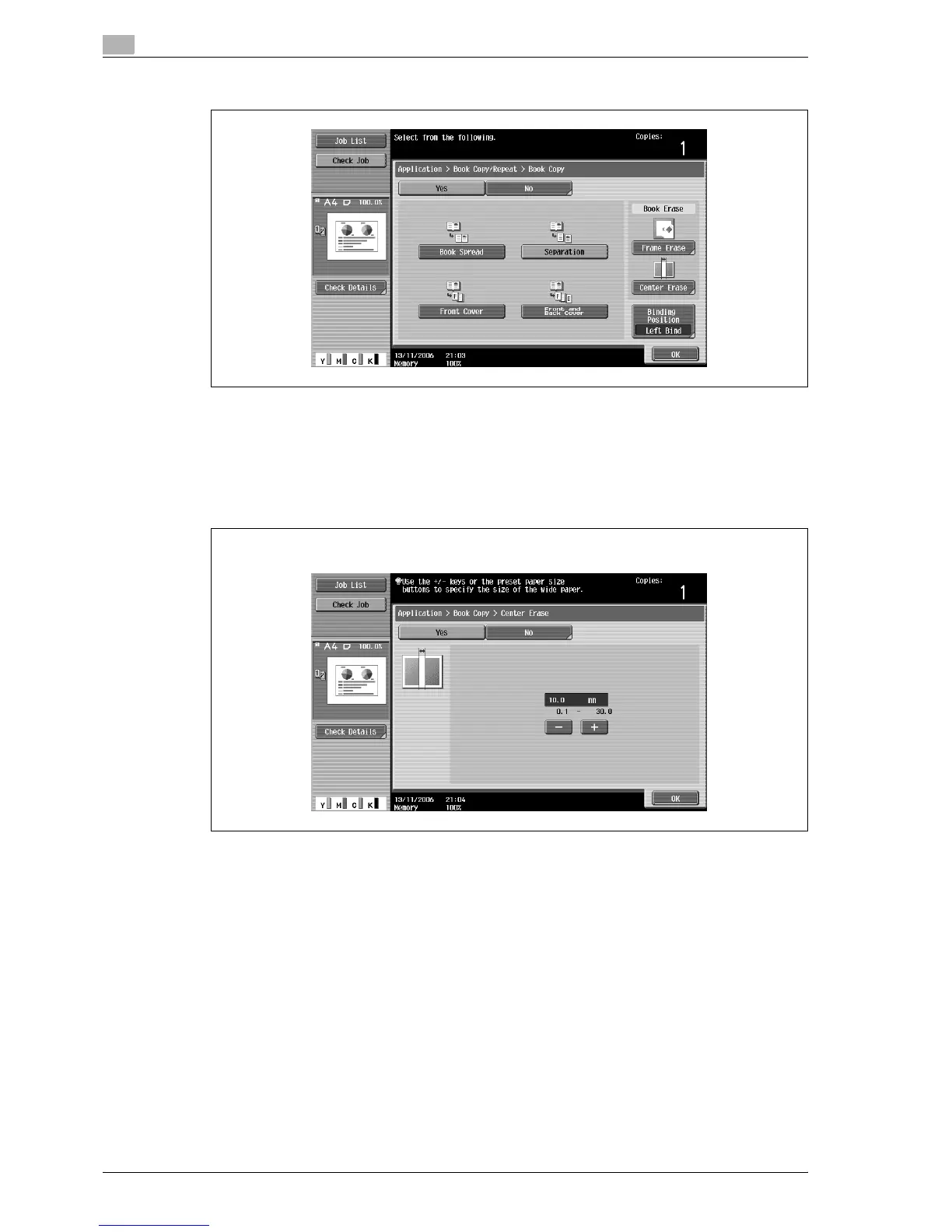
5 Touch the button for the desired setting.
– If "Separation", "Front Cover" or "Front and Back Cover" is selected, [Binding Position] appears.
Select the binding position of the original.
– If desired, specify a Book Erase function. Touch the button for the erasing method, touch [-] and [+]
to specify the width of the area to be erased, and then touch "OK".
– When using the keypad to specify the settings, press the [C] (clear) key to erase the value, and then
type in the setting.
– To cancel the "Book Copy" function, touch [No].
?
What do the Book Erase functions do?
% The shadow of the book binding and the shadow of the book edges can be erased from the copies.
The "Frame Erase" and "Center Erase" functions can be used together.
?
How are settings specified for the "Frame Erase" function?
% Refer to "Erasing specified areas of copies ("Frame Erase" function)" on page 8-75. In addition, if
the "Frame Erase" function in the Application screen is specified, [Frame Erase] under "Book Erase"
will be selected.
?
What happens when a value outside of the allowable range is specified?
% The message "Input error" appears. If "Input error" appears or if the erased width was incorrectly
entered, press the [C] (clear) key in the keypad, and then specify the correct value.
6 Touch [OK], and then touch [Close].
Center Erase screen



 To Next Page