8
Application functions
8-82 CS193/CS173/CS163
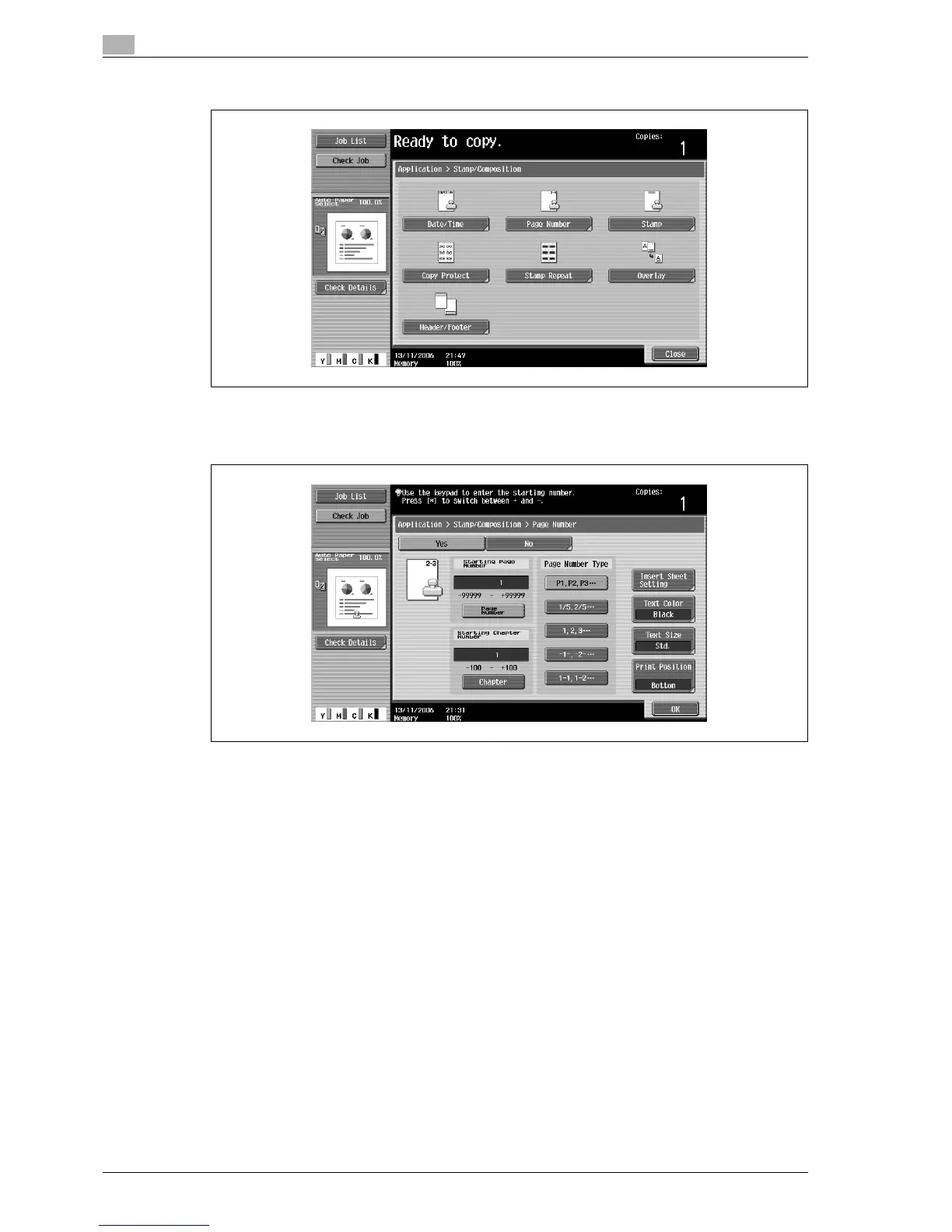
3 Touch [Page Number].
The Page Number screen appears.
4 Using the keypad, type in the starting page number for printing.
– If desired, touch [Chapter], and then use the keypad to type in the chapter number. The entered
chapter number is printed if "1-1, 1-2...." is selected under "Page Number Type".
– The setting for "Page Number" can be set to a number between –99999 and 99999, and the setting
for "Chapter" can be set to a number between –100 and 100.
– When specifying a setting for "Starting Page Number", switch the number between positive and
negative by pressing the [1] key.
– If a negative value is specified, the numbers are not printed until the numbering reaches 1. For
example, if "–1" was specified, the numbers are printed starting with "1" on the third copied page.
– To print multiple chapters, specify the first page of each chapter using the "Chapters" function.For
details, refer to "Specifying pages to be printed on the front side ("Chapters" function)" on
page 8-34.
– To cancel the "Page Number" function, touch [No].
5 Select a setting under "Page Number Type".



 To Next Page