CS193/CS173/CS163 2-19
Before making copies
2
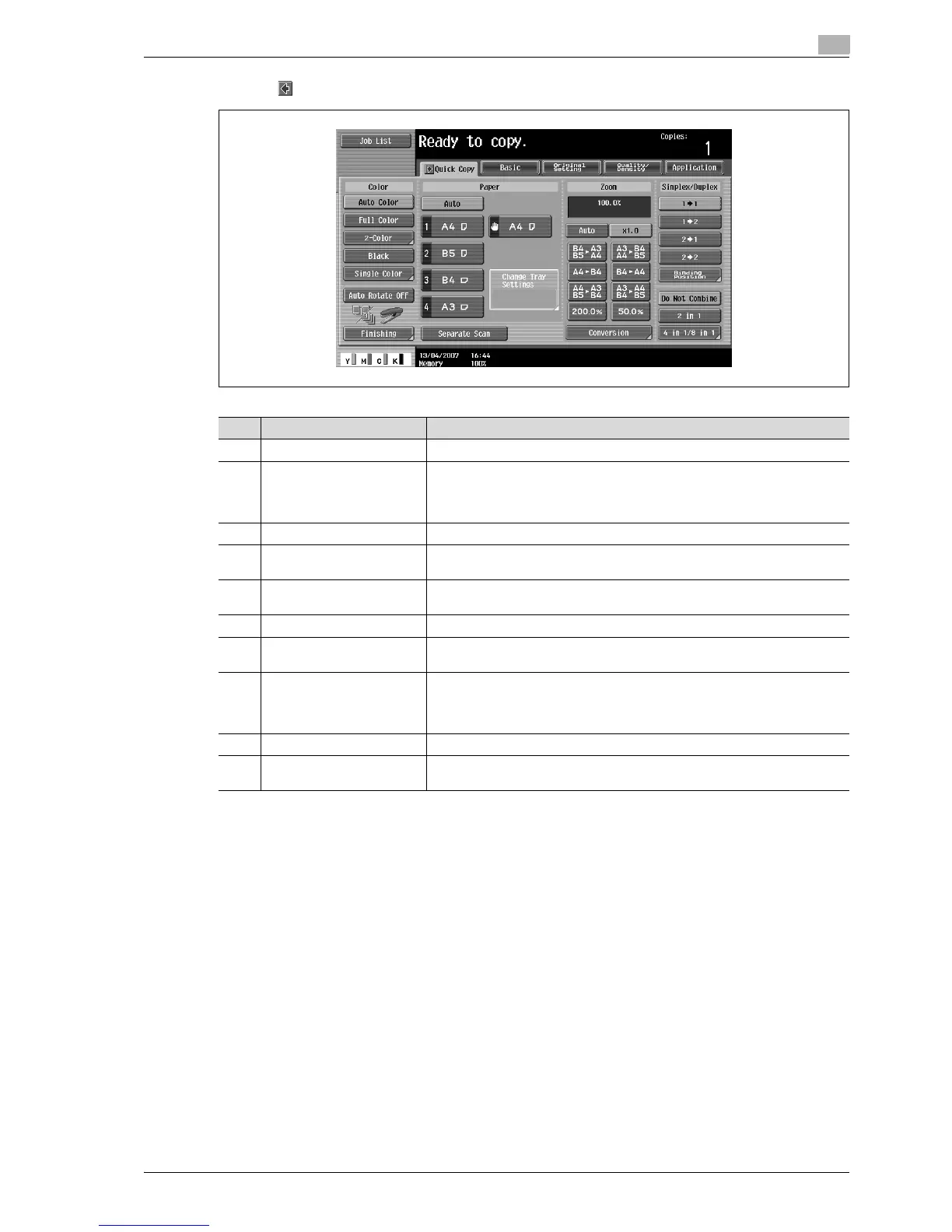
Touching displays the Color settings, [Finishing] and [Auto Rotate OFF] in the left panel.
No. Item Name Description
1 Message display area The status of the machine and details on operations are displayed.
2 Functions/settings display
area
Tabs and buttons for displaying screens containing various functions are dis-
played.
Touch a tab or button to display the corresponding screen for specifying the
settings.
3 Icon display area Icons indicating the status of jobs and the machine are displayed.
4 [Auto Rotate OFF] button Touch to copy with the image not rotated to fit the orientation of the loaded
paper.
5 [Separate Scan] button Touch to scan the original in separate batches.
An original scanned in different batches can be treated as a single copy job.
6 [Finishing] button Touch to specify settings for collating, grouping, stapling, or hole punching.
7 Toner supply indicators These indicators show the amount of toner remaining for cyan (C), magenta
(M), yellow (Y), and black (K).
8 Left panel When the [Job List] button is pressed, a screen showing the jobs currently be-
ing performed or waiting to be performed is displayed.
When the [Check Job] button is pressed, a screen showing the result of the
specified settings is displayed.
9 [Check Job] button The result of the specified settings is displayed.
10 [Job List] button Jobs currently being performed or waiting to be performed are displayed.
Various commands for checking and managing jobs are available.



 To Next Page