CS193/CS173/CS163 12-19
Utility mode
12
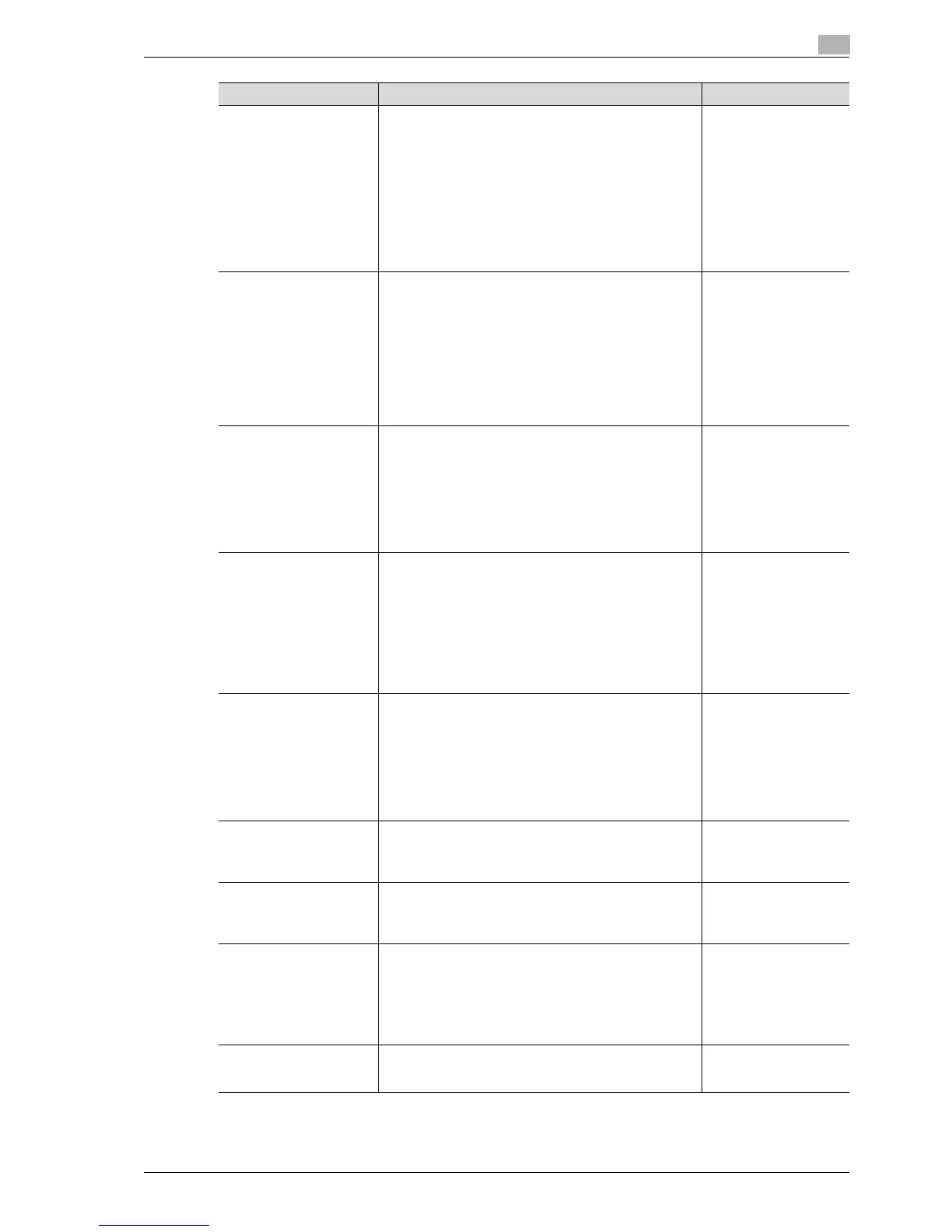
Auto Sort/Group Selection Select whether or not the "Sort" setting is automatically se-
lected when 2 or more copies are set to be printed in a sin-
gle job.
•Yes:
When an original is loaded into the automatic docu-
ment feeder and the [Start] key is pressed, the "Group"
setting is automatically selected if the original consists
of only one page, and the "Sort" setting is automatical-
ly selected if the original consists of two or more pages.
•No:
The "Sort" or "Group" setting is not selected automat-
ically.
Yes
Default Copy Settings Specify the default settings for Copy mode.
The copy settings selected when the machine is turned on
(the power switch is set to n ) or the [Reset] key is pressed
can be specified.
• Current Setting:
The settings specified from the touch panel before Util-
ity mode was entered are set as the default settings for
Copy mode.
• Factory Default:
The factory default settings are set as the default set-
tings for Copy mode.
Factory Default
When AMS Direction is In-
correct
Select whether or not printing continues when the paper
and original orientations are different with the "Auto Paper
Select" setting selected.
•Print:
The Zoom setting is automatically set and the copy is
printed on paper of the specified size in the specified
orientation.
• Delete Job:
The job is deleted, and no copies are printed.
Print
Separate Scan Output
Method
Select whether copies are printed as the original is being
scanned or after the entire original has been scanned when
scanning an original in separate batches or when scanning
a multiple-page original from the original glass.
• Page Print:
Printing of copies that can be printed begins while the
original is being scanned.
•Batch Print
Printing begins after all pages of the original have been
scanned.
Page Print
Enlargement Rotation Select whether an image that exceeds 297 mm in the main
scanning direction (left/right direction on the original glass
and ADF) is rotated when the copies are printed.
• Allow:
An enlargement rotation is performed. However, this is
applied only when the "Black" Color setting is selected.
• Restrict:
The enlargement rotation is prohibited, regardless of
the selected Color setting.
Restrict
Auto Zoom (Platen) Select whether or not the "Auto" Zoom setting is automat-
ically selected when a paper tray is selected (except when
the "Auto" Paper setting is selected) while an original is
placed on the original glass.
OFF
Auto Zoom (ADF) Select whether or not the "Auto" Zoom setting is automat-
ically selected when a paper tray is selected (except when
the "Auto" Paper setting is selected) while an original is
loaded into the ADF.
ON
Specify Default Tray when
APS Off
Select which paper tray is selected when the "Auto" Paper
setting is canceled.
• Tray Before APS ON:
The paper tray that was being used before the "Auto"
Paper setting was selected is selected.
• Default Tray:
Tray 1 is used.
Tray Before APS ON
Select Tray for Insert Sheet Select the default paper tray loaded with paper for the cov-
er pages (front cover), inserted pages and chapter title pag-
es.
Tray 2
Parameter Description Default Setting



 To Next Page